Import, Export & Live Preview
Import
The editor can import existing .ttl files, populating all tabs from the imported data. This enables round-trip editing: export a service definition, share it, have a colleague edit it, then import the updated file. No data is lost in the cycle.
The import system uses vocabulary configuration to recognise entities by their RDF type (cpsv:PublicService, eli:LegalResource, ronl:TemporalRule, etc.) and maps properties to editor fields via a configurable alias table. This means the editor can import Turtle files that use variant vocabulary prefixes or alternative property names and still parse them correctly.
DMN preservation. When a Turtle file contains DMN blocks (cprmv:DecisionModel, cpsv:Input, cprmv:DecisionRule), those blocks are detected and preserved exactly — byte for byte — in the exported output. The DMN tab displays an imported-state notice, and the preserved blocks are appended unchanged when you re-export. This prevents accidental modification of deployed decision models during collaborative editing workflows.
Export
Clicking Download TTL generates the complete Turtle output for all tabs and triggers a browser download. The filename is derived from the service identifier.
The export always includes the full set of namespace declarations, all populated entities, and — when present — the preserved DMN blocks. Export and re-import of the same file produces identical output (round-trip fidelity).
Live preview
The preview panel shows the generated Turtle in real time as you type, with syntax highlighting and line numbering. It can be toggled on and off via the Show Preview button in the header. When visible, the application switches to a split-screen layout with the form on the left and the Turtle preview on the right.
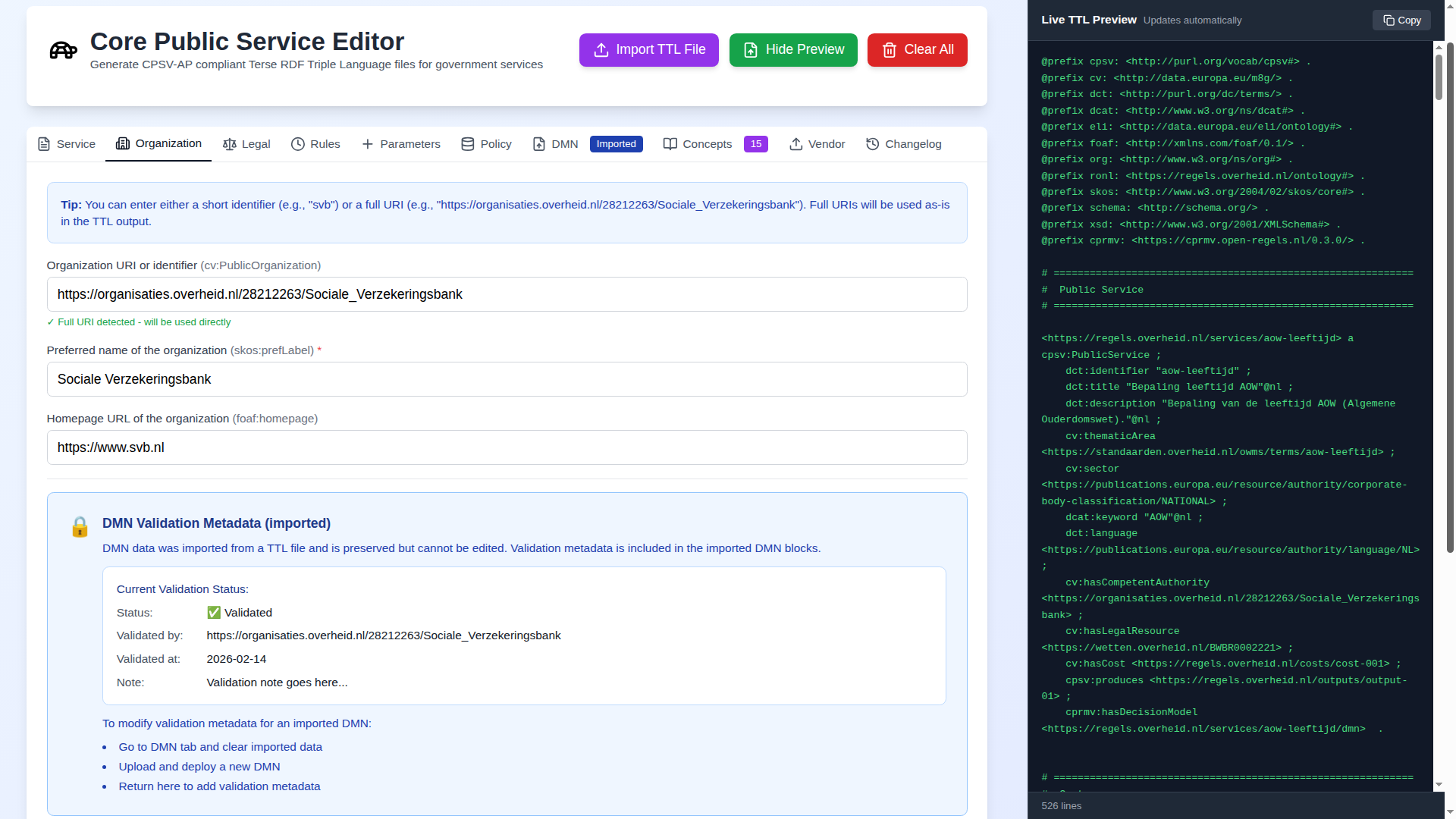
A Copy button in the preview panel copies the full Turtle content to the clipboard without downloading a file.