Keycloak Deployment (VM)
Keycloak runs in Docker on the VM (open-regels.nl). Two fully isolated instances run in parallel: ACC and PROD. Each has its own PostgreSQL database container and custom RONL theme.
Repository structure
ronl-business-api/
├── deployment/vm/keycloak/
│   ├── acc/
│   │   ├── docker-compose.yml      # ACC configuration
│   │   ├── README.md               # ACC setup guide
│   │   └── .env.example            # ACC environment template
│   ├── prod/
│   │   ├── docker-compose.yml      # PROD configuration
│   │   ├── README.md               # PROD setup guide
│   │   └── .env.example            # PROD environment template
│   └── themes/
│       └── ronl/                   # Custom RONL theme
│           └── login/
│               ├── login.ftl       # FreeMarker template
│               ├── theme.properties
│               ├── resources/css/
│               │   └── login.css   # Custom styles
│               └── messages/
│                   └── messages_nl.properties
└── config/keycloak/
    └── ronl-realm.json             # Realm configuration (users, clients, mappers)
Prerequisites
On the VM (Ubuntu 24.04 LTS):
- Docker Engine 24+
- Docker Compose 2.x
- Domain
open-regels.nlwith DNS configured - Ports 80 and 443 open
- Caddy running (see Caddy Deployment)
- SSH access restricted to authorized IPs
Custom RONL Theme
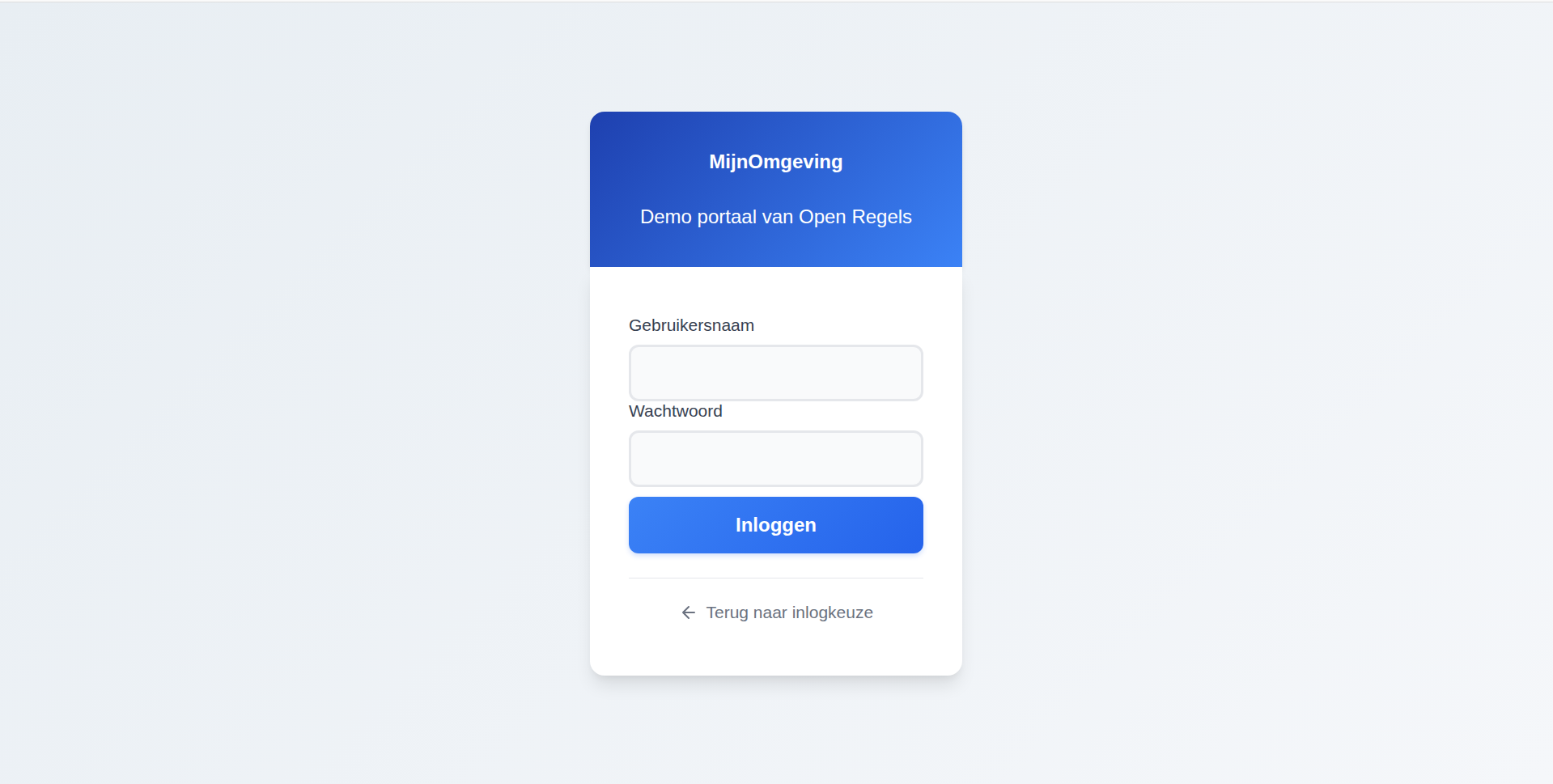
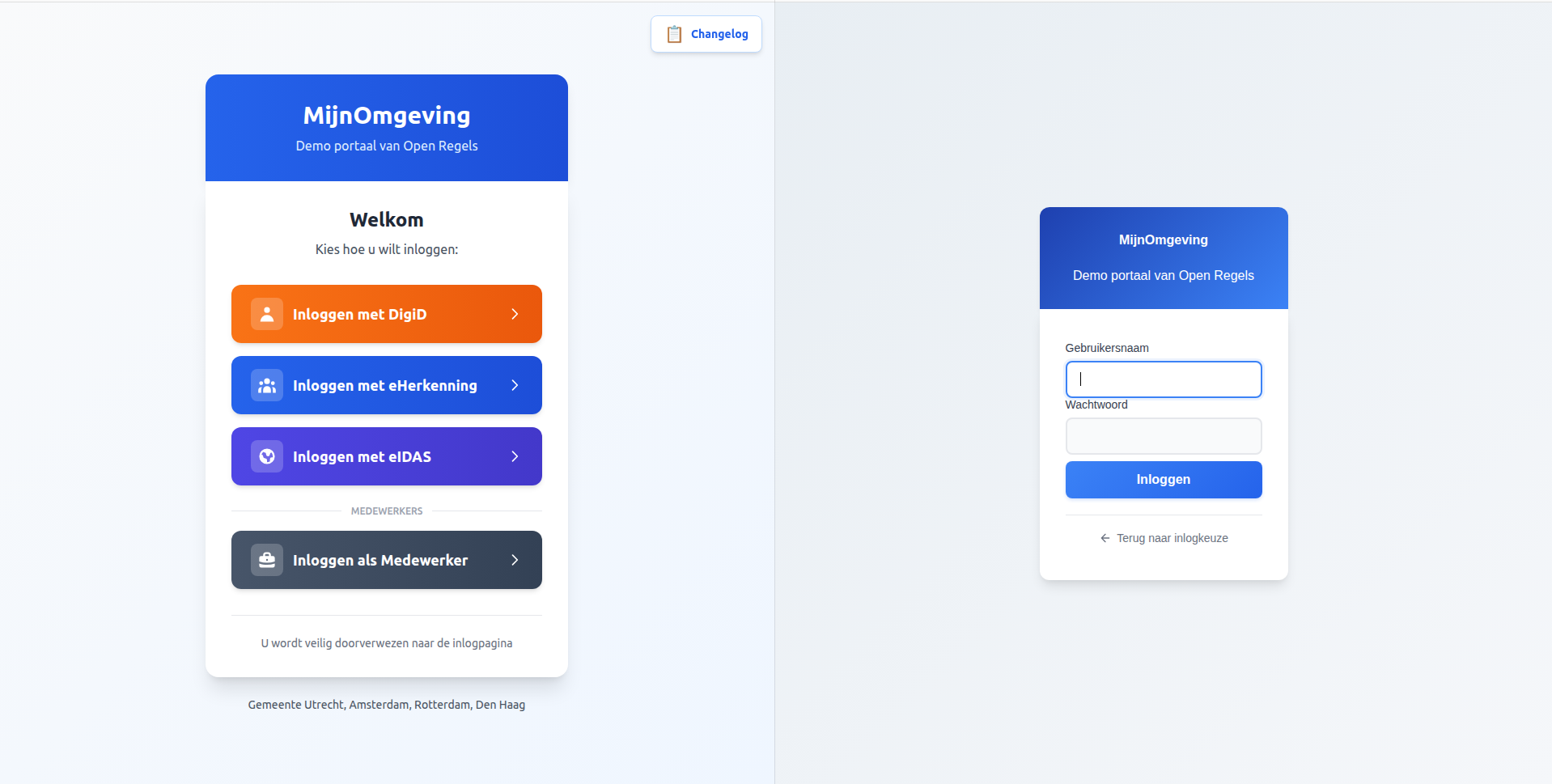
The RONL theme provides a consistent visual experience from the MijnOmgeving landing page through the authentication flow.
Theme Features
Visual Design:
- ✅ Blue gradient header (
from-blue-600 to-blue-700) - ✅ Modern rounded input fields with focus states
- ✅ Custom styled buttons with hover animations
- ✅ Responsive mobile-first design
- ✅ Dutch language throughout
- ✅ Identity provider button styling (DigiD/eHerkenning/eIDAS)
Technical:
- ✅ FreeMarker templates for login flow
- ✅ Custom CSS with government colour schemes
- ✅ Dutch translations (messages_nl.properties)
- ✅ Optimised for accessibility (WCAG 2.1 AA)
- ✅ Caseworker context banner via
loginHintsentinel detection - ✅ "← Terug naar inlogkeuze" cancel link using
history.go(-2)
Theme Structure
ronl/login/
├── login.ftl                          # Main login template
├── theme.properties                   # Theme configuration
├── resources/
│   └── css/
│       └── login.css                  # Custom styles (~500 lines)
└── messages/
    └── messages_nl.properties         # Dutch translations (40+ strings)
Key CSS Components:
/* Blue gradient header */
#kc-header {
  background: linear-gradient(to right, #2563eb, #1d4ed8);
  color: white;
  padding: 2rem;
  text-align: center;
}

/* Rounded modern inputs */
.pf-c-form-control {
  border-radius: 0.5rem;
  border: 1px solid #e5e7eb;
  padding: 0.75rem 1rem;
}

/* Styled login button */
#kc-login {
  background: linear-gradient(to right, #3b82f6, #2563eb);
  border-radius: 0.75rem;
  padding: 0.875rem;
  font-weight: 600;
  transition: all 0.2s;
}
Caseworker context banner
The login.ftl template distinguishes citizen and caseworker login using a sentinel value passed via Keycloak's login_hint parameter. When AuthCallback.tsx calls keycloak.login({ loginHint: '__medewerker__' }), Keycloak populates login.username with this sentinel before rendering login.ftl.
The template detects the sentinel at the top of the file:
When isMedewerker is true:
- The page
<header>section renders "Medewerker portaal" instead of the default "Inloggen" title - An indigo context banner is rendered above the form:
<#if isMedewerker>
<div id="kc-context-banner" class="kc-context-medewerker">
    <!-- briefcase SVG icon -->
    Inloggen als gemeentemedewerker
</div>
</#if>
- The username
<input>suppresses the sentinel so the caseworker sees an empty field:
The corresponding CSS in login.css:
#kc-context-banner {
  display: flex;
  align-items: center;
  gap: 0.5rem;
  padding: 0.625rem 1rem;
  margin-bottom: 1.5rem;
  background: #f0f4ff;
  border: 1px solid #c7d7fd;
  border-radius: 8px;
  color: #3730a3;
  font-size: 0.875rem;
  font-weight: 500;
}
No JavaScript is involved — all detection and suppression happens server-side in FreeMarker before the HTML reaches the browser.
Cancel link
Both citizen (test/fallback) and caseworker login forms include a "← Terug naar inlogkeuze" link below the submit button. It uses history.go(-2) to skip over the /auth intermediate route:
<div id="kc-cancel-container">
    <a id="kc-cancel" href="${client.baseUrl!'/'}"
       onclick="history.go(-2); return false;" tabindex="7">
        <!-- left-arrow SVG -->
        Terug naar inlogkeuze
    </a>
</div>
The href fallback (client.baseUrl) points to the frontend root URL configured in Keycloak Admin → Clients → ronl-business-api → Root URL. This is only used if JavaScript is disabled. The history.go(-2) skip is necessary because the browser history stack at this point is: / → /auth → [Keycloak], and history.back() would land on /auth, which immediately redirects back to Keycloak.
Container restart required after theme changes
Keycloak caches theme templates at startup. Any change to .ftl or .css files requires a container restart to take effect — regardless of whether Keycloak is running in development or production mode. Theme changes do not require an image rebuild.
Deploying to ACC
Step 1 — Prepare theme files
On your local machine:
cd ~/Development/ronl-business-api

# Create theme tarball
cd deployment/vm/keycloak/themes
tar -czf ronl-theme.tar.gz ronl/

# Upload to VM
scp ronl-theme.tar.gz user@your-vm:/tmp/
Step 2 — Deploy theme on VM
SSH into the VM:
ssh user@your-vm

# Create themes directory (one-time setup)
sudo mkdir -p /opt/keycloak/themes
sudo chown 1000:1000 /opt/keycloak/themes
sudo chmod 755 /opt/keycloak/themes

# Extract theme
cd /tmp
tar -xzf ronl-theme.tar.gz

# Install theme
sudo rm -rf /opt/keycloak/themes/ronl
sudo mv ronl /opt/keycloak/themes/

# Set permissions (Keycloak runs as UID 1000)
sudo chown -R 1000:1000 /opt/keycloak/themes/ronl
sudo chmod -R 755 /opt/keycloak/themes/ronl
sudo find /opt/keycloak/themes/ronl -type f -exec chmod 644 {} \;

# Verify
ls -la /opt/keycloak/themes/ronl/login/

# Cleanup
rm /tmp/ronl-theme.tar.gz
Step 3 — Update docker-compose.yml
The docker-compose.yml must mount the themes directory:
services:
  keycloak-acc:
    image: quay.io/keycloak/keycloak:23.0
    container_name: keycloak-acc
    volumes:
      - ./ronl-realm.json:/opt/keycloak/data/import/ronl-realm.json:ro
      - keycloak-acc-data:/opt/keycloak/data
      - /opt/keycloak/themes:/opt/keycloak/themes:ro  # Theme volume mount
Update on VM:
cd /home/steven/keycloak/acc

# Backup current config
cp docker-compose.yml docker-compose.yml.backup

# Edit to add theme volume
nano docker-compose.yml
# Add: - /opt/keycloak/themes:/opt/keycloak/themes:ro

# Recreate container to apply volume mount
docker compose down
docker compose up -d

# Wait for startup
sleep 30

# Check logs
docker compose logs keycloak-acc --tail 50
Step 4 — Copy configuration files to VM
# On local machine
cd ~/Development/ronl-business-api

# Copy docker-compose.yml
scp deployment/vm/keycloak/acc/docker-compose.yml user@your-vm:~/keycloak/acc/

# Copy realm file
scp config/keycloak/ronl-realm.json user@your-vm:~/keycloak/acc/
Step 5 — Create environment file
# On VM
cd ~/keycloak/acc

# Generate secure password
ADMIN_PW=$(openssl rand -base64 32)

# Create .env file
cat > .env << EOF
KEYCLOAK_ADMIN_PASSWORD=$ADMIN_PW
EOF

chmod 600 .env

# Save password securely
echo "ACC Admin: $ADMIN_PW" >> ~/keycloak-passwords-acc.txt
chmod 600 ~/keycloak-passwords-acc.txt
Step 6 — Start Keycloak
cd ~/keycloak/acc

# Start services
docker compose up -d

# Watch logs
docker compose logs -f keycloak-acc

# Wait for: "Keycloak started" and "Realm 'ronl' imported"
Step 7 — Configure theme in Admin Console
- Open Admin Console: https://acc.keycloak.open-regels.nl/admin
- Login with admin credentials (from
~/keycloak-passwords-acc.txt) - Select realm: Switch to
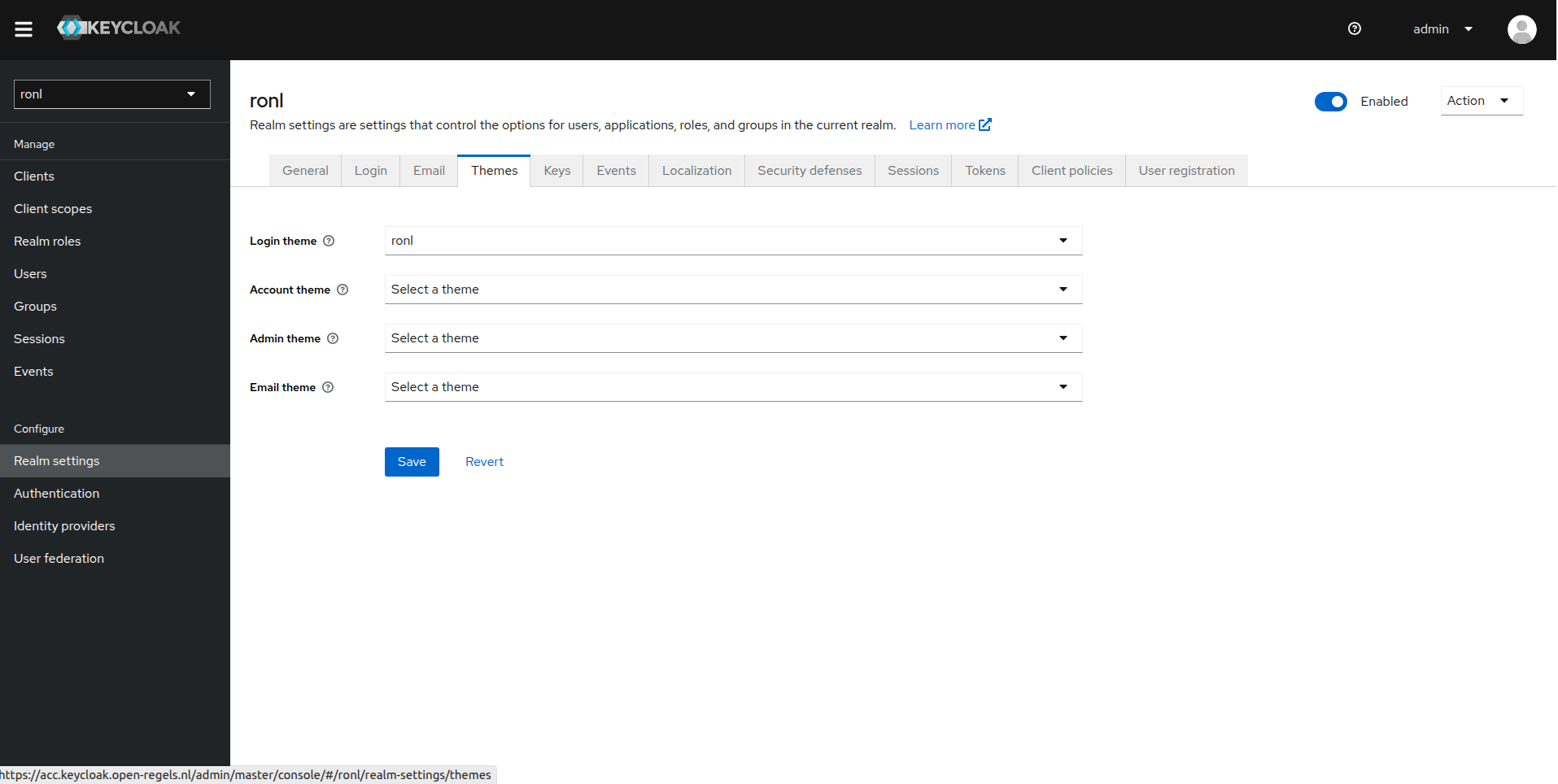
ronlrealm (top-left dropdown) - Configure theme:
- Left menu → Realm Settings
- Tab → Themes
- Login Theme: Select
ronlfrom dropdown - Click Save
- Configure localization:
- Tab → Localization
- Internationalization: Toggle ON
- Supported Locales: Ensure
nlandenare checked - Default Locale: Select
nl - Click Save
Step 8 — Verify deployment
# Check container status
docker ps | grep keycloak-acc
# Should show: (healthy)

# Test health endpoint
curl https://acc.keycloak.open-regels.nl/health/ready
# Should return: {"status":"UP"}

# Verify theme is mounted
docker exec keycloak-acc ls -la /opt/keycloak/themes/ronl/login/
# Should show: login.ftl, theme.properties, resources/, messages/

# Test in browser (incognito to skip cache)
# Visit: https://acc.mijn.open-regels.nl
# Click "Inloggen met DigiD"
# Should see themed login page with blue gradient header
Deploying to PROD
Follow the same steps using deployment/vm/keycloak/prod/ and hostname keycloak.open-regels.nl.
Important differences for PROD:
- Use separate admin password (stored in
~/keycloak-passwords-prod.txt) - Update
KC_HOSTNAMEtokeycloak.open-regels.nl - Use
KC_LOG_LEVEL: warninstead ofinfo - Test thoroughly in ACC before deploying to PROD
- Deploy during maintenance window
- Notify users of planned downtime
Realm import
docker-compose.yml starts Keycloak with --import-realm and mounts ronl-realm.json into /opt/keycloak/data/import/. Keycloak imports the file only when the realm ronl does not exist yet — on a new environment's first start. It configures:
- Realm
ronlwith brute-force protection - Client
ronl-business-api(public) and the machine-to-machine clients - Protocol mappers for the tenant (
municipality,organisation_type), the assurance level (loa), the realm roles, the employee id and the signer's name and e-mail address - Realm roles and test users with per-municipality attributes
- Token lifespans: access token 15 minutes, SSO session idle 30 minutes, SSO session max 10 hours
The full contents are listed in Keycloak Realm Configuration.
Changing the realm on ACC and PROD
ACC and PROD are not re-imported after config/keycloak/ronl-realm.json changes. Once a realm exists, an import either skips what is already there or, with --override true, replaces the realm and discards what the environment configured by hand — redirect URIs, web origins, client secrets, the Entra identity provider, and the roles granted to employees.
Changes reach those realms through the admin REST API instead, with the idempotent scripts in scripts/:
| Change | Script |
|---|---|
New realm roles, such as rip-* or besluit-* |
keycloak-add-rip-roles.sh, with ROLE_PREFIX for roles other than rip- |
The email, given_name and family_name token claims for ValidSign |
keycloak-add-token-claim-mappers.sh |
The Entra ID identity provider for Flevoland, with the token storage eDOCS needs: stored tokens, the broker read-token role in default-roles-ronl, and the broker-roles client mapper on ronl-business-api |
keycloak-add-entra-idp.sh |
# From a checkout of ronl-business-api, in Git Bash. Creates the five besluit-* roles;
# GRANT_USER empty grants them to nobody (its default, test-infra-flevoland, applies only to rip-).
KEYCLOAK_URL=https://acc.keycloak.open-regels.nl ROLE_PREFIX=besluit- GRANT_USER= \
  bash scripts/keycloak-add-rip-roles.sh
Each script prompts for the Keycloak admin password when ADMIN_PASSWORD is unset; keycloak-add-rip-roles.sh and keycloak-add-entra-idp.sh also accept --dry-run. Test users and per-user roles are added in the admin console. See Entra ID — Rolling out to an environment for the order in which to run them.
Updating the Theme
When theme files change (CSS updates, translations, etc.):
Step 1 — Update in repository
cd ~/Development/ronl-business-api

# Make changes to theme files
nano deployment/vm/keycloak/themes/ronl/login/resources/css/login.css

# Commit changes
git add deployment/vm/keycloak/themes/
git commit -m "style: update Keycloak theme styling [no ci]"
git push origin acc
Step 2 — Deploy to VM
# Create new tarball
cd deployment/vm/keycloak/themes
tar -czf ronl-theme.tar.gz ronl/

# Upload to VM
scp ronl-theme.tar.gz user@your-vm:/tmp/

# SSH into VM
ssh user@your-vm

# Extract and replace
cd /tmp
tar -xzf ronl-theme.tar.gz
sudo rm -rf /opt/keycloak/themes/ronl
sudo mv ronl /opt/keycloak/themes/
sudo chown -R 1000:1000 /opt/keycloak/themes/ronl
sudo chmod -R 755 /opt/keycloak/themes/ronl

# Restart Keycloak
cd /home/steven/keycloak/acc
docker compose restart keycloak-acc

# Wait 30 seconds
sleep 30

# Test in browser (incognito mode)
Note: Keycloak caches themes. Always test in incognito/private browsing mode or clear browser cache.
Backup
Database Backup
# Daily backup of ACC Keycloak database
docker exec keycloak-postgres-acc pg_dump -U keycloak keycloak \
  > /backup/keycloak-acc-$(date +%Y%m%d).sql

# Daily backup of PROD Keycloak database
docker exec keycloak-postgres-prod pg_dump -U keycloak keycloak \
  > /backup/keycloak-prod-$(date +%Y%m%d).sql
Store backups off-VM (e.g., Azure Blob Storage with a 30-day retention policy).
Theme Backup
Theme files are version-controlled in the Git repository:
- deployment/vm/keycloak/themes/ronl/
No separate backup needed—restore from Git if needed.
Volume Backup
For complete binary backup of the PostgreSQL data volume:
# Weekly volume backup
docker run --rm \
  -v keycloak-acc-db-data:/data \
  -v /backup:/backup \
  alpine tar czf /backup/keycloak-acc-$(date +%Y%m%d).tar.gz /data
Monitoring
Health Checks
# ACC health
curl https://acc.keycloak.open-regels.nl/health/ready
curl https://acc.keycloak.open-regels.nl/realms/ronl/.well-known/openid-configuration

# PROD health
curl https://keycloak.open-regels.nl/health/ready
curl https://keycloak.open-regels.nl/realms/ronl/.well-known/openid-configuration
Container Status
# On VM
docker ps | grep keycloak
# Should show: (healthy) status

# Check resource usage
docker stats keycloak-acc --no-stream
docker stats keycloak-prod --no-stream
Log Monitoring
# View recent logs
docker compose logs keycloak-acc --tail 100

# Follow logs in real-time
docker compose logs keycloak-acc -f

# Check for errors
docker compose logs keycloak-acc | grep -i error
docker compose logs keycloak-acc | grep -i exception
Troubleshooting
Theme not appearing in dropdown
Symptoms: Theme ronl not visible in Keycloak Admin Console theme dropdown.
Cause: Theme files not properly mounted or container not recreated.
Solution:
# Verify theme exists in container
docker exec keycloak-acc ls -la /opt/keycloak/themes/ronl/login/

# Should show: login.ftl, theme.properties, resources/, messages/

# If empty, check docker-compose.yml has volume mount
# Then recreate container
docker compose down
docker compose up -d
Theme selected but not applied
Symptoms: Theme selected in Admin Console but still seeing default Keycloak theme.
Cause: Browser cache or theme not properly configured.
Solution:
# 1. Clear browser cache or use incognito mode
# 2. Verify theme is actually selected
# Admin Console → Realm Settings → Themes → Login Theme = ronl

# 3. Check theme files are valid
docker exec keycloak-acc cat /opt/keycloak/themes/ronl/login/theme.properties

# Should contain:
# parent=base
# import=common/keycloak
# locales=nl,en

# 4. Check logs for theme errors
docker compose logs keycloak-acc | grep -i theme
CSS not loading
Symptoms: Login page shows but styling is broken.
Cause: CSS file permissions or path incorrect.
Solution:
# Check CSS file exists
docker exec keycloak-acc ls -la /opt/keycloak/themes/ronl/login/resources/css/login.css

# Check permissions (should be 644)
docker exec keycloak-acc stat /opt/keycloak/themes/ronl/login/resources/css/login.css

# If wrong, fix on VM:
sudo find /opt/keycloak/themes/ronl -type f -exec chmod 644 {} \;
docker compose restart keycloak-acc
Caseworker banner not appearing
Symptoms: Caseworker login shows generic Keycloak form without the indigo banner or "Medewerker portaal" title.
Cause 1: Outdated login.ftl on the server — the sentinel detection code is missing.
Solution: Verify the installed template:
docker exec keycloak-acc grep -n 'isMedewerker' \
  /opt/keycloak/themes/ronl/login/login.ftl
# Should return line numbers for the assign and if blocks
Cause 2: sessionStorage is not carrying selected_idp = medewerker to /auth.
Solution: Open DevTools → Application → Session Storage → http://localhost:5173 (or the ACC URL). Confirm selected_idp equals medewerker before the /auth route is hit. If it is missing or a different value, the startMedewerkerLogin call in LoginChoice.tsx is not firing correctly — the top-bar Inloggen button and the board cards both go through it.
Username field pre-filled with __medewerker__
Symptoms: The caseworker login form shows __medewerker__ in the username field.
Cause: The login.ftl on the server does not include the sentinel suppression condition on the value attribute.
Solution: The input must use:
Ensure the deployedlogin.ftl matches the version in the repository and restart the container.
Dutch translations not working
Symptoms: Theme applied but text still in English.
Cause: Locale not configured or messages file missing.
Solution:
# 1. Check messages file exists
docker exec keycloak-acc ls -la /opt/keycloak/themes/ronl/login/messages/messages_nl.properties

# 2. Verify realm localization settings
# Admin Console → Realm Settings → Localization
# - Internationalization: ON
# - Default Locale: nl
# - Supported Locales: nl, en (both checked)

# 3. Check user's browser language preference
# Browser should be set to Dutch (nl-NL) or accept Dutch as preferred language
Container unhealthy after restart
Symptoms: Container starts but health check fails.
Cause: Database connection issues or Keycloak startup timeout.
Solution:
# Check database is running
docker ps | grep postgres-acc

# Check database logs
docker compose logs keycloak-postgres-acc --tail 50

# Check Keycloak logs for database connection errors
docker compose logs keycloak-acc | grep -i "database\|connection\|jdbc"

# If database is healthy, increase health check timeout
# In docker-compose.yml:
healthcheck:
  start_period: 90s  # Increase from 60s
Realm not imported on first start
Symptoms: Keycloak starts but realm ronl doesn't exist.
Cause: Realm file not mounted or import flag missing.
Solution:
# Check realm file is mounted
docker exec keycloak-acc ls -la /opt/keycloak/data/import/

# Should show: ronl-realm.json

# Check command includes import flag
# In docker-compose.yml command section:
command:
  - start-dev
  - --import-realm  # Must be present

# Manually import if needed
docker exec keycloak-acc /opt/keycloak/bin/kc.sh import \
  --file /opt/keycloak/data/import/ronl-realm.json
Security Considerations
Production Hardening
For PROD deployment:
- Use production mode: Change
start-devtostartin docker-compose.yml - Enable HTTPS: Keycloak should be behind Caddy with SSL
- Strong passwords: Use 32+ character random passwords for admin
- Restrict admin access: Limit admin console access to specific IPs
- Enable MFA: Configure TOTP for admin accounts
- Regular updates: Keep Keycloak and PostgreSQL updated
- Audit logging: Enable and monitor Keycloak admin events
Network Security
- ✅ Keycloak not directly exposed (behind Caddy reverse proxy)
- ✅ PostgreSQL only accessible within Docker network
- ✅ No unnecessary ports exposed
- ✅ VM firewall configured (ports 22, 80, 443 only)
- ✅ SSH restricted to authorized IPs
Secrets Management
- ❌ Never commit
.envfiles to Git - ❌ Never commit admin passwords to Git
- ✅ Store passwords in password manager (1Password, Bitwarden)
- ✅ Keep separate passwords for ACC and PROD
- ✅ Rotate passwords regularly (quarterly recommended)
URLs
ACC Environment:
- Admin Console: https://acc.keycloak.open-regels.nl/admin
- Health Check: https://acc.keycloak.open-regels.nl/health/ready
- Realm: https://acc.keycloak.open-regels.nl/realms/ronl
- OIDC Config: https://acc.keycloak.open-regels.nl/realms/ronl/.well-known/openid-configuration
- Test Login: https://acc.mijn.open-regels.nl
PROD Environment:
- Admin Console: https://keycloak.open-regels.nl/admin
- Health Check: https://keycloak.open-regels.nl/health/ready
- Realm: https://keycloak.open-regels.nl/realms/ronl
- OIDC Config: https://keycloak.open-regels.nl/realms/ronl/.well-known/openid-configuration
- Production Portal: https://mijn.open-regels.nl
Related Documentation
- Authentication & IAM Features — Keycloak integration overview
- Login Flow User Guide — End-user authentication experience
- Frontend Development — Keycloak JS adapter integration
- Deployment Overview — Full deployment architecture
- Caddy Reverse Proxy — SSL termination and routing
Questions or issues? See Troubleshooting or contact the infrastructure team.