Form Editor
The Form Editor lets you create and edit Camunda Forms (schemaVersion 16) directly in the Linked Data Explorer. Forms authored here can be linked to BPMN UserTask and StartEvent elements in the BPMN Modeler and deployed to Operaton in a single operation alongside the process definition.
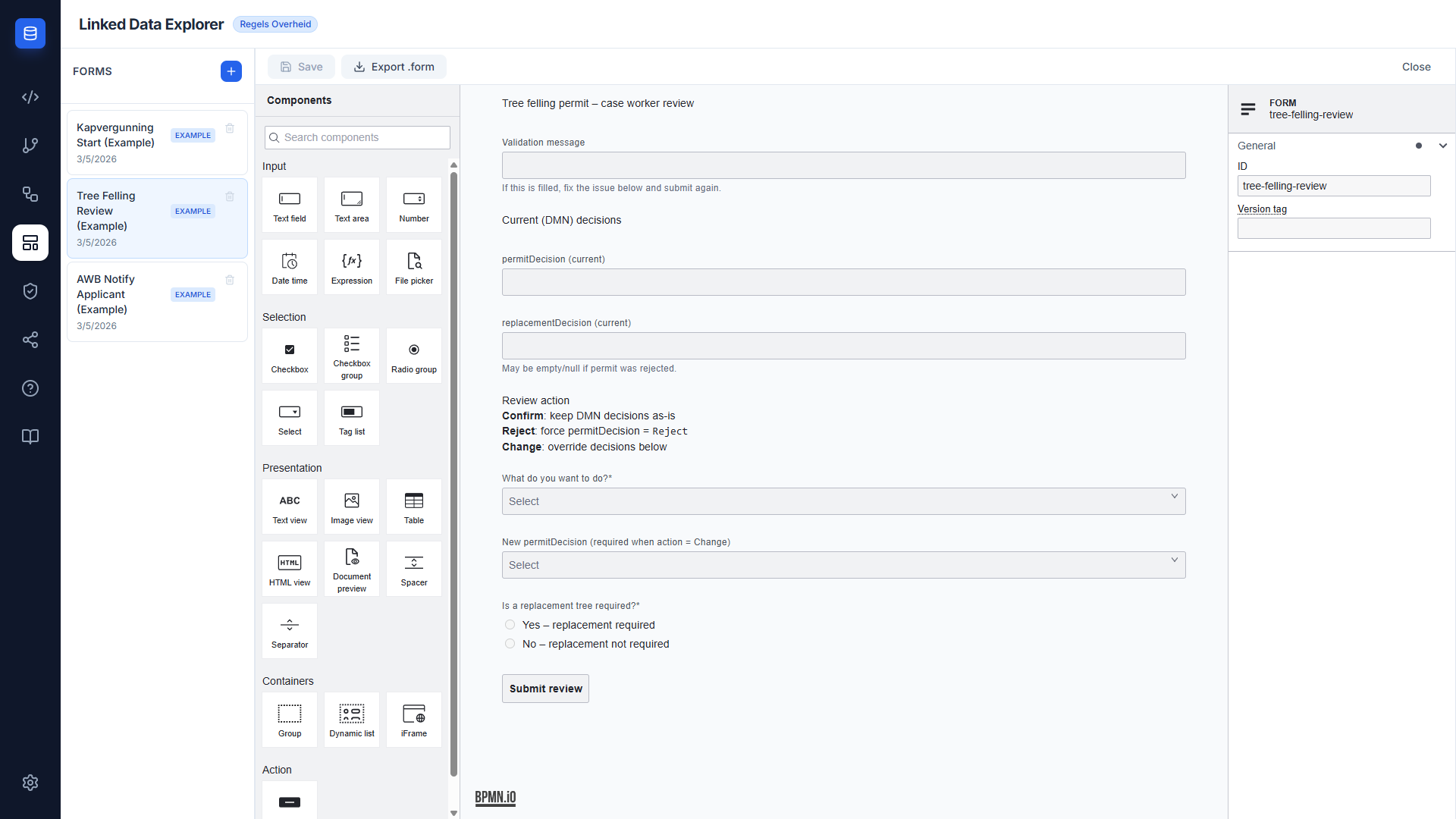
Two-panel layout
The Form Editor uses a two-panel layout:
- Left panel — Form list. Shows all forms stored in
localStoragewith create, rename, and delete actions. An EXAMPLE badge marks the bundled example forms; user-created forms carry a WIP badge; forms imported from a DSO activity carry a green DSO badge (v1.9.5). - Right panel — Form canvas. Hosts the
@bpmn-io/form-jsgraphical editor for the selected form, with a toolbar for saving and exporting.
Form list panel
The list panel shows every form in storage. Each entry displays the form name, its schema ID, and a status badge.
| Badge | Meaning |
|---|---|
| EXAMPLE | Bundled example form — editable and renamable, but cannot be deleted |
| WIP | User-created form — fully editable |
| DSO (green) | Form scaffold imported from a DSO activity's Indieningsvereisten (v1.9.4–v1.9.5) |
Actions available on each form:
- Click — opens the form in the canvas editor
- Double-click name — enters inline rename mode
- Trash icon — deletes the form after confirmation; on an example form it refuses with Cannot delete example forms
- + button (header) — creates a new empty form with
schemaVersion 16
Example forms
The Form Editor seeds 36 example forms from public/examples/, listed in EXAMPLE_FORMS in FormEditor.tsx. They belong to the same bundles as the BPMN Modeler's example processes:
| Bundle | Organization | Forms |
|---|---|---|
| Kapvergunning (AWB tree felling permit) | flevoland |
start, caseworker review, notify applicant, aanvullende gegevens (missing information) |
| Thuisbatterij subsidy | flevoland |
start, caseworker review, notify applicant, aanvullende gegevens (missing information) |
| Zorgtoeslag | toeslagen |
notify applicant, provisional start, aanvullende gegevens (missing information), provisional review, final settlement review |
| DvTP consent | bzk |
start, info, decision |
| HR capacity claim (Dutch) | flevoland |
eight forms, from intake to financial reservation |
| Besluitvorming onder gedelegeerde bevoegdheid (Dutch) | flevoland |
twelve forms, from choosing a template to archiving the decision |
Seeding is versioned. On mount, FormEditor.tsx compares each example's entry in EXAMPLE_VERSIONS (utils/exampleVersions.ts) with the version recorded in this browser's localStorage; when the recorded version is lower or absent, it re-fetches the .form file and overwrites the stored record. A first visit therefore seeds all of them, and a later version bump re-seeds only the forms whose number moved.
Example records carry status: 'example', which drives the EXAMPLE badge and blocks deletion. They are not read-only: you can edit, save and rename them, and like any other form they are written to the backend. An edit lasts until that form's version is bumped (or it is seeded again in a browser that has no version recorded), when the seed overwrites it with the bundled file.
Form canvas
The canvas is a full @bpmn-io/form-js visual editor. A component palette on the left of the canvas lets you drag fields, dropdowns, checkboxes, text blocks, and buttons onto the form. The properties panel on the right of the canvas edits the selected component's label, key, validation rules, and FEEL conditions.
The canvas toolbar provides:
- Save — persists the current schema to
localStorage. The button is active only when unsaved changes exist. - Export
.form— downloads the schema as a.formJSON file compatible with Camunda Modeler and Operaton. - Close — returns to the empty-state view.
Storage
Forms are stored in PostgreSQL via the LDE backend under the key linkedDataExplorer_formSchemas, cached locally in localStorage for instant synchronous access. On editor load, the service fetches the authoritative list from GET /v1/assets/forms and replaces the local cache. All schemas use:
{
  "schemaVersion": 16,
  "executionPlatform": "Camunda Platform",
  "executionPlatformVersion": "7.21.0"
}
Example forms are seeded from public/examples/ with readonly: false, so seeding and every later save write them to the database as well as to localStorage.
See Asset Storage for the full architecture.
Integration with the BPMN Modeler
The Form Editor and BPMN Modeler share the same FormService storage layer. A form saved in the Form Editor appears instantly in the Link to Form dropdown when a UserTask or StartEvent is selected in the BPMN Modeler. No page reload or manual sync step is required.
See BPMN Modeler — Form linking and the Form Editor user guide for step-by-step instructions.
Language and organization
The Form Editor footer panel mirrors the BPMN Modeler footer:
- Language — ISO 639-1 dropdown (Language-agnostic / English / Dutch / German). Persisted as the
languagecolumn onform_schemas. - Organization — free-text input with autocomplete from existing organization keys. Persisted as the
organizationcolumn.
Both live on the LDE FormSchema wrapper, not inside the form-js schema object — the form-js spec stays unmodified.
The list panel toolbar offers free-text search and language filtering; forms are grouped under collapsible organization headers.
Filename-based language inference on import
A file named <form-id>.<lang>.form (e.g. capacity-claim-intake.nl.form) is auto-tagged on import. Precedence:
- Top-level
languagekey in the file's JSON (set by Export .form) - Filename suffix
.<lang>.form - Untagged
Form export round-trip
Clicking Export .form wraps the form-js schema with the active language and organization at the top of the exported JSON and uses a language-suffixed filename. Re-importing populates both fields automatically — round-trip integrity preserved without extending the form-js schema spec. The wrapper keys are stripped on import before the schema reaches form-js.
Save button dirty tracking
Pending-until-Save: the Save button starts disabled, enables on the first canvas or footer edit, and disables again after a successful save. Typing in the footer dropdowns does not regroup the form in the list until you click Save.
See Multilingualism for the architectural overview.
Known limitation — form-js properties panel focus loss
The form-js properties panel loses input focus when typing pauses (Field label, Description, Key). Upstream form-js issue #86, marked wontfix by bpmn-io. Not LDE-caused, not fixable from React without forking form-js. Workaround: edit the .form JSON in a code editor and re-import.
Related documentation
- RONL Business API — Dynamic Forms — how the three AWB Kapvergunning forms are deployed and rendered at runtime in MijnOmgeving
- BPMN Modeler — One-click deploy — deploying BPMN and forms together to Operaton in one step
- API Specification — the Linked Data Explorer's
POST /v1/dmns/process/deployendpoint called by the deploy button