Document Composer
The Document Composer lets you author formal government decision documents (beschikkingen) as structured templates inside the Linked Data Explorer. Templates are zone-based, block-driven, and bound to Operaton process variables — so a document authored here can be rendered at runtime by MijnOmgeving for any completed process instance.
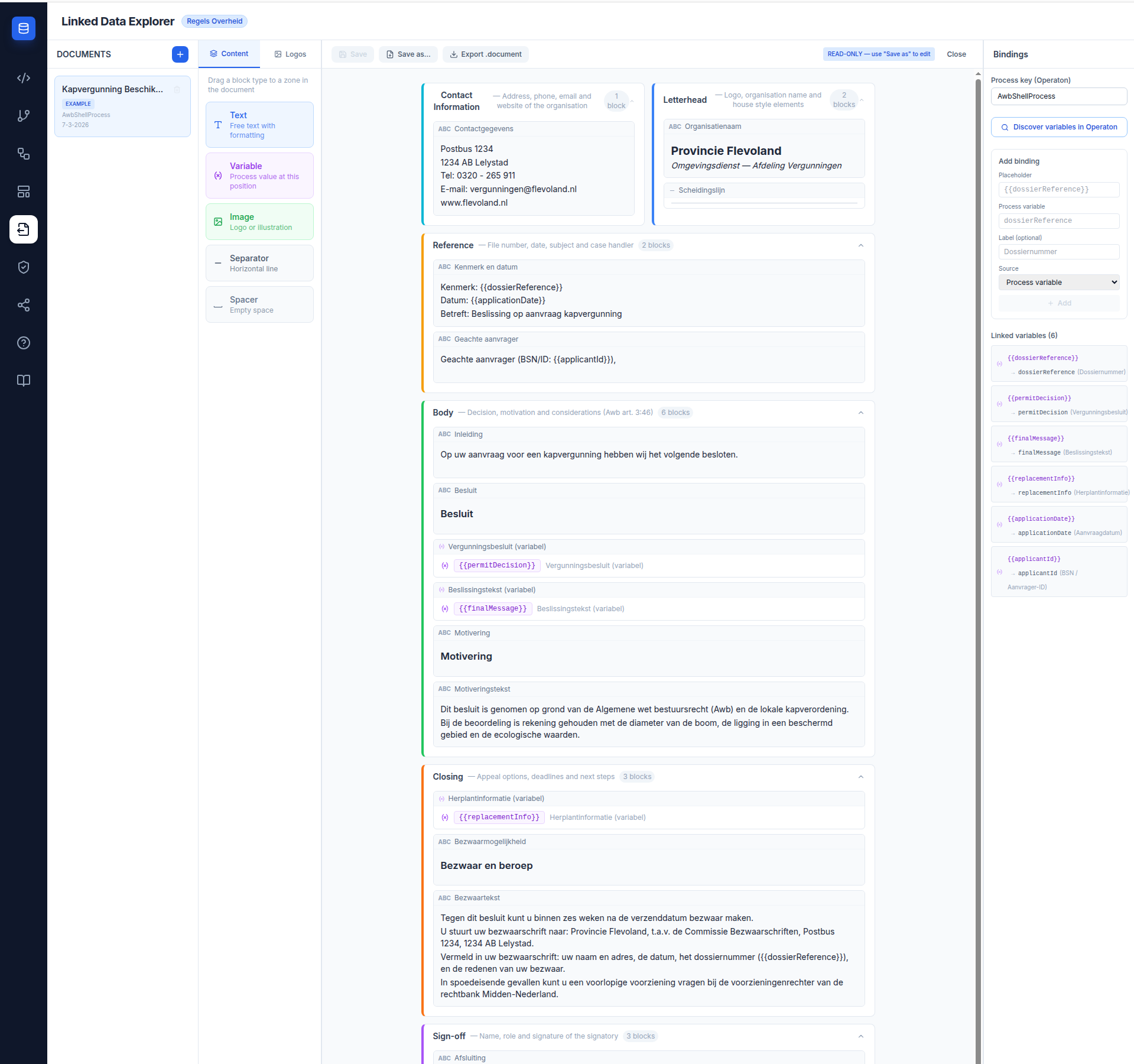
Three-panel layout
The Composer uses the same three-panel layout convention as the BPMN Modeler and Chain Builder.
- Left panel — Document list. Shows all documents stored in
localStoragewith create, rename, delete, and Save as… actions. An EXAMPLE badge marks the eight seeded example templates, which cannot be deleted; user-created documents carry a WIP badge. - Centre panel — Zone canvas. Renders the document zones in A4-style layout. Blocks are dragged onto zones from the left panel's Content library, and can be reordered or moved between zones by dragging.
- Right panel — Bindings. Links
{{placeholder}}tokens in rich-text blocks to Operaton process variable keys. Only visible when a document is active.
Document zones
Every document follows a fixed zone structure that matches Dutch administrative letter conventions:
| Zone | Label | Required | Purpose |
|---|---|---|---|
letterhead |
Letterhead | Yes | Logo, organisation name, house style elements |
contactInformation |
Contact Information | Yes | Address, phone, email, website |
reference |
Reference | Yes | File number, date, subject, case handler |
body |
Body | Yes | Decision, motivation, considerations (Awb art. 3:46) |
closing |
Closing | Yes | Appeal options, deadlines, next steps |
signOff |
Sign-off | Yes | Name, role, signature of signatory |
annex |
Annex | No | Optional annexes; toggled via Add annex / Remove annex |
The Letterhead and Contact Information zones render side-by-side at the top of the canvas to reflect standard letter layout.
Block types
The Content library in the left panel provides five block types that can be dragged onto any zone:
| Block | Icon | Description |
|---|---|---|
| Rich text | T |
TipTap editor with bold, italic, headings (H1–H3), and lists. Supports {{placeholder}} tokens for variable interpolation. |
| Variable | {} |
Standalone display of a single Operaton process variable value. |
| Image | 🖼 | Fetches and renders an asset from the active TriplyDB dataset. |
| Separator | — |
Horizontal rule for visual separation between sections. |
| Spacer | ↕ | Vertical whitespace block for layout control. |
Blocks can be reordered within a zone by dragging, or moved to a different zone by dragging across zone boundaries.
Variable Bindings panel

The Bindings panel maps {{placeholder}} tokens in document text to Operaton process variable keys.
Discover Variables — enter a process definition key (e.g. AwbShellProcess) and click the button to query the Operaton history API for all variables used by completed instances of that process. Discovered variables appear as clickable chips labelled with their type (String, Boolean, Double, etc.). Clicking a chip pre-fills the binding form.
Each binding records:
| Field | Description |
|---|---|
| Placeholder | {{variableName}} token used in rich-text blocks |
| Variable key | Operaton process variable name |
| Source | process (live variable) or dmn_output (DMN result variable) |
| Label | Optional human-readable label for the binding panel |
Storage
Document templates are stored in PostgreSQL via the LDE backend, cached locally in localStorage for instant synchronous access. On editor load, the service fetches the authoritative list from GET /v1/assets/documents and replaces the local cache.
Example templates are seeded from defaultTemplates.ts on the frontend, and refreshed by version: when a template's entry in EXAMPLE_VERSIONS is higher than the version the browser has recorded, the shipped copy overwrites the stored one, local edits included. Seeding saves them like any other template, so the editable examples are written to the database as well. The one read-only example, example_dvtp_consent_receipt, stays in localStorage only.
See Asset Storage for the full architecture.
Language and organization
The Document Composer footer panel mirrors the Form Editor's:
- Language — ISO 639-1 dropdown. Persisted as the
languagecolumn ondocument_templates. - Organization — free-text input with autocomplete. Persisted as the
organizationcolumn.
Both live on the DocumentTemplate wrapper, not inside the zones object.
The list panel toolbar offers search and language filtering; documents are grouped under collapsible organization headers, identical to the BPMN and Form list patterns.
Pending-until-Save: typing language or organization updates the editor's draft but does not regroup the document until Save is clicked. A load-window guard suppresses synthetic onTemplateChange events fired by child editors (TipTap) during document load, so opening a document no longer flips hasChanges spuriously.
See Multilingualism for the architectural overview.
BPMN Modeler integration
A Link decision templates selector is injected into the BPMN properties panel for every UserTask element. A task can carry several templates: each one attached appears as a removable chip, and ronl:documentRef holds their ids as a comma-separated list. A purple badge appears below the element on the canvas, distinct from the green form badge (📝) and the amber DMN badge; it names the template, or reads N documents when several are attached.
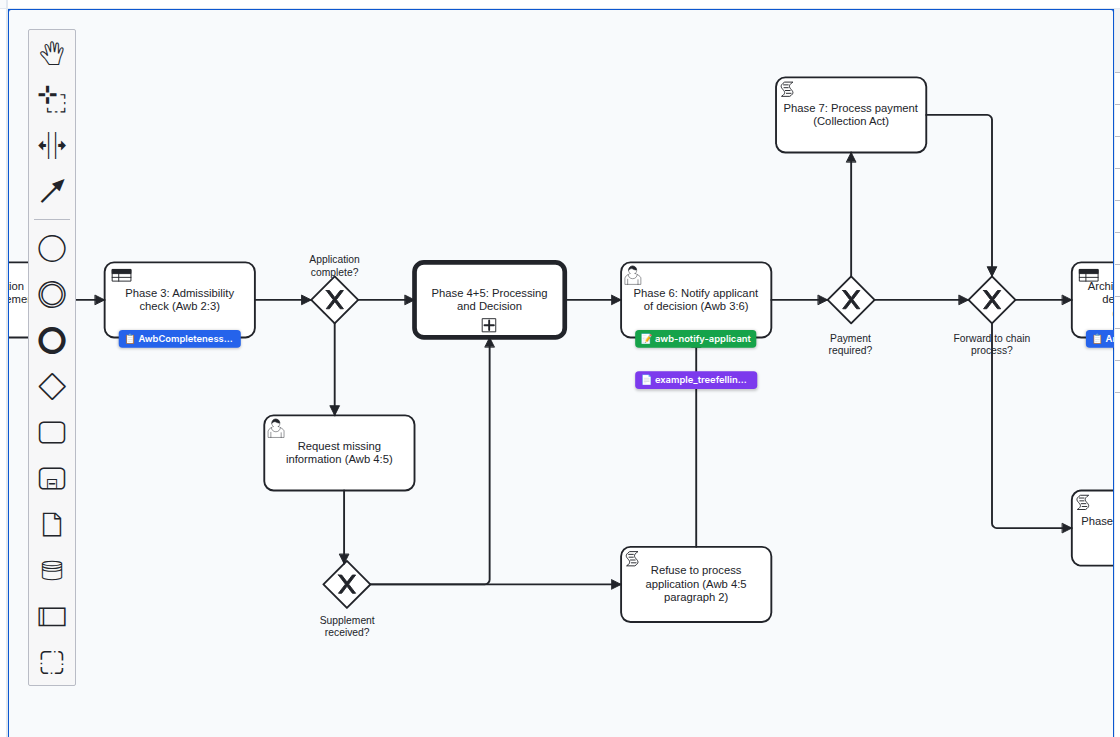
See BPMN Modeler — Document template linking for details.
Related documentation
- Document Composer user guide — step-by-step authoring workflow
- Document Composer developer docs — type model, storage, backend endpoint
- BPMN Modeler — Document template linking
- RONL Business API — Dynamic Forms — citizen-side document rendering in MijnOmgeving