DMN to Linked Data Workflow¶
From a legal body's DMN export to a tested decision service, published as linked data
A DMN model delivered by the body that did the legal analysis is rarely something a decision engine can run as it stands. This page is the route from that export to a decision service that executes, is tested rule by rule, and is published as machine-readable law with its legal basis attached — a nine-stage workflow, run three times, for Amsterdam, SZW and Den Haag.
The CPSV Editor is where two of the stages happen: deploying and testing a model in the DMN tab, and publishing it as part of a service in Turtle. The rest of the workflow is about what to do around the editor, and where a person — not a pipeline — has to decide. The page closes on three questions that neither the editor nor the bodies that own the regulations can answer, because they belong to the standard.
Download the slides
DMN to Linked Data Workflow — deck (PDF, 261 KB)
Nine slides. The first eight are built from the workflow brief in the CPSV Editor
repository,
docs/dmn-to-linked-data-workflow.md;
the ninth closes the deck for a standardisation body, and draws its figures from
the same passes. The headline figures were re-counted for this page from the
example models at v2026.09.4 — decisions, rules, inputs and test cases per pass
all agree with the slides.
The result, and the two caveats that stay with it¶
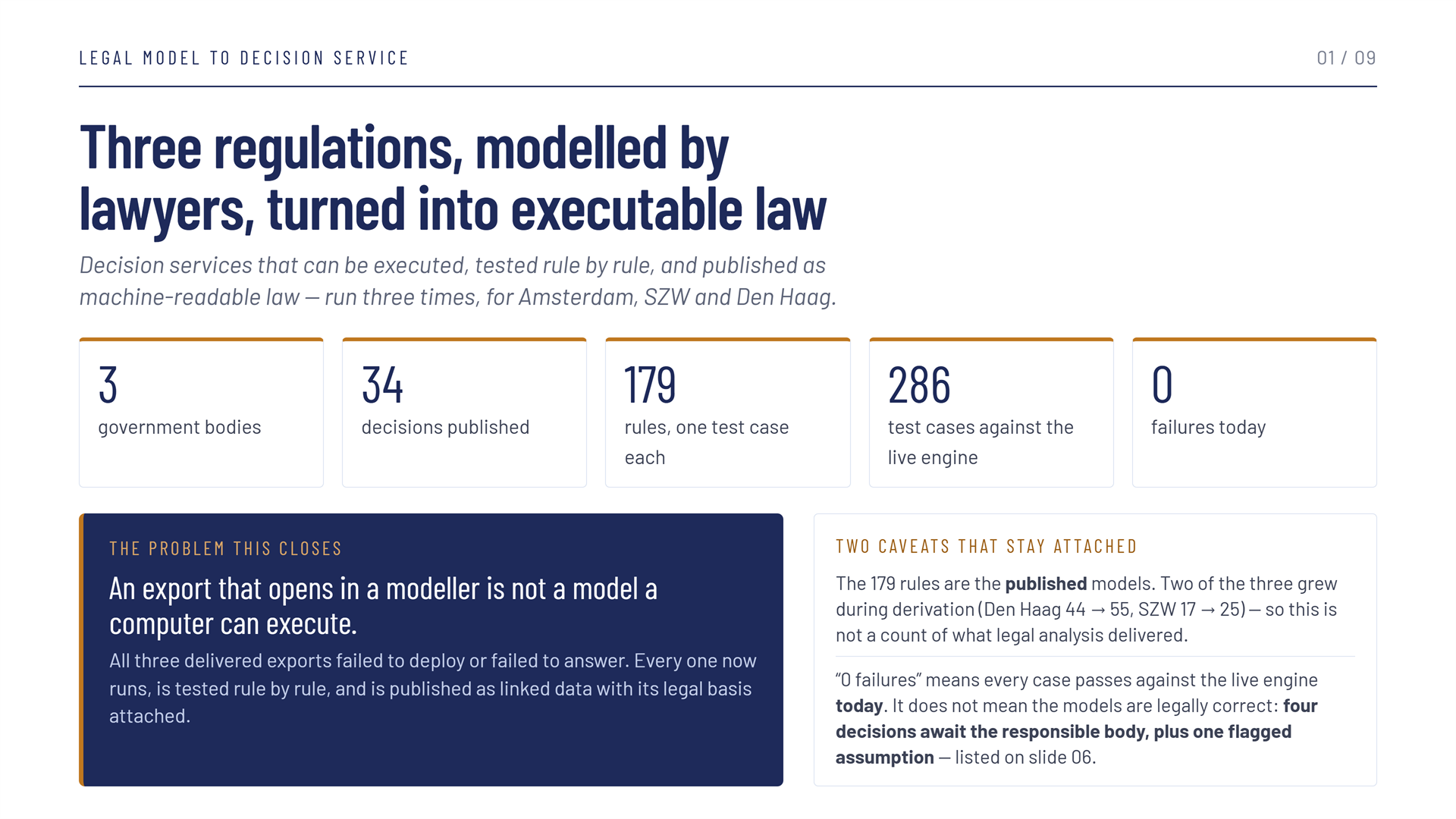
All three exports that arrived failed to deploy or failed to answer. Every one now runs. That is the whole problem the workflow exists to close: an export that opens in a modeller is not a model a computer can execute.
Do not quote the totals without the caveats
- 179 rules is the published count, not what legal analysis delivered. Two of the three models grew during derivation — Den Haag from 44 rules to 55, SZW from 17 to 25 — so the total counts the published models.
- "0 failures" means every case passes against the live engine today. It does not mean the models are legally correct. Four decisions await the responsible body, plus one flagged assumption — see What is still open.
The nine stages¶
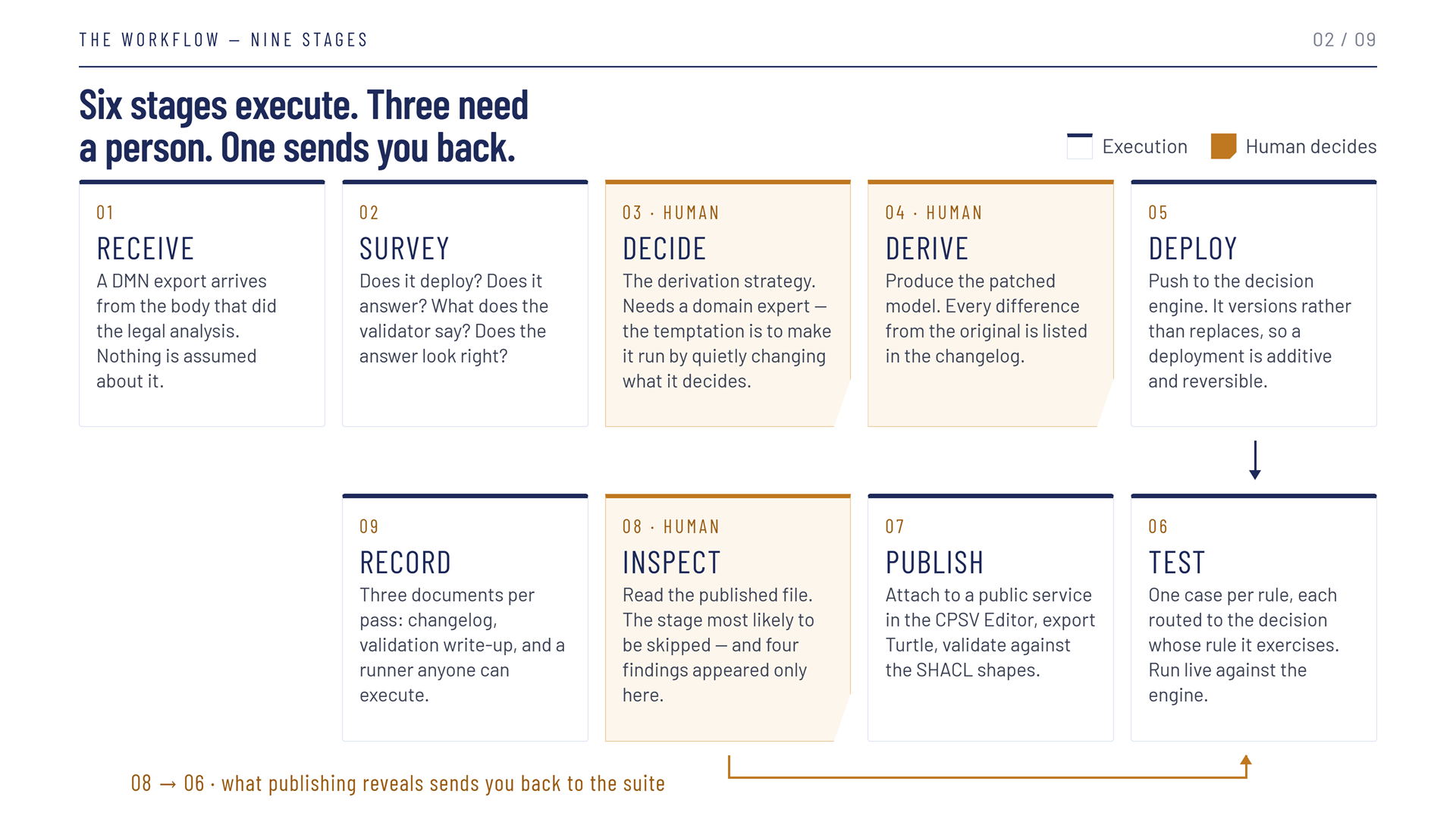
The slide reads as one continuous path: the top row left to right, the bottom row right to left. Of the three stages that need a person, stage 3 asks the most — a domain expert who can say whether an answer is right, not only whether it runs.
| # | Stage | Who | Where |
|---|---|---|---|
| 1 | Receive the export from the body that did the legal analysis | — | Nothing is assumed about it |
| 2 | Survey — does it deploy, does it answer, what does the validator say, does the answer look right? | — | The DMN tab |
| 3 | Decide the derivation strategy | A domain expert | — |
| 4 | Derive the patched model, listing every difference from the original | A person | The pass's CHANGELOG.md |
| 5 | Deploy to the decision engine | — | The DMN tab — deploy |
| 6 | Test — one case per rule, routed to the decision whose rule it exercises | — | DMN Testing |
| 7 | Publish — attach to a public service, export Turtle, validate against SHACL | — | Import & Export TTL, Publishing to TriplyDB |
| 8 | Inspect the published file | A person | The exported .ttl |
| 9 | Record — changelog, validation write-up, and a runner anyone can execute | — | The pass's testCases/ |
Two properties of the engine make stages 5 and 6 cheap to repeat. A deployment is additive: the engine versions a model rather than replacing it, so deploying is reversible. And the loop runs backwards: stage 8 is the most likely to be skipped, and it is where four findings appeared that no model and no green suite could show — each of which sent the pass back to stage 6.
Three passes, side by side¶
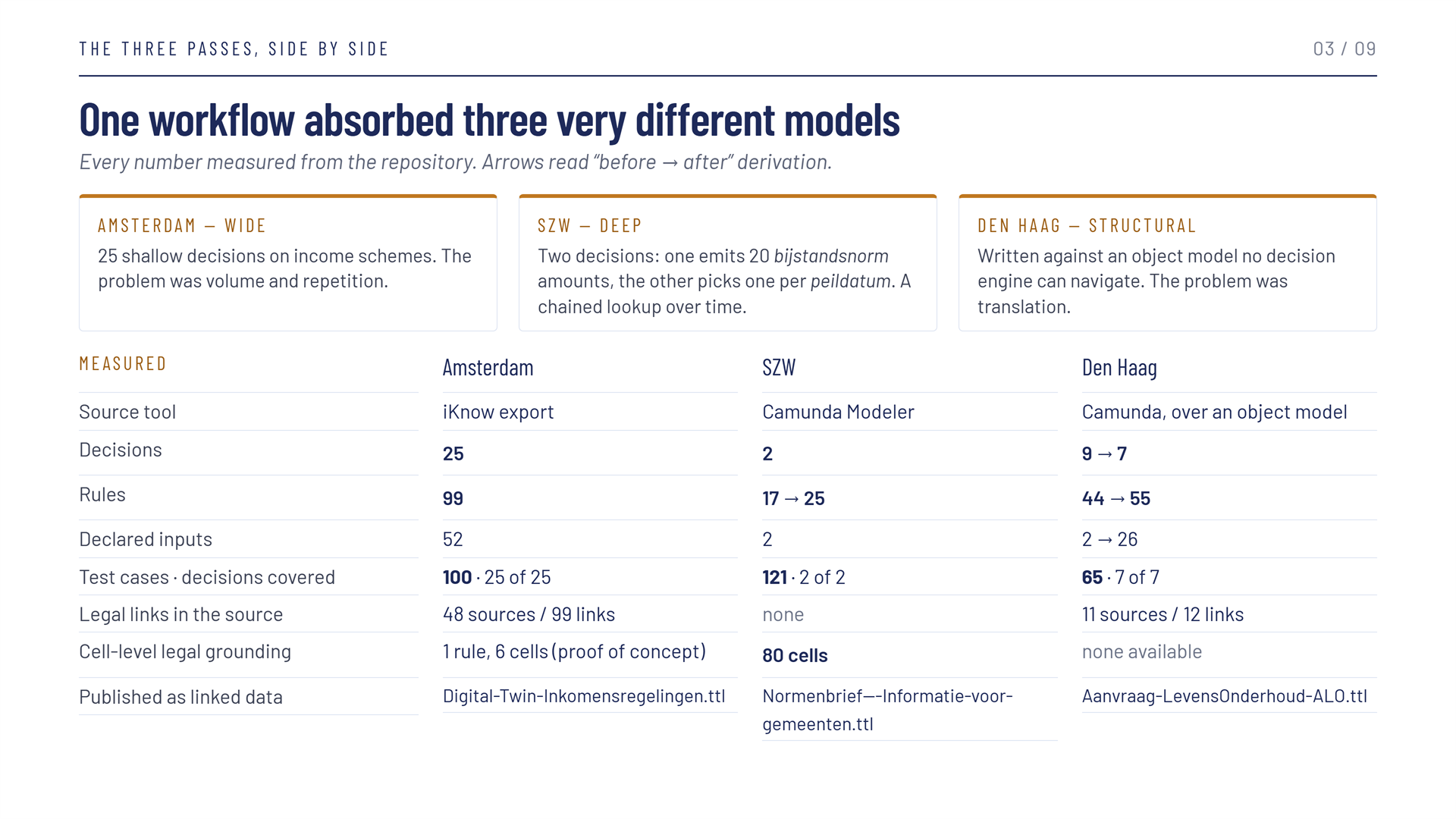
The three are deliberately different in shape, and the same workflow absorbed all three. Amsterdam is wide — 25 shallow decisions, where the problem was volume and repetition. SZW is deep — two decisions, one emitting twenty amounts and the other picking one per reference date: a chained lookup over time. Den Haag is structural — written against an object model no decision engine can navigate, so the problem was translation, and the model had to be re-derived rather than patched.
On the slide, arrows read before to after derivation. Den Haag went from 9 decisions to 7 while its rules went from 44 to 55 — not because the scope grew, but because rules the source could not reach were restored.
SZW's 80 grounded cells are the largest application in these three passes of cell-level legislative grounding. Den Haag has no published sources to ground against, so it has none — grounding against inferred citations was rejected.
What kept going wrong¶
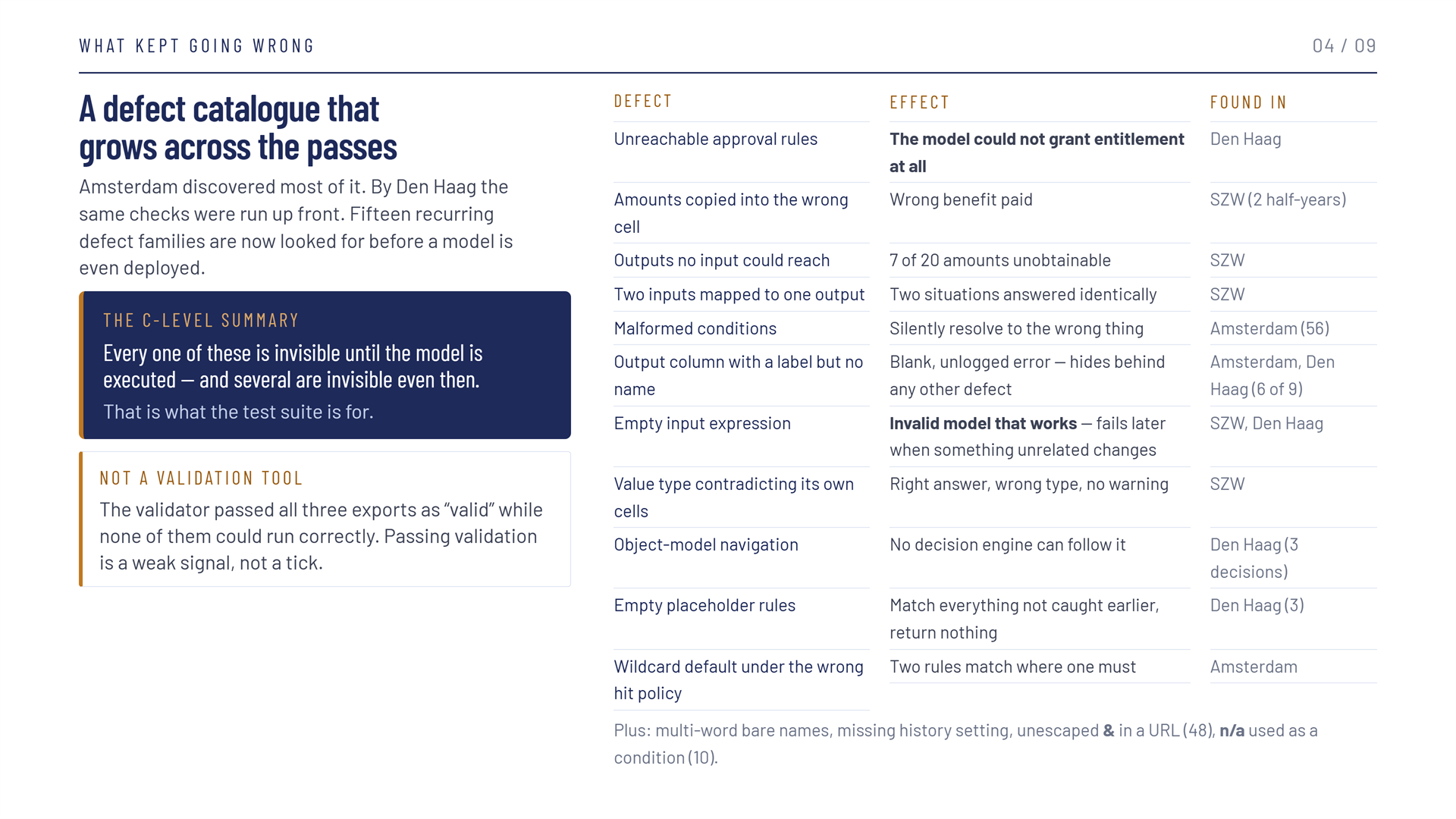
This catalogue is the workflow's real asset. By the third pass most of these defects were checked for rather than discovered — the return on running the workflow three times, and the argument for a fourth.
The validator passed all three exports as valid while none of them could run correctly. Passing validation is a weak signal, not a tick — which is why stage 2 asks whether the model deploys and answers, and why stage 6 exists at all. Every one of these defects is invisible until the model is executed, and several are invisible even then: an output column with a label but no name fails with a blank, unlogged error, and an empty placeholder rule quietly matches everything nothing else caught.
The defects the editor meets directly — the ones that block a deployment or an evaluation in the DMN tab — are listed with their fixes under The DMN Tab — authoring pitfalls.
Where a person decides¶
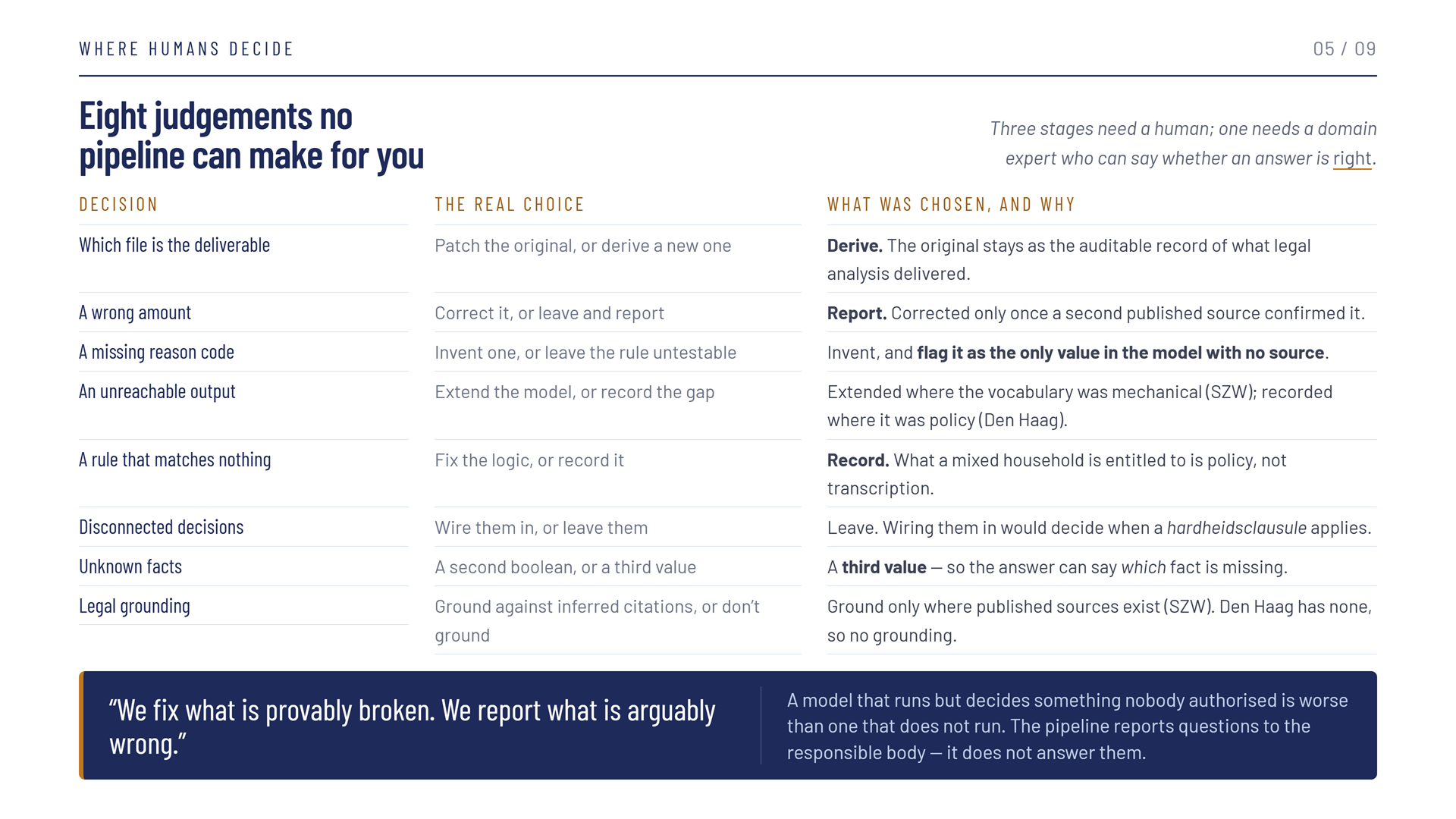
The nine stages drawn as boxes and arrows suggest a process that could be automated. It cannot: these eight are the decisions actually taken across the three passes. The rule behind all eight: a model that runs but decides something nobody authorised is worse than one that does not run. The temptation at stage 3 is to make an export run by quietly changing what it decides. The workflow resists it by deriving a new model and keeping the original as the auditable record of what legal analysis delivered — and by reporting questions to the responsible body rather than answering them.
What the workflow declined to do matters as much. Den Haag's three disconnected decisions were not wired in, because connecting them would decide when a hardheidsclausule applies — and that is policy, not transcription.
What is still open, and who owns it¶
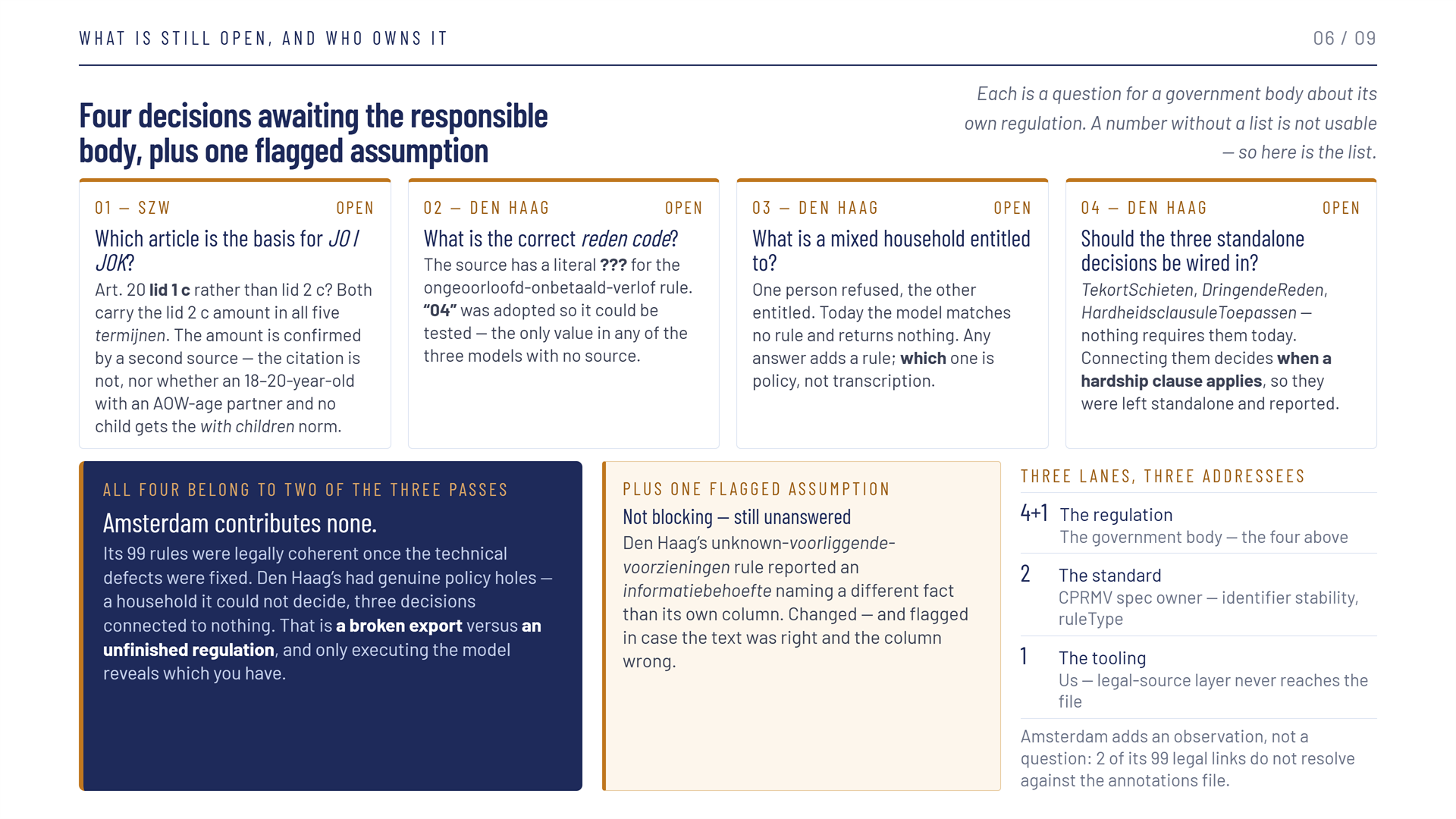
It is four decisions plus one flagged assumption, not a bare four. The fifth sits inside a finding already marked fixed, so it blocks nothing — but it is still unanswered. Each of the four cards is a question for a government body about its own regulation.
Open items sit in three lanes with different addressees. Mixing them up sends a question to someone who cannot answer it, and folding them into one number is what produces overclaiming:
| Lane | Count | Addressed to |
|---|---|---|
| The regulation | 4 + 1 | The government body — the four decisions above, plus the flagged assumption |
| The standard | 2 | The CPRMV specification owner — identifier stability and ruleType |
| The tooling | 1 | The CPSV Editor itself — the DMN legal-source layer never reaches the published file |
Amsterdam contributes none of the four. Its 99 rules were legally coherent once the technical defects were fixed; Den Haag's had genuine policy holes — a household it could not decide, three decisions connected to nothing. That is the difference between a broken export and an unfinished regulation, and only executing the model tells you which one you have.
Two ideas worth keeping¶
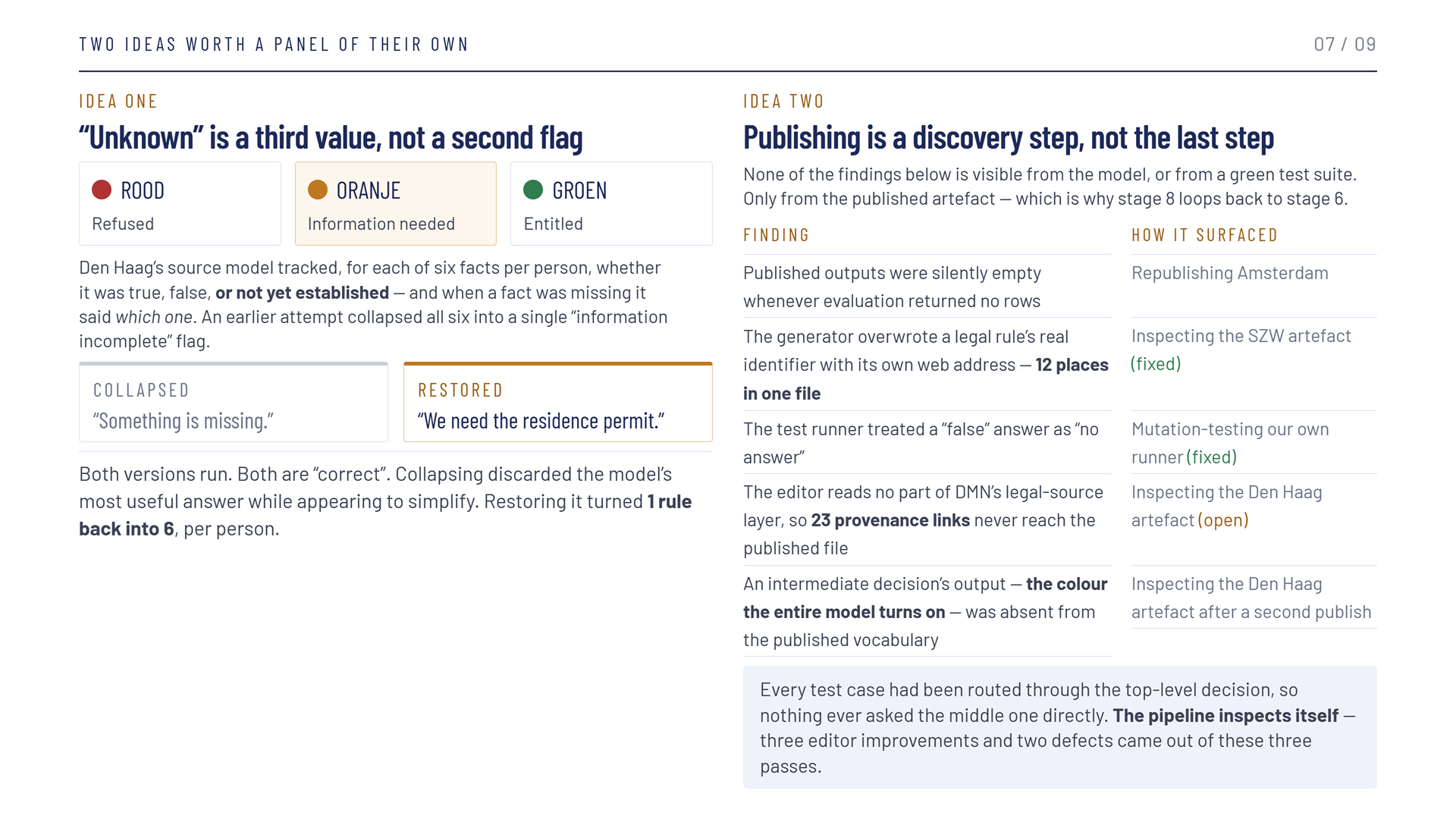
"Unknown" is a third value, not a second flag. Den Haag's model tracked six facts per person as true, false or not yet established, and said which one was missing. A model that can say refused, entitled or information needed — and, for the last, which information — gives an applicant a next step. Collapsing the six facts into one "information incomplete" flag still runs and is still correct; it only throws away the model's most useful answer. Only the restored model can tell a caseworker we need the residence permit — and restoring it turned 1 rule back into 6, per person.
Publishing is a discovery step, not the last step. Each finding in the table on the slide surfaced only by reading the published artefact — including two defects in tooling that had been in use for weeks. Each changed the editor or the suite:
- The generator minted a citation stub over rules the document already published, giving
them a second, contradictory
cprmv:id— fixed in v2026.09.3; see Cell-Level Legislative Grounding. - An intermediate decision's output, the one the Den Haag model turns on, was missing from the published vocabulary because every test case went through the top-level decision — closed by cases that name the middle decision directly.
- The DMN legal-source layer is not read by the editor, so its provenance links never reach the published file. That one is open, and it is the tooling lane above.
Why the testing is evidence¶
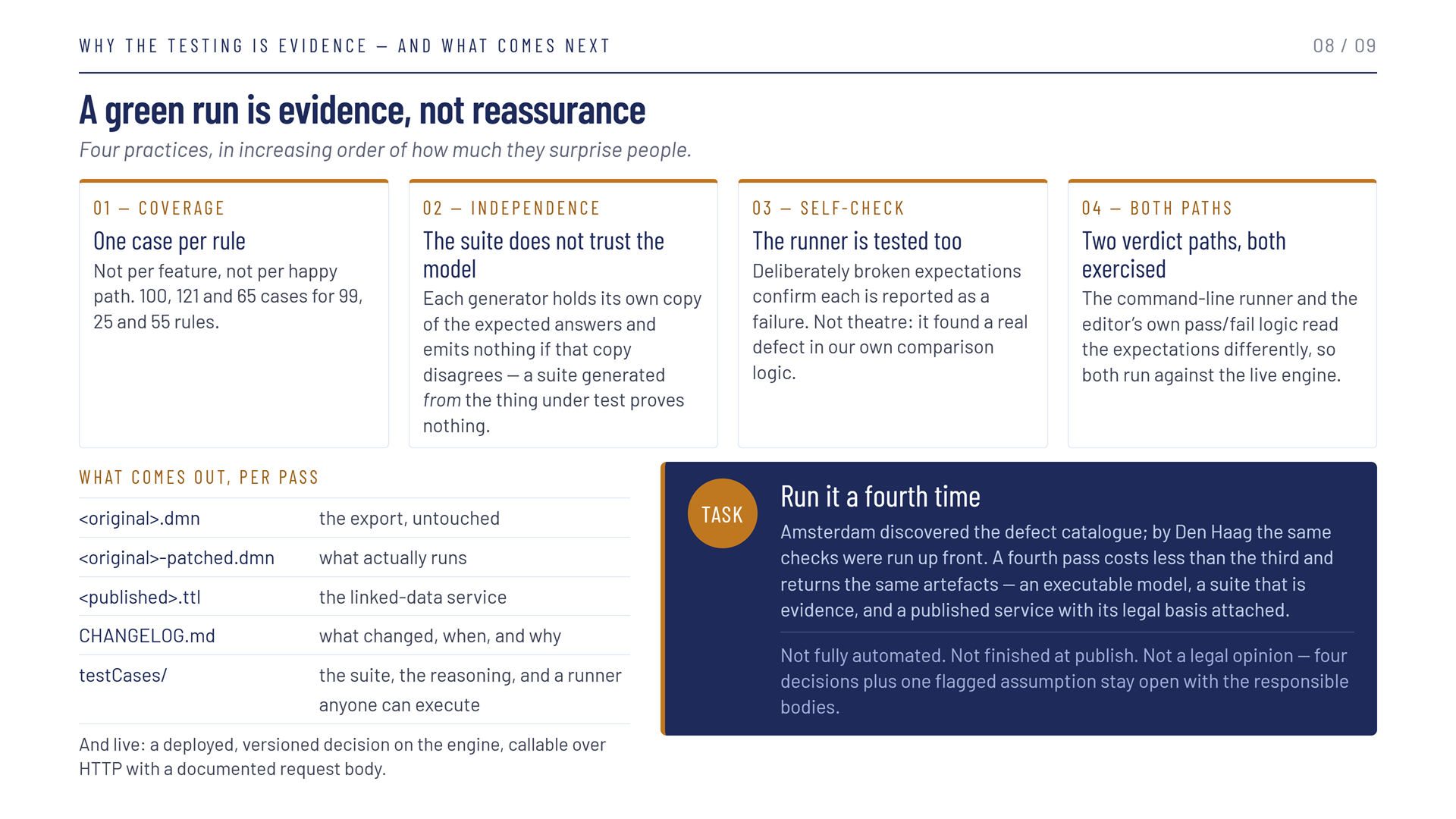
Whether "all tests pass" means anything is the first question a board asks. Four practices make the answer yes:
- Coverage — one case per rule, not per feature or happy path: 100, 121 and 65 cases for 99, 25 and 55 rules.
- Independence — the one that surprises people most. A suite generated from the thing under test proves nothing, so each generator holds its own independent copy of the expected answers and refuses to emit a case if that copy disagrees with the model.
- Self-check — the runner is tested too. Deliberately broken expectations confirm each is reported as a failure, which found a real defect in the comparison logic.
- Both paths — the command-line runner and the editor's own pass/fail logic read the expectations differently, so both run against the live engine.
Together they make a green run evidence rather than reassurance.
What comes out of every pass:
| Artefact | What it is |
|---|---|
<original>.dmn |
The export, untouched — the auditable record of what legal analysis delivered |
<original>-patched.dmn |
What actually runs |
<published>.ttl |
The linked-data service, exported from the CPSV Editor |
CHANGELOG.md |
What changed, when, and why |
testCases/ |
The suite, the reasoning behind it, and a runner anyone can execute |
And live: a deployed, versioned decision on the engine, callable over HTTP with a documented request body.
A fourth pass costs less than the third — Amsterdam discovered the defect catalogue, and by Den Haag the same checks were run before anything was deployed. It is still not fully automated, not finished at publish, and not a legal opinion.
Three questions for the standard¶
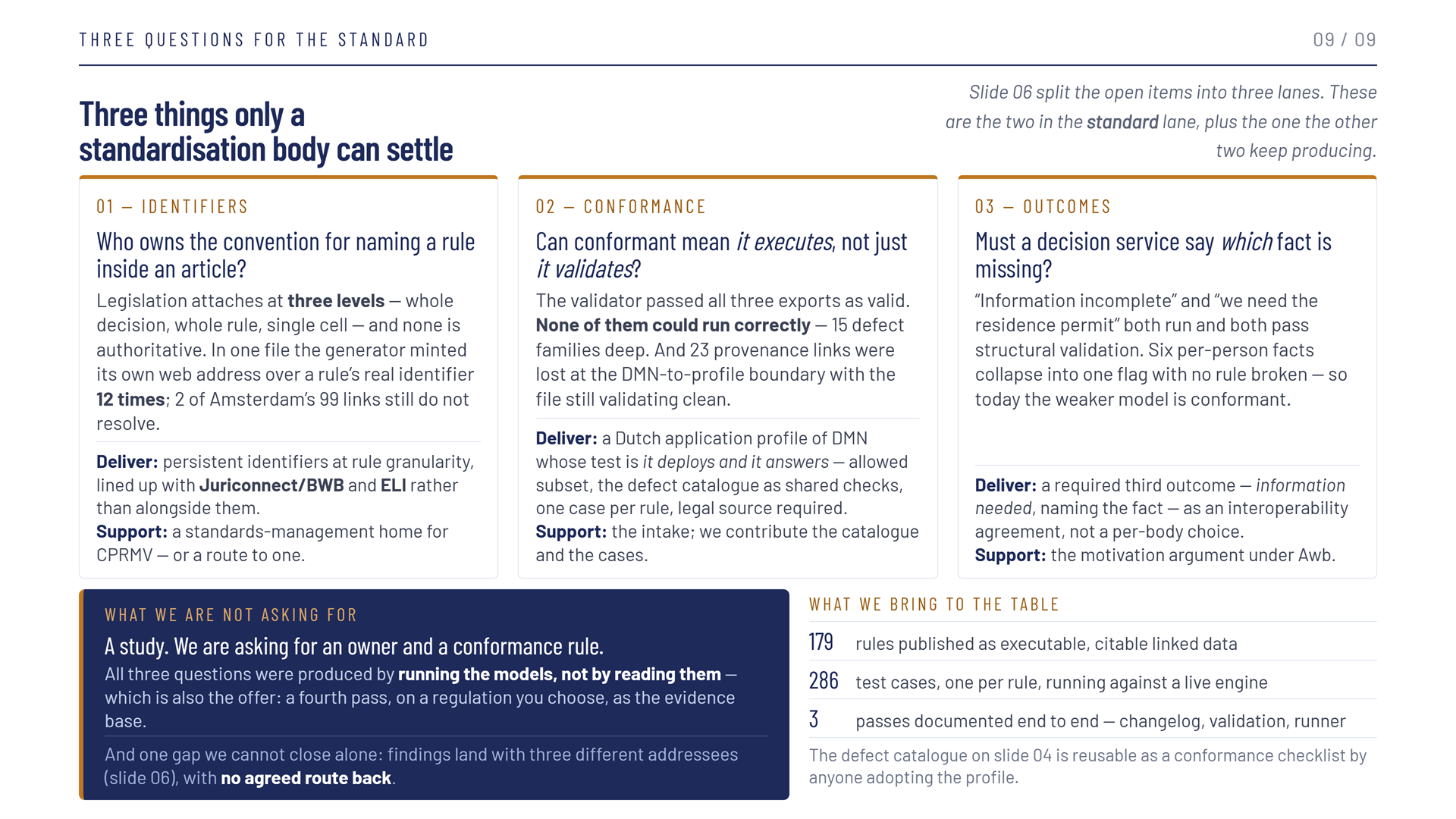
The three lanes exist so that each open item reaches someone who can answer it. Two of them — the regulation and the tooling — have an owner. The standard lane does not yet, and every question in it is one neither the CPSV Editor nor a municipality can settle. The deck closes on three, written for a standardisation body such as Forum Standaardisatie: the two standard-lane items from slide 06, plus the one the other two lanes keep producing.
| Question | What the passes showed | Deliver | Support | |
|---|---|---|---|---|
| 1 | Identifiers — who owns the convention for naming a rule inside an article? | Legislation attaches at three levels — whole decision, whole rule, single cell — and none is authoritative. In one file the generator minted its own web address over a rule's real identifier 12 times (since fixed); 2 of Amsterdam's 99 legal links still do not resolve | Persistent identifiers at rule granularity, lined up with Juriconnect/BWB and ELI rather than alongside them | A standards-management home for CPRMV, or a route to one |
| 2 | Conformance — can conformant mean it executes, not just it validates? | The validator passed all three exports; none could run correctly, 15 defect families deep. DMN carries a legal-source layer and the linked-data profile carries provenance, but no normative mapping connects them — 23 provenance links were lost at that boundary, and the file still validated clean | A Dutch application profile of DMN whose test is it deploys and it answers — an allowed subset, the defect catalogue as shared checks, one case per rule, legal source required | The intake — the workflow contributes the catalogue and the cases |
| 3 | Outcomes — must a decision service say which fact is missing? | "Information incomplete" and "we need the residence permit" both run and both pass structural validation. Six per-person facts collapse into one flag with no rule broken — so today the weaker model is conformant | A required third outcome — information needed, naming the fact — as an interoperability agreement, not a per-body choice | The motivation argument under the Awb |
What is asked for is an owner and a conformance rule, not a study. All three questions came from running the models rather than reading them, and that is also the offer: a fourth pass, on a regulation the standardisation body chooses, as the evidence base. What comes with it is what this page describes — 179 rules published as executable, citable linked data, 286 test cases against a live engine, three passes documented end to end, and a defect catalogue that anyone adopting the profile can use as a conformance checklist.
These questions are now written down as DMN-AP NL — a proposed Dutch application profile for OMG DMN, addressed to Forum Standaardisatie as owner of the CPRMV specification — which sets out five conformance areas, proposes a sixth (§4.6) requiring each grounded rule to cite its provision as a JuriConnect reference, and asks for a fourth modelling pass on Participatiewet article 36 to demonstrate the profile before anyone is asked to adopt it.
One gap cannot be closed from this side alone: findings land with three different addressees, and there is no agreed route back to any of them.
Where to look in the repository¶
Each pass is recorded in full in the CPSV Editor repository:
| For | Read |
|---|---|
| The workflow brief this page and slides 1–8 are built from | docs/dmn-to-linked-data-workflow.md |
| A worked example, the largest | Amsterdam CHANGELOG.md and its validation write-up |
| Cell-level legal grounding at scale | SZW validation write-up |
| A model that had to be re-derived, not patched | Den Haag validation write-up |
| The three questions as a proposed standard, DMN-AP NL | docs/dmn-ap-nl-voorstel.md (Dutch) and docs/dmn-ap-nl-proposal.md (English) |
Related pages¶
- The DMN Tab — uploading, validating, deploying and testing a model in the editor
- DMN Testing — test cases, intermediate decisions and the pass/fail verdicts
- Import & Export TTL — the Turtle export stage 7 produces
- Cell-Level Legislative Grounding — how a decision cell is tied to the norm it implements