Using the SHACL Validator
This guide explains how to validate CPSV-AP Turtle files against the CPSV-AP and RONL SHACL shapes before publishing them to TriplyDB.
Opening the validator
Click the badge-check icon in the left sidebar. The validator opens as a full-panel view. Any files you have loaded remain in place when you switch to other views and return.
Loading files
Drag and drop one or more .ttl files directly onto the drop zone.
Browse by clicking anywhere on the drop zone to open a file picker. The picker accepts multiple file selection.
Files are read client-side — no content is sent to any server until you click Validate.
Note
Only .ttl files are accepted. Other file types are skipped with a brief warning toast.
Choosing a validation mode
Use the toggle at the top of the panel before validating:
- File-local validates the file exactly as written.
- Merge-simulated first fetches the already-published triples for the file's subjects and unions them with your file, so collisions that only appear once published are caught.
In Merge-simulated mode an optional endpoint field appears. Leave it blank to use the configured default TriplyDB endpoint, or paste a specific SPARQL endpoint URL to simulate against a different store.
Note
Merge-simulated mode performs a read-only SPARQL CONSTRUCT for the subjects in your file. It never writes to the endpoint.
Running validation
Click the Validate button on a file card. The file content (and, in merge-simulated mode, the endpoint) is sent to the backend, which runs both shape layers and returns a per-layer result.
Validation calls POST /v1/shacl/validate (file-local) or POST /v1/shacl/validate-merged (merge-simulated) on the shared backend.
Reading the results
Summary badge
The top of each card shows either:
- 🟢 Valid — every shape layer ran and found no errors (warnings and info may still be present)
- 🟠 Not validated — no errors, but one or more shape layers did not load, so the file was not fully checked. The line beside it says how many, for example 1 of 3 shape layers not loaded
- 🔴 Invalid — one or more errors detected, or the file did not parse
Alongside the badge, count pills show the total number of errors (E), warnings (W), and informational messages (I).
Layer sections
Below the summary, two collapsible layer rows show the per-layer status:
- A green ✓ and OK means the layer evaluated the data and found no issues.
- A coloured badge (e.g. 2E) means issues were found — click the row to expand them.
- Not loaded means no shape files are present for that layer, so it was not evaluated. This is distinct from OK, and it is why a file with no errors can still read Not validated rather than Valid. If you see it on acceptance or production, the shape files are missing from that deployment — report it rather than treating the file as checked.
Issue rows
Each issue shows:
- A severity icon (🔴 error / 🟡 warning / 🔵 info)
- A typed code derived from the SHACL constraint component (e.g.
SHACL-MINCOUNT,SHACL-MAXCOUNT,SHACL-UNIQUELANG) - A human-readable message
- The focus node and property path the issue applies to
- For cardinality and uniqueness issues: the offending values, truncated to 60 characters each
Use the code to look up the detailed rationale in the SHACL Validation Reference.
Acting on results
Errors
Errors must be resolved before publishing. Common errors:
- SHACL-MINCOUNT — a required property is absent. For a
cpsv:Rule, the most common cause is a missingdct:identifier. Add the property in your Turtle. - SHACL-MAXCOUNT — a property that may appear at most once appears more than once. In merge-simulated mode this often means your value differs from what is already published (e.g.
foaf:homepage). Reconcile the value with the published graph. - SHACL-UNIQUELANG — two or more values of
dct:titleordct:descriptionshare the same language tag. This usually means several rules were published under one subject URI. Give each rule its own URI.
Warnings
Warnings are advisory — the data conforms but deviates from a recommended practice. Review them before publishing.
Merge-simulated example
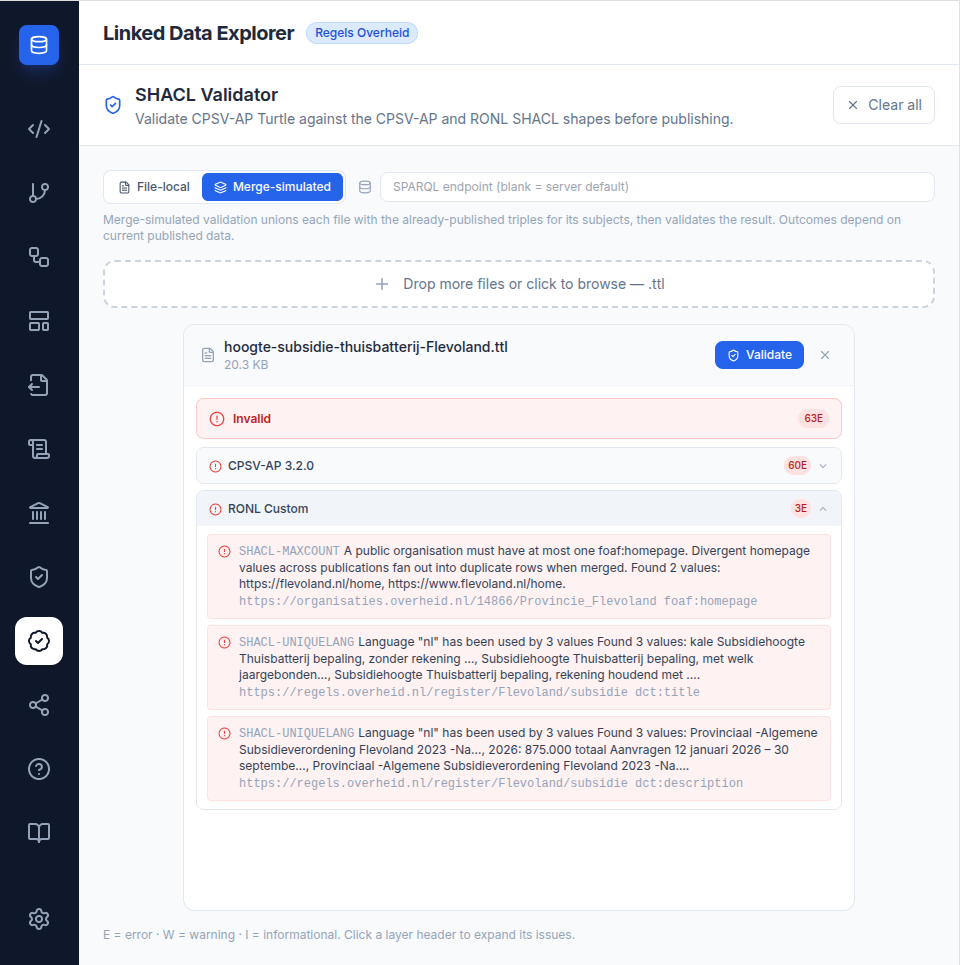
The screenshot below shows merge-simulated mode catching a cross-publication collision: the uploaded file lists one foaf:homepage, but the published graph holds a different one for the same organisation, so the merged organisation has two — flagged as a SHACL-MAXCOUNT error in the RONL Custom layer. File-local validation of the same file reports no error.
Removing files
Click × on a file card to remove that file. Click Clear all in the header to remove all files and reset the panel.
Next steps
Once all files are valid (or warnings have been reviewed and accepted):
- Open the CPSV Editor and publish the records to TriplyDB.
- For norm/rule records, confirm each
cpsv:Rulehas a unique subject URI and adct:identifier. - Re-run the validator in Merge-simulated mode after publishing related records to confirm no new collisions were introduced.