Citizen Portal
MijnOmgeving
MijnOmgeving is where residents apply for the services of their organisation, follow their applications, and see their personal data on a timeline. It offers each resident only the services their own organisation actually provides: a resident of Gemeente Heusden sees other cards than a resident of Provincie Flevoland.
Signing in
Residents sign in with Inwoner? Log in met DigiD, at the top of the werkomgeving's landing page or of their own organisation's page — see Getting Started. Where DigiD is not connected, the platform's own sign-in form appears instead; started from an organisation's page, it has that organisation's test resident filled in, such as test-citizen-heusden.
After signing in you land in MijnOmgeving, in your organisation's colours. The header shows MijnOmgeving with your organisation's name below it, and on the right your username, your assurance level (LoA:) and your roles. Uitloggen signs you out and takes you back to your organisation's landing page.
Three tabs run along the bottom of the header: Diensten, Mijn aanvragen and Tijdlijn.
Diensten
Diensten opens on Beschikbare diensten: a card for each service you can apply for, with its icon, name and a short description, and Aanvragen →.
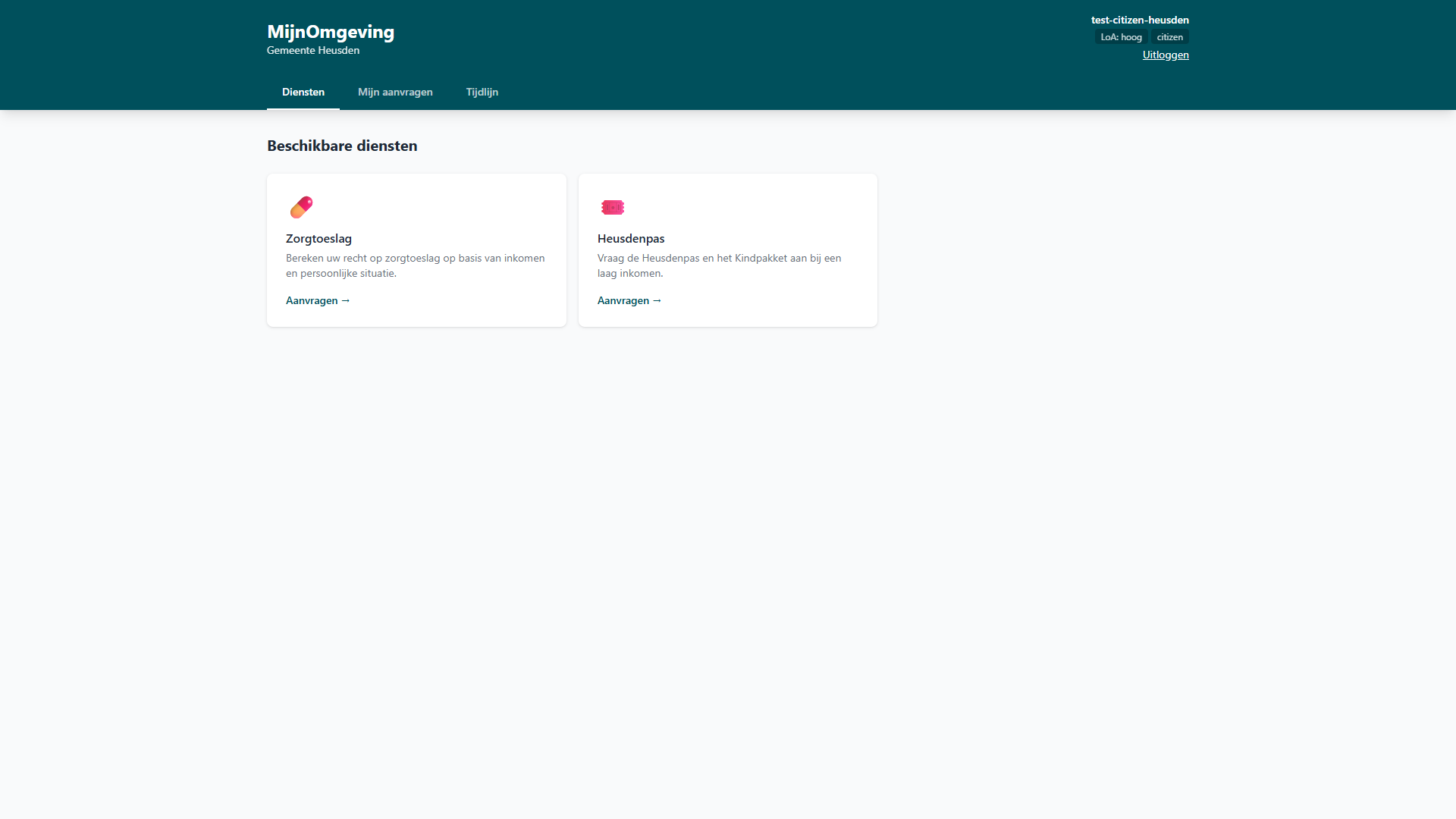
Which services you see
A card appears only for a service your organisation offers. The platform works this out from where each service's process is deployed, every time you open the page, so a service appears as soon as its organisation deploys it — and an application can only be started for a service you are offered.
| Card | What it is | Who is offered it | Handled by |
|---|---|---|---|
| Zorgtoeslag | Bereken uw recht op zorgtoeslag op basis van inkomen en persoonlijke situatie. | Every resident | Dienst Toeslagen, whichever organisation you came in through |
| Vergunningen | Vraag vergunningen aan voor bouw, verbouw of evenementen. | Residents of an organisation that deploys the kapvergunning process — currently Provincie Flevoland | Your own organisation |
| Subsidies | Overzicht van beschikbare subsidies voor uw situatie. | Residents of an organisation that deploys the thuisbatterij subsidy process — currently Provincie Flevoland | Your own organisation |
| Heusdenpas | Vraag de Heusdenpas en het Kindpakket aan bij een laag inkomen. | Residents of Gemeente Heusden | Gemeente Heusden |
A resident of Gemeente Amsterdam, whose municipality deploys none of these services itself, therefore sees only Zorgtoeslag.
While the list loads, Diensten laden… shows. If it cannot be loaded, De diensten konden niet worden geladen. appears with Opnieuw proberen; the page never falls back to showing every card. When your organisation offers nothing, the page reads Geen diensten beschikbaar voor uw gemeente.
Zorgtoeslag
The Zorgtoeslag card opens Zorgtoeslag Berekenen, a calculator: Geboortedatum, Overlijdensdatum (optional), Toetsingsinkomen (€), Woonlandfactor, Status zorgverzekering, and the boxes Woonachtig in Nederland, Rechtmatig verblijf NL and Gedetineerd. Berekenen evaluates the rules and shows either ✓ Recht op zorgtoeslag with an estimated yearly amount (Geschat jaarbedrag) and the amount per month, or ⚠ Geen recht op zorgtoeslag.
Aanvragen opens Zorgtoeslag aanvragen, the application form, filled in with what you entered in the calculator. ← Terug naar berekening returns to the calculator.
Vergunningen and Subsidies
Vergunningen opens Kapvergunning aanvragen, an application for a tree-felling permit, which is assessed automatically against the applicable rules. Subsidies opens Thuisbatterij subsidie aanvragen, an application for a subsidy towards buying and installing a home battery.
Heusdenpas
Heusdenpas opens Heusdenpas aanvragen: an application for the Heusdenpas and the Kindpakket, Gemeente Heusden's support for residents with a low income.
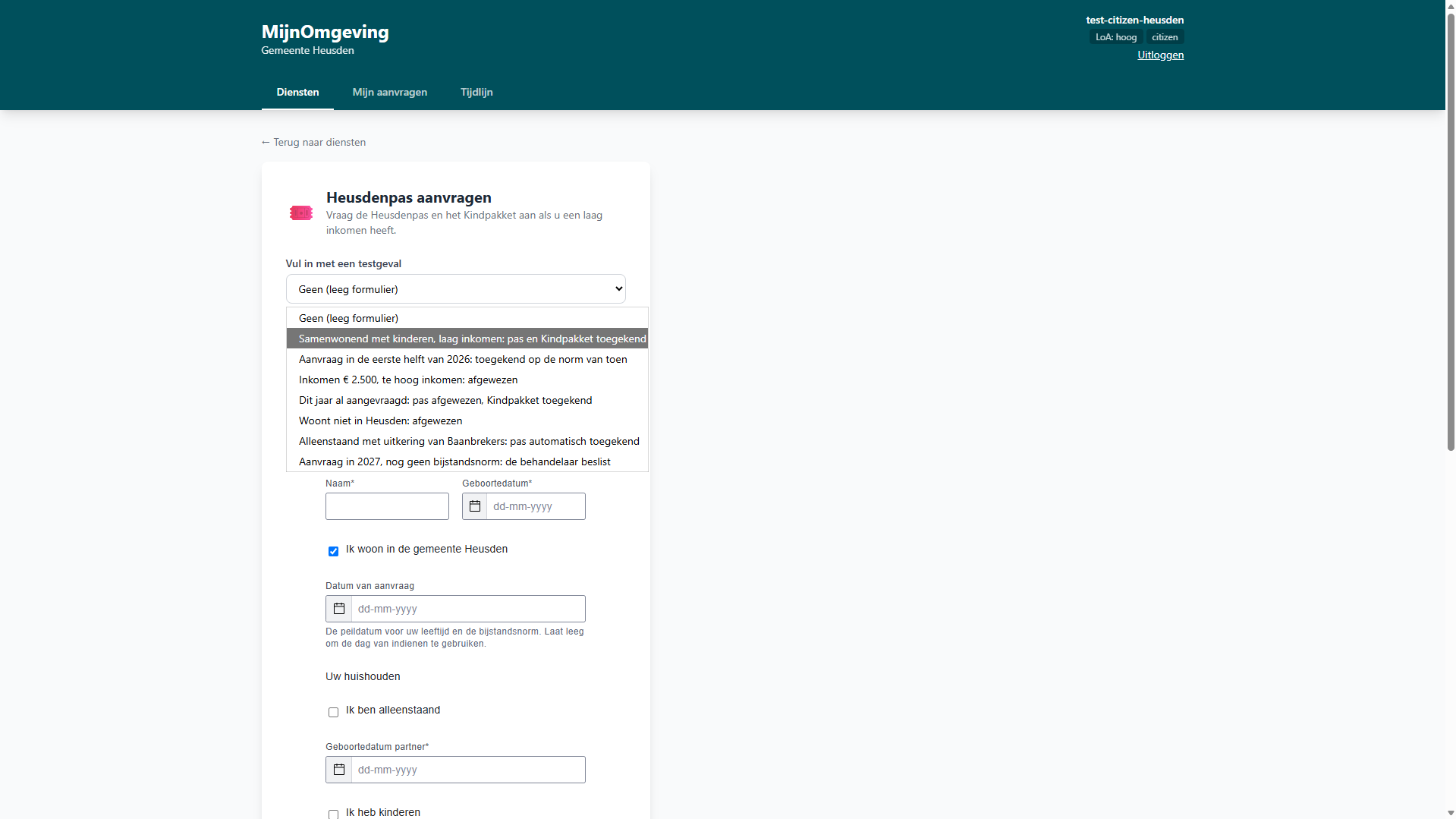
Above the form, Vul in met een testgeval fills in the whole form at once with one of seven test cases, each named after the situation and what the rules decide:
- Samenwonend met kinderen, laag inkomen: pas en Kindpakket toegekend
- Aanvraag in de eerste helft van 2026: toegekend op de norm van toen
- Inkomen € 2.500, te hoog inkomen: afgewezen
- Dit jaar al aangevraagd: pas afgewezen, Kindpakket toegekend
- Woont niet in Heusden: afgewezen
- Alleenstaand met uitkering van Baanbrekers: pas automatisch toegekend
- Aanvraag in 2027, nog geen bijstandsnorm: de behandelaar beslist
Geen (leeg formulier), the default, leaves the form empty. A test case fills in only what the applicant enters; ages are worked out from the dates of birth by the rules. The declaration that the form was filled in truthfully is left for you to tick.
Once submitted, the application goes to Gemeente Heusden's caseworkers, who check it is complete, review what the rules decided, and inform the applicant.
After submitting
Every form has ← Terug naar diensten to go back to the cards. A submitted application shows Aanvraag ingediend, its Dossiernummer — the case reference, made up of the handling organisation's id and a number, such as heusden-… — and the note that you will hear once it has been assessed (statutory term: 8 weeks, Awb 4:13). Naar mijn aanvragen takes you to your applications.
If the application cannot be submitted, the form shows De aanvraag kon niet worden ingediend. Probeer het opnieuw.
Mijn aanvragen
Mijn aanvragen lists your applications, newest first, including those handled by another organisation than your own, such as Zorgtoeslag at Dienst Toeslagen. Each application is listed once — a part of the process that runs as a sub-process is not shown as an application of its own. Each shows its name — Zorgtoeslag aanvragen, Kapvergunning aanvragen, Thuisbatterij subsidie aanvragen or Heusdenpas aanvragen — the date it was submitted, its dossiernummer, and its state: ACTIVE while it is being handled, COMPLETED once it is done.
A completed application offers Bekijk beslissing, which opens the decision below it; Verbergen closes it again. ↺ Vernieuwen reloads the list.
With no applications yet, the tab reads U heeft nog geen aanvragen ingediend. with Bekijk beschikbare diensten. If the list cannot be loaded, Aanvragen konden niet worden geladen. says so.
Tijdlijn
Tijdlijn shows your personal data as it was on a date you choose. Moving along the timeline changes the date; the panel beside it shows your data on that date, and Producten en Diensten sums up the selection — the date, your age, whether you had a partner and how many children. When there is no timeline for your account, the tab reads Geen tijdlijn gegevens beschikbaar voor deze gebruiker.
For how the platform decides which services a resident is offered, see Processes — Citizen services.