Import & Export TTL
Exporting a Turtle file
When you have filled in the tabs and validated the form, click Download TTL in the bottom bar. The browser downloads a .ttl file named after the service identifier.
The exported file contains:
- All namespace declarations
- The
cpsv:PublicServiceentity and all its linked entities - Any preserved DMN blocks (if a file with DMN data was imported)
Choose the CPRMV vocabulary version
A CPRMV version selector (0.4.1 / 0.3.2) next to the preview/export controls sets which CPRMV vocabulary version the download targets — the same selection also drives the live preview and publishing. Use 0.4.1 (default, a cprmv:RuleSet per ruleset) unless you are publishing for a 0.3.x consumer, which needs the 0.3.2 shape (a cprmv:Dataset per ruleset under the https://cprmv.open-regels.nl/0.3.2/ namespace). See CPRMV vocabulary version for the full comparison (v1.10.5).
Importing an existing Turtle file
- Click Import TTL File in the header.
- Select a
.ttlfile from your file system. - The editor parses the file and populates all tabs.
- A green confirmation message appears under the page title.
The import handles vocabulary variants gracefully — properties expressed with alternative prefixes or legacy aliases are normalised to the canonical form the editor uses. This includes the older cprmv/0.3.0/ namespace, legacy ronl:TemporalRule/ronl:ParameterWaarde types, and the organisation's legacy cv:spatial (read alongside the current dct:spatial). Because import normalises to CPRMV 0.4.1 / CPSV-AP 3.2.0, the regenerated output can differ from a legacy source file — an older file that does not validate on its own may re-export as conformant.
Round-trip editing
Importing a file that was previously exported from the editor produces identical output on re-export, apart from the export timestamps the generator stamps on each download. This makes the editor suitable for collaborative workflows where a file passes between multiple team members, each adding or editing different sections.
Importing files with DMN data
If the imported Turtle file contains DMN entities (cprmv:DecisionModel, cpsv:Input, cprmv:DecisionRule), they are automatically detected and preserved.
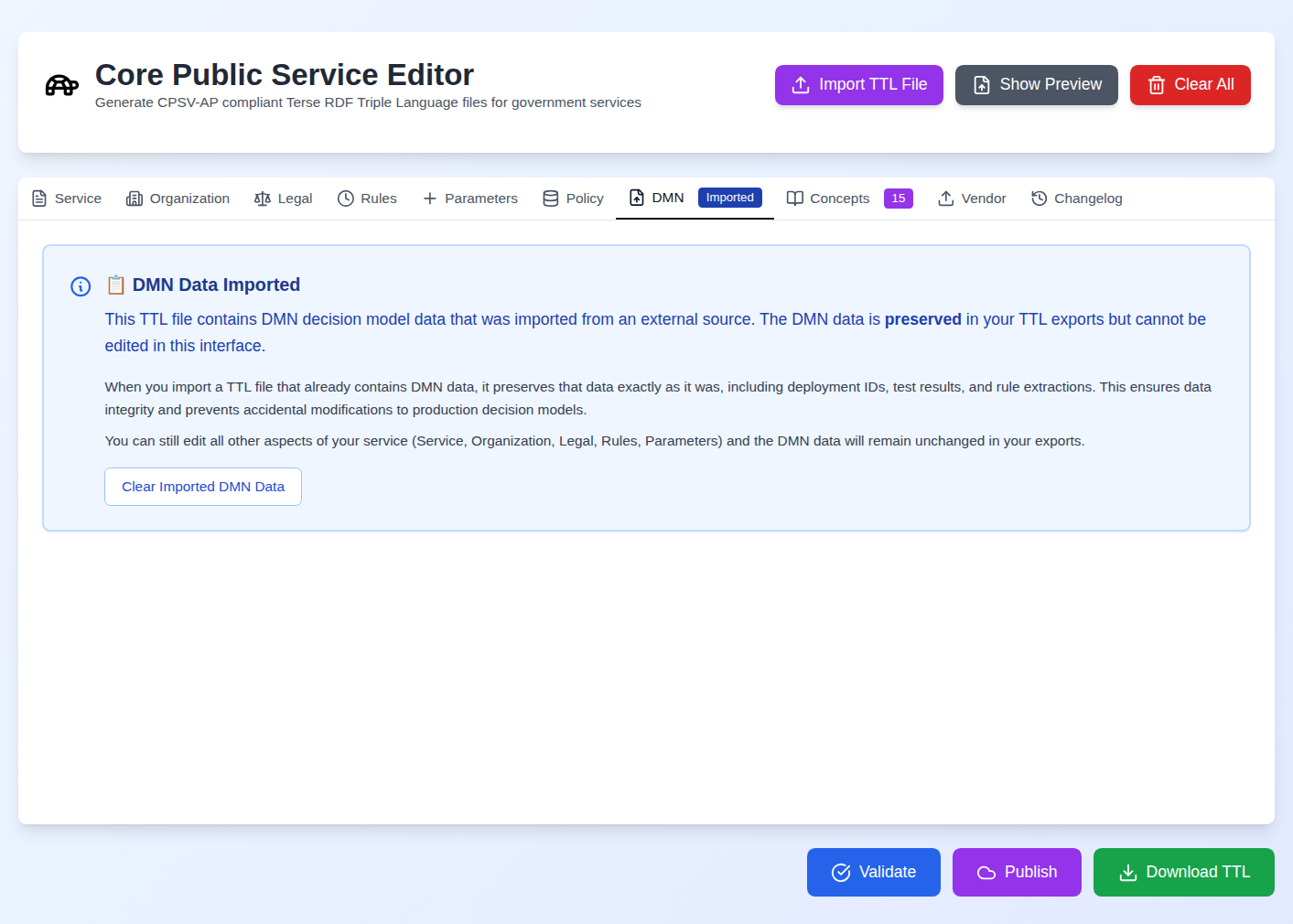
The DMN tab displays a preservation notice showing what was found. The preserved blocks are appended to every subsequent export — they are not editable through the form interface. On export a conformance-only pass (v1.10.2) makes additive/repointing edits to the Decision Rules (injecting missing dct:title/dct:description, repointing a cpsv:implements that targets the service to the legal resource); no preserved triples are removed, so deployed decision-model metadata is protected from accidental modification during collaborative editing.
To clear the preserved DMN data and start fresh:
- Click Clear Imported DMN Data in the DMN tab. The data is cleared at once — there is no confirmation dialog.
- The tab returns to normal upload mode.
- Upload a new
.dmnfile and proceed with the standard DMN workflow.
Clearing removes more than the preserved blocks. The Concepts tab is emptied as well, because its concepts were generated from the DMN the file carried, and the DMN's validation status (shown on the Organization tab) returns to Not Validated, with the validator, date and note cleared.
Importing files without all sections
A partial Turtle file — one that contains only a service and organisation, for example, with no rules or parameters — imports successfully. Only the sections present in the file are populated; all other tabs remain empty. You can then fill in the missing sections and export the complete file.