Multilingualism
A step-by-step walkthrough for tagging design artefacts with a language and organization, importing translated artefacts, and working with the HR-capacity Dutch reference bundle. For the architectural overview, see Multilingualism.
Workflow 1 — Tag an existing artefact
- Open the artefact in its editor (BPMN Modeler, Form Editor, or Document Composer).
- Scroll to the footer panel below the list.
- Language — pick from the dropdown: Language-agnostic (default), English, Dutch, German.
- Organization — type the key, or pick from the autocomplete suggestions populated from existing organizations.
- Click Save in the canvas toolbar. The artefact is committed and the list panel regroups it under the new organization header.
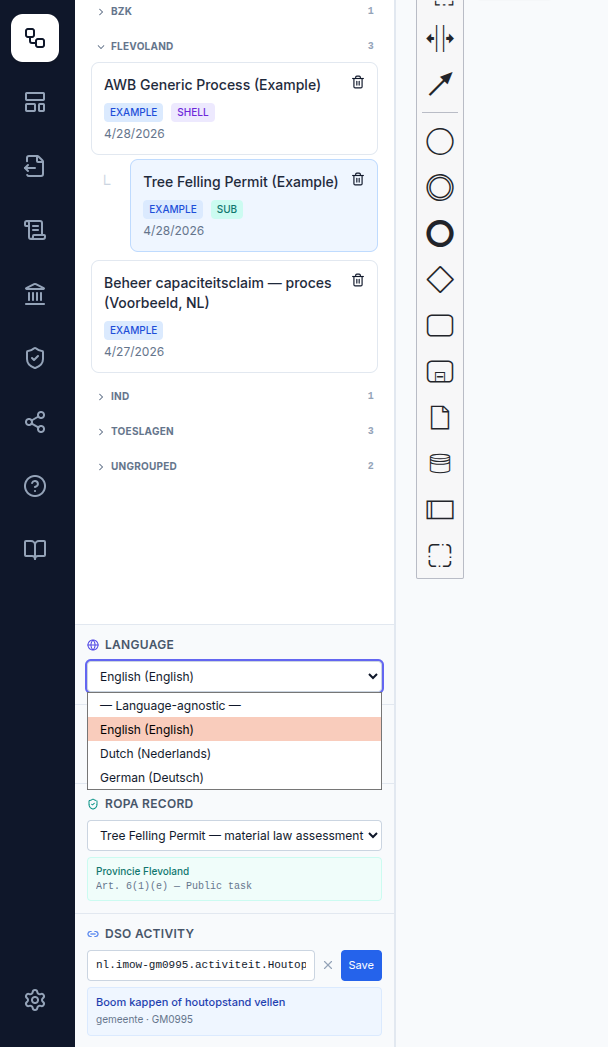
Until you click Save, the artefact stays in its old group — the list panel reflects the committed state, not the in-progress draft. Type without commitment.
If you change the shell of a multi-process bundle and click Save, the shell's language and organization propagate to every linked subprocess in the same atomic write — even if you only edited the shell.
Workflow 2 — Filter the list panel
- In any list panel (Processes, Forms, Documents), use the search box at the top for free-text matching against name, description, and identifier.
- Use the language dropdown next to the search box to narrow by tag:
All languages— every artefact, tagged or notUntagged— only artefacts with no language tag (useful for finding artefacts that still need tagging)- A specific language — only that code
- The match counter shows
<matched>/<total>so you can see how many artefacts match. - Click an organization header to collapse or expand the group.
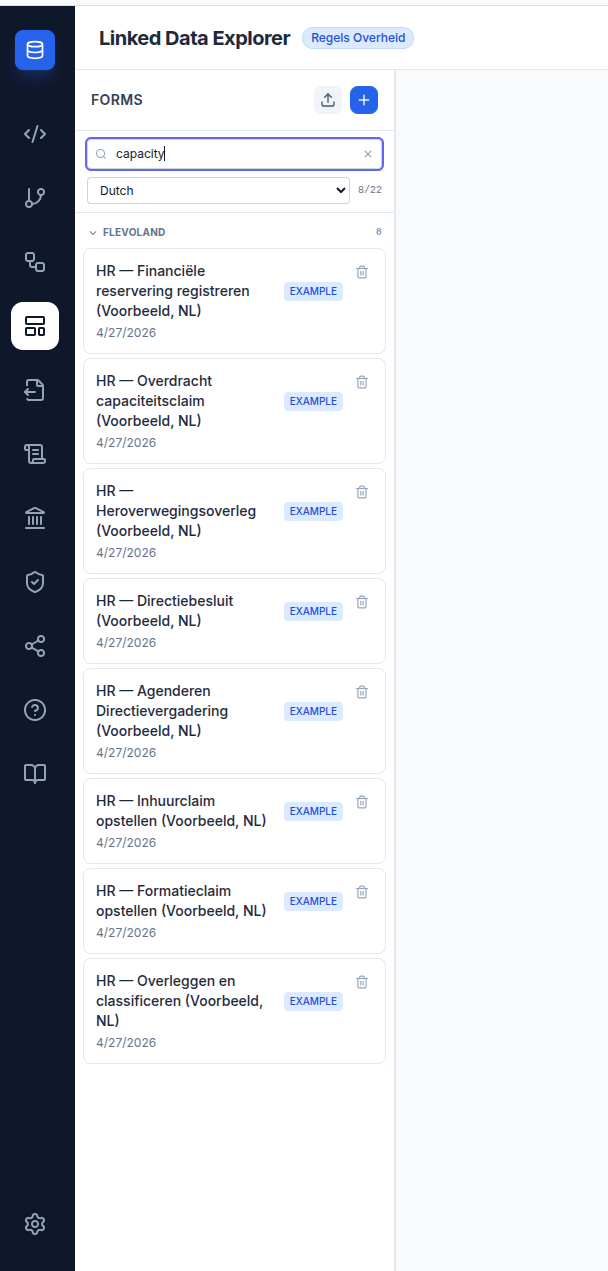
Untagged artefacts always match the All languages filter — they only disappear when you switch to a specific language. Use the Untagged option to find artefacts that still need tagging.
Workflow 3 — Import a translated artefact
The cleanest way to add a translated sibling is to drop a properly-named file into the importer.
- Save your translated file with a language suffix:
<artefact-id>.<lang>.<ext>— e.g.intake-form.nl.form,MyProcess.de.bpmn,decision-letter.nl.document. - Click the upload icon in the editor's list panel.
- Select the file (or multiple files at once for a whole bundle).
- The imported artefact is automatically tagged with the inferred language. Set the organization in the footer if the file doesn't already carry it.
- Click Save.
If you exported the file from LDE earlier with Export .form (or the equivalent), the language and organization are baked into the JSON and survive the round-trip — no need to re-tag.
The order of precedence for inferring the language on import is:
- Language inside the file (
ronl:languagefor BPMN, top-levellanguagefor form/document JSON) - Filename suffix
.<lang>.<ext> - Untagged
Workflow 4 — Translate an existing artefact in place
When you have an existing artefact and want to produce a translated sibling:
- For forms: Click Export .form on the original. Open the downloaded JSON in a code editor, translate the user-visible text (labels, descriptions, button text, option labels) keeping
idandkeyfields stable. Save with a language-suffixed filename. Re-import. - For BPMN: Export the BPMN, copy to a sibling file in your repo with
.<lang>.bpmnsuffix, translatenameattributes (process, tasks, gateways, flows). Keepidvalues,conditionExpressionvalues,formRef(suffix with-<lang>if you want a separate Dutch form sibling), anddecisionRefunchanged. Re-import. - For documents: Documents authored in the LDE Document Composer can also be exported and re-imported the same way; structural fields (zone IDs, binding placeholders) stay stable across translations.
The principle: user-visible strings translate, code-level identifiers do not. DMN variable keys, BPMN flow IDs, form field keys, and document binding placeholders all stay in their original (English) form. Only labels, descriptions, headings, and button text change.
Workflow 5 — Deploy a multi-language bundle
If you've built a Dutch sibling of a process and want to deploy it:
- Open the Dutch BPMN in the BPMN Modeler.
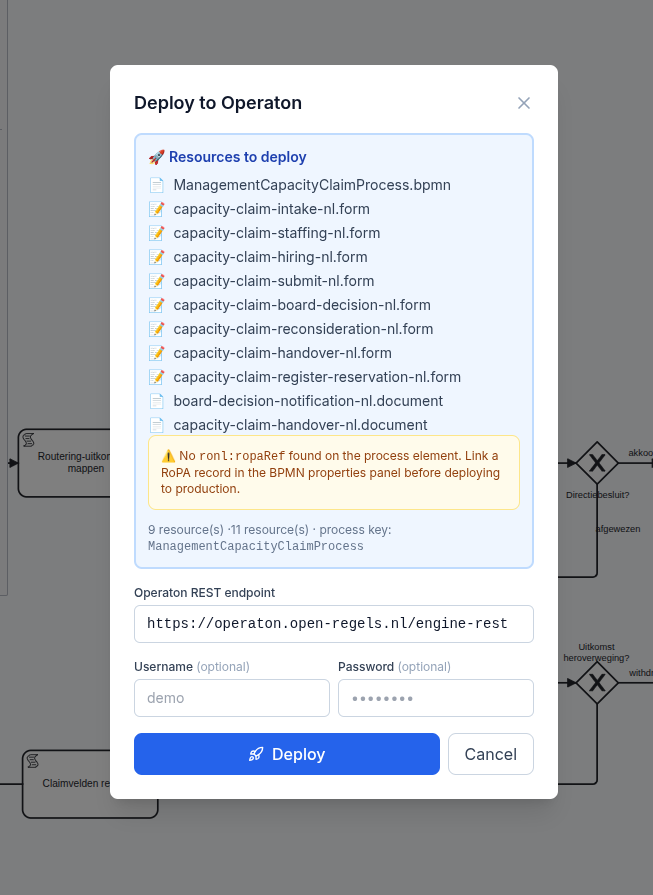
- Click Deploy. The deploy modal lists the resources it will deploy (shell BPMN, subprocesses, forms, documents).
- Check for the amber language-mismatch warning. If you see it, the bundle is mixing languages — typically because one of the linked forms or documents is still pointing at an English sibling. The warning lists the offending codes (e.g.
en, nl). - Resolve the mismatch: open the misaligned form/document and either retag it or replace it with the Dutch sibling. Save and reopen the deploy modal — the warning should be gone.
- Click Deploy in the modal.
The warning is advisory, not blocking — you can deploy through it for testing. For production, fix the mismatch first.
Workflow 6 — Explore the HR-capacity Dutch bundle
A reference bundle demonstrates end-to-end multilingualism.
- Open the BPMN Modeler. Find Beheer capaciteitsclaim — proces (Voorbeeld, NL) under the FLEVOLAND group, marked with both
EXAMPLEand Dutch language. - Open it. The canvas shows the translated process in eight lanes, among them Manager, Directie and Systeem: tasks like Overleggen en classificeren, Formatieclaim opstellen, Directiebesluit, gateway labels like Type aanvraag? and flow labels like formatie / inhuur / akkoord / afgewezen. The process also declares eight phases (
ronl:phases), which the RONL Business API shows as a stepper in its caseworker process view; the Modeler has no panel for them, so they are visible only in the XML. - Open one of its linked forms (e.g. HR — Overleggen en classificeren (Voorbeeld, NL)). Every label, description, and option label is in Dutch.
- Now open the CapacityClaimRouting DMN. Note that the variable keys (
requestType,department,decisionRoute,advisoryGroup) are still English. The DMN's keys stay English while the process around it is Dutch — this is what stable English DMN keys buy you: a translation never touches the decision logic. The Dutch BPMN calls it withcamunda:decisionRefTenantId="${null}", so it resolves the DMN deployed without a tenant.
The bundle is the canonical example of how to do this for your own translations.
Common situations
I tagged a form with a language and the list didn't update. Check that you clicked Save in the canvas toolbar. Until then, the change is in the draft only — the list shows the committed state.
The amber language-mismatch warning won't go away. Open each artefact listed in the deploy modal in turn and check its language tag in the footer. The mismatch is usually a form whose tag was left at the wrong value.
I imported a .nl.form and the language wasn't picked up. Confirm the filename ends .nl.form exactly (lowercase). Suffixes like .NL.form or .nl.FORM won't trigger the inference.
Switching to a different artefact prompts about unsaved changes I didn't make. This used to happen on document load before v1.6.0 due to a TipTap mount-time event. If you see it on the current version, treat it as a real bug and report it.
The footer panel for forms is missing the RoPA and DSO sections. That's expected — only BPMN processes have RoPA and DSO context. Forms and documents only carry language and organization.
Related documentation
- Multilingualism feature — overview, model, deploy check
- BPMN Modeler
- Form Editor
- Document Composer