Publishing to TriplyDB
Before you publish
Ensure:
- The service identifier is filled in (it is used to construct the dataset URL)
- The Validate button shows no errors
- The CPRMV version selector (
0.4.1/0.3.2) is set to the version your consumer expects — it drives the published Turtle just as it drives the preview and download (v1.10.5). See CPRMV vocabulary version. - You have a TriplyDB API token with write access to the target dataset
Publishing
- Click the Publish button in the bottom-right of the application (purple).
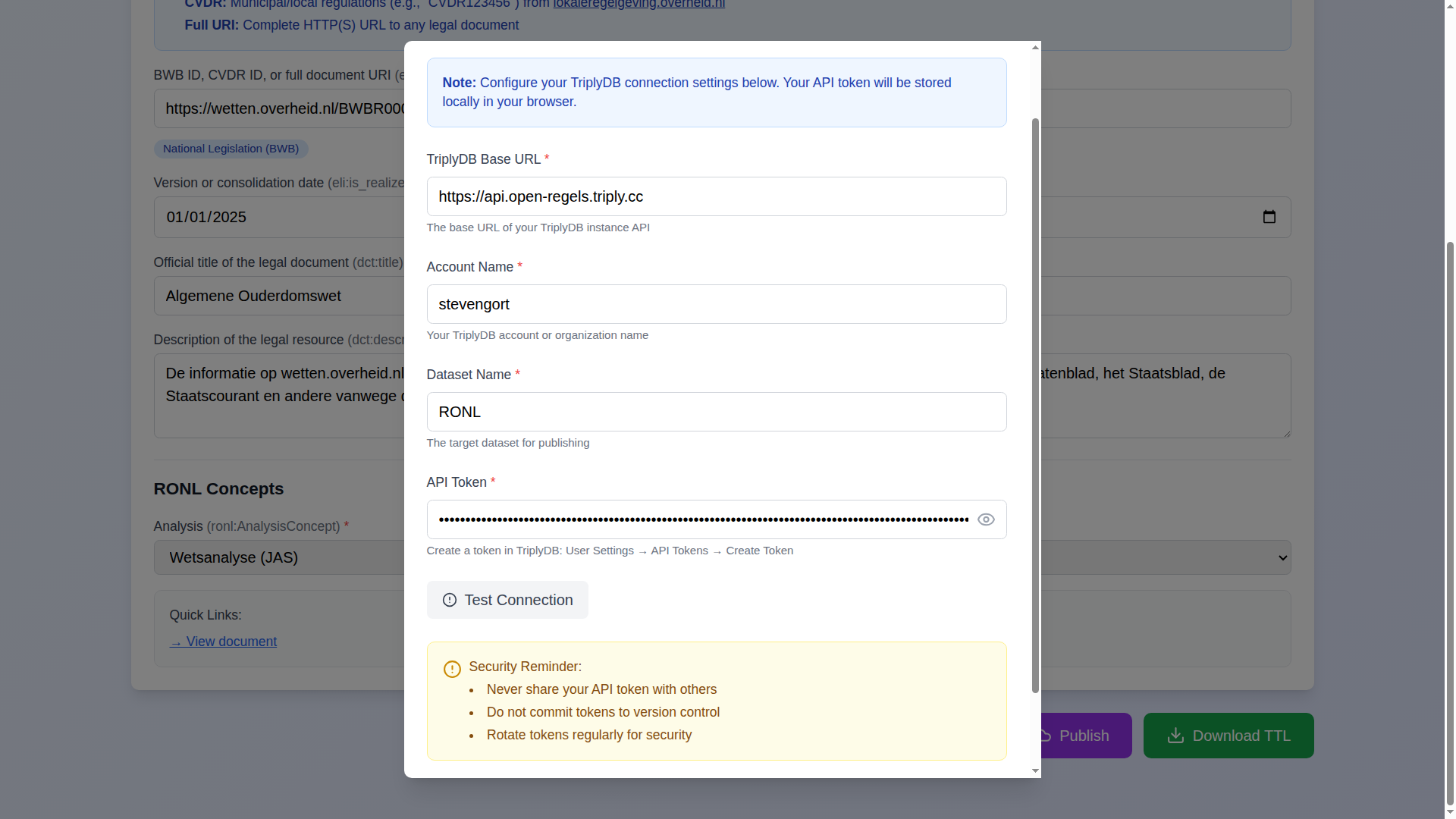
- Enter your TriplyDB credentials:
- Base URL:
https://api.open-regels.triply.cc(or your own instance) - Account: your TriplyDB account or organisation name
- Dataset: the target dataset name
- API Token: create one in TriplyDB → User Settings → API Tokens
- Review the Pre-publish SHACL validation panel at the top of the dialog. It validates the Turtle that will actually be published against the CPRMV 0.4.1 / CPSV-AP 3.2.0 / RONL shapes. This is advisory — a non-conformant result (or an unreachable validation backend, shown in amber) does not stop you from publishing. Click Validate now to re-run it.
- Optionally click Test Connection to verify the credentials without uploading.
- Click Publish to TriplyDB.
Progress tracking
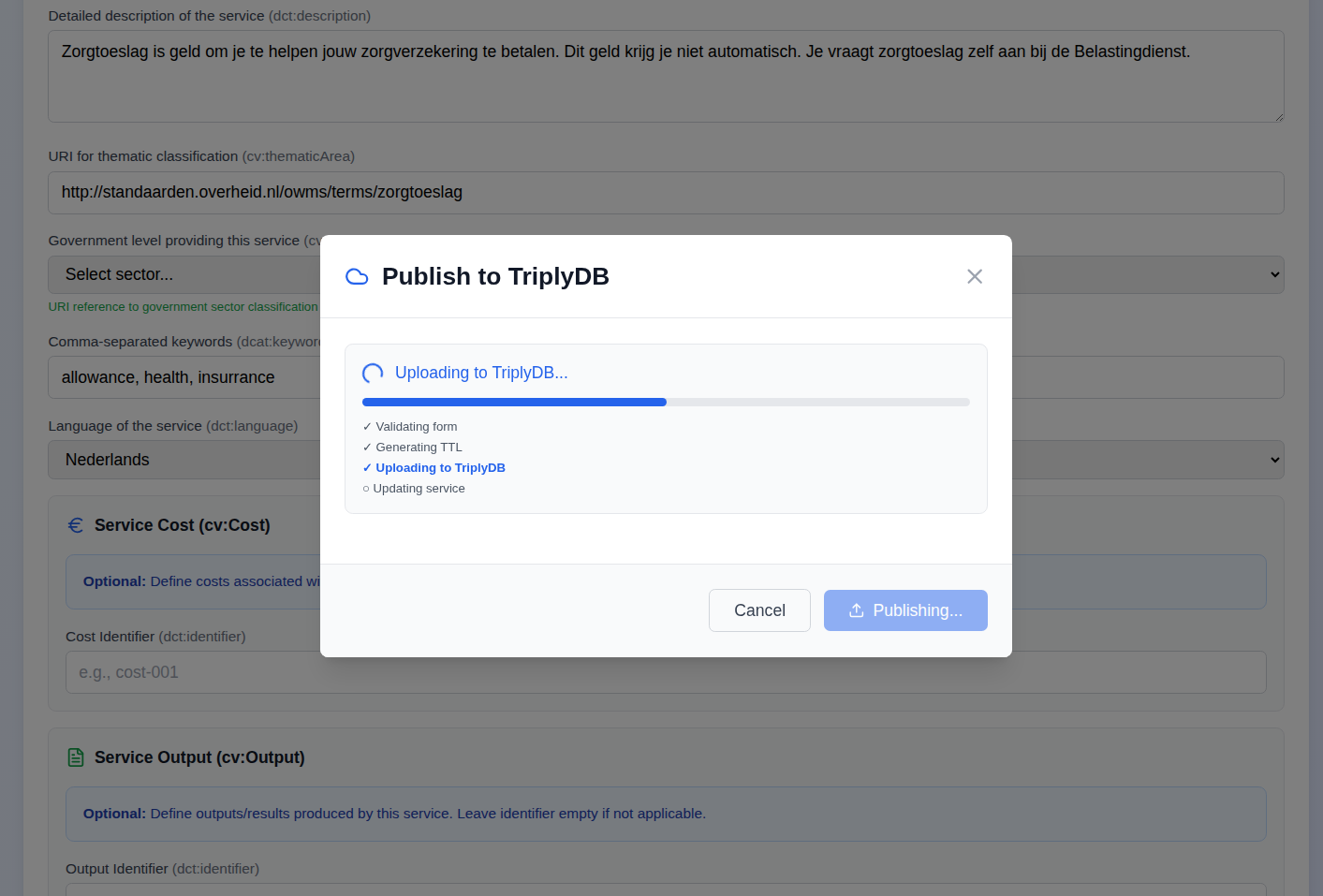
The dialog shows four steps with real-time status:
- Validating form
- Generating TTL
- Uploading to TriplyDB
- Updating service via backend proxy
On success, a direct link to the published dataset appears and the dialog closes automatically after two seconds. A green message with the dataset URL appears under the page title and auto-dismisses after ten seconds.
Error handling
Errors are displayed inside the dialog with details. The dialog closes after five seconds and an inline red message appears under the page title. Common causes include invalid credentials, a non-existent account or dataset name, or network issues.
API token security
Your API token is stored in browser localStorage on your device only. It is transmitted exclusively to the configured TriplyDB API endpoint over HTTPS. It is never sent to any other server.
Best practices: - Create tokens with the minimum permissions needed (write access to the specific dataset) - Rotate tokens regularly via TriplyDB → User Settings → API Tokens - Never share tokens or commit them to version control
Per-service graphs
Each service is published to its own stable named graph (…/graphs/{org-local}/{service-id}). Republishing the same service overwrites that graph, so it always holds the latest version — no auto-numbered duplicates accumulate. Different services live in separate graphs within the same dataset, and the backend's unified SPARQL endpoint reflects the current state across all of them.