DMN Testing
The DMN tab provides two advanced testing modes in addition to single-request evaluation: intermediate decision tests and test cases. Both are available after a successful deployment and are shown as collapsible sections in the DMN tab.
Intermediate decision tests
When to use
Use intermediate tests when debugging a complex DMN. Rather than examining only the final output, you can verify each sub-decision individually and pinpoint exactly where the logic diverges from expectations.
How it works
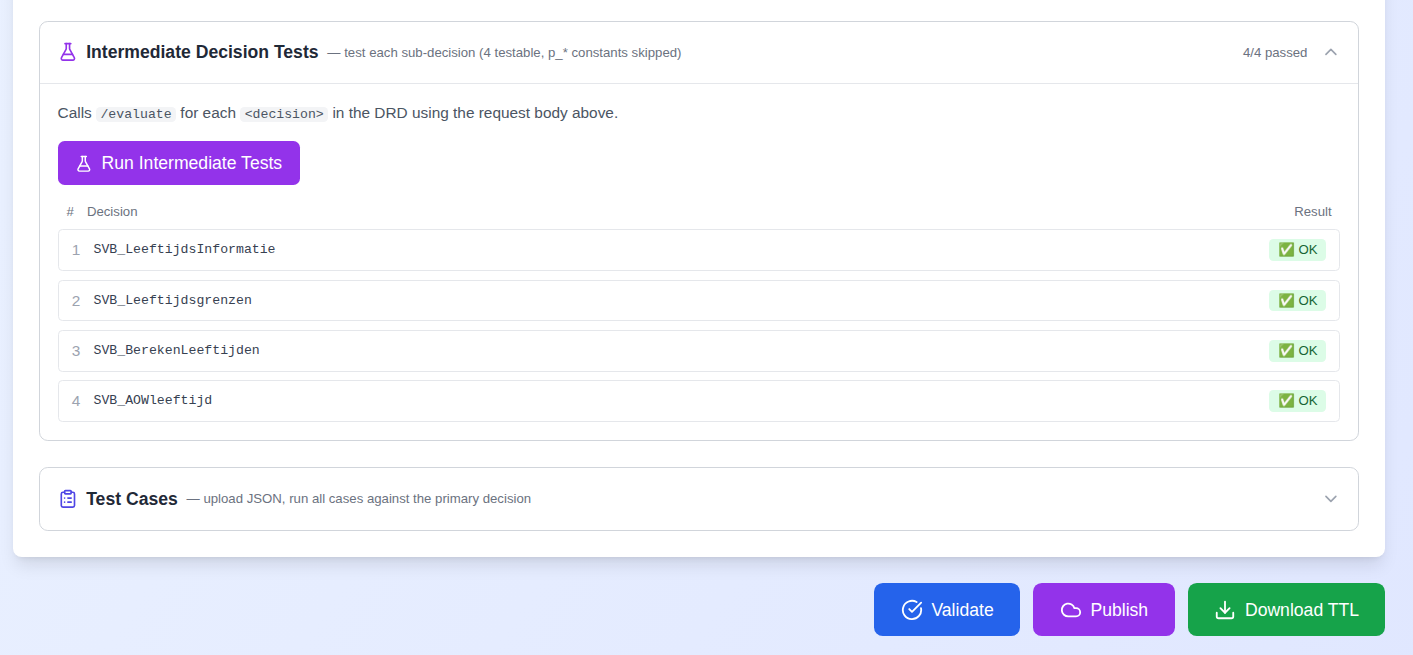
After deployment, expand the Intermediate Decision Tests section. The editor lists all testable decisions (constant parameters with p_* prefix are excluded automatically). Click Run Intermediate Tests to evaluate each decision sequentially using the current request body.
Results display progressively as each decision is evaluated:
The section only appears for DMNs with more than one decision — single-table DMNs do not have intermediate decisions to test.
Test cases
When to use
Use test cases for regression testing (verifying the DMN still works after changes), scenario validation (edge cases and business rule coverage), and as living test documentation.
Preparing a test cases file
Create a JSON file containing an array of test cases. Two formats are supported:
Toeslagen format:
[
  {
    "name": "TC1_Eligible_NL_insured_moderate_income",
    "expected": "eligible=true, amountYear>0",
    "requestBody": {
      "variables": {
        "datumBerekening": { "value": "2026-02-17", "type": "String" },
        "woonachtigNL": { "value": true, "type": "Boolean" },
        "toetsingsinkomen": { "value": 30000.0, "type": "Double" }
      }
    }
  }
]
DUO format (variables without the requestBody wrapper):
[
  {
    "testName": "Test Case 1",
    "testResult": "Eligible (should return toegekend = true)",
    "variables": {
      "leeftijd": { "value": 20, "type": "Integer" },
      "nationaliteitNL": { "value": true, "type": "Boolean" }
    }
  }
]
Both formats are automatically detected and normalised — you do not need to specify which one you are using.
Variable types
| DMN typeRef | JSON type | Example |
|---|---|---|
date |
String |
"2026-02-17" |
boolean |
Boolean |
true |
integer |
Integer |
42 |
double |
Double |
1234.56 |
string |
String |
"text" |
Date types
Use type: "String" for date values in request bodies. Use type: "Date" only for null date values (e.g. "overlijdensdatum": { "value": null, "type": "Date" }).
Running test cases
- Expand the Test Cases section in the DMN tab.
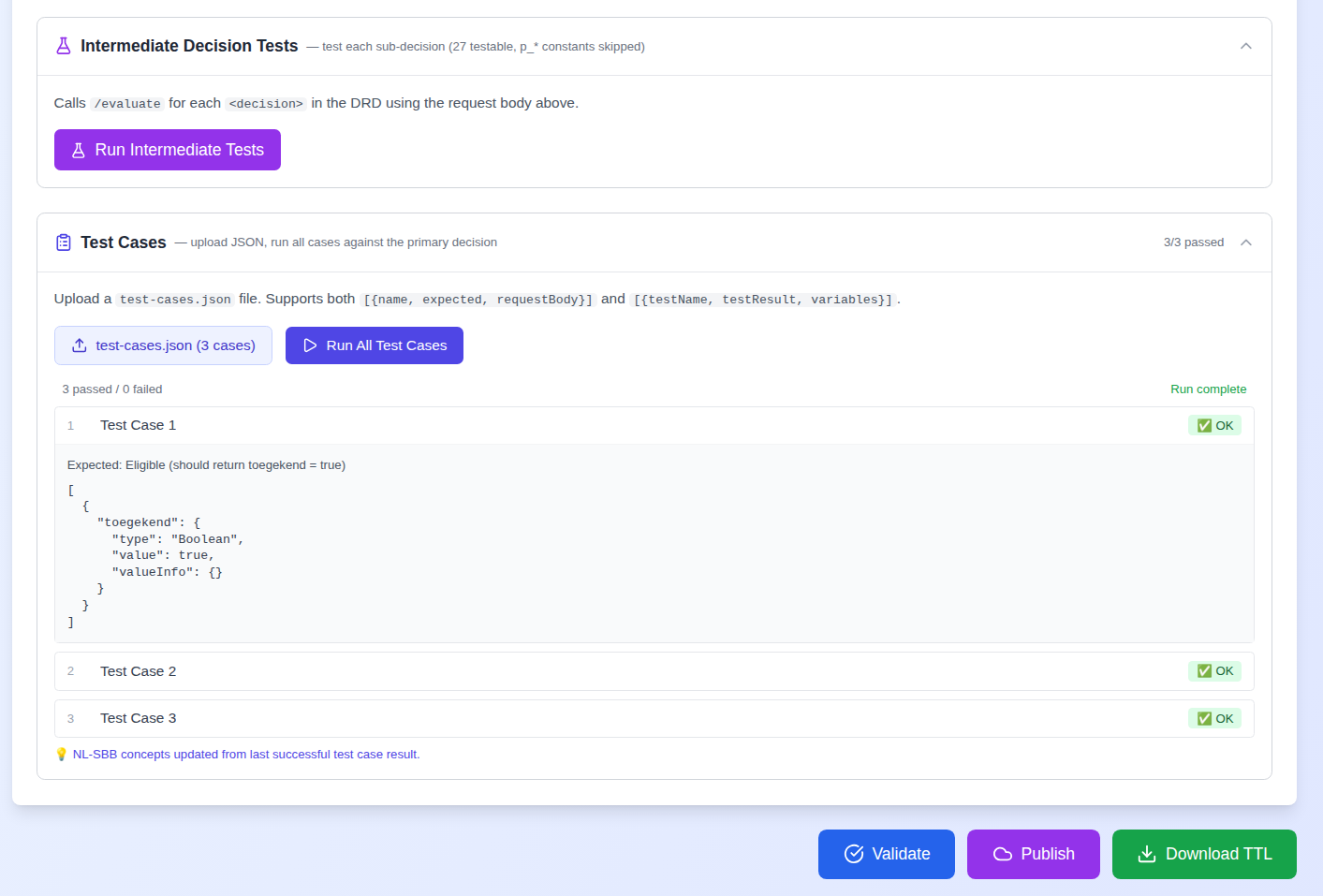
- Click Upload test-cases.json and select your file. A badge shows the filename and case count.
- Click Run All Test Cases.
Results appear progressively:
4/4 passed  •  0/4 failed

✅ 1  TC1_Eligible_NL_insured_moderate_income
     Expected: eligible=true, amountYear>0

✅ 2  TC2_Not_eligible_detained
     Expected: eligible=false, amountYear=0
After a successful run, NL-SBB concepts are generated from the last successful result for semantic linking via the Linked Data Explorer.
Debugging strategy
Work from simple to complex:
- Single evaluate — Verify the request body is correct and the model responds.
- Intermediate tests — Identify which sub-decision produces an unexpected result.
- Test cases — Validate complete scenarios including edge cases.
Watch the browser console for extraction logs:
[DMN Parse] Filtered 8 constant parameter(s), kept 12 testable decision(s)
[DMN] Extracted primary decision key: "zorgtoeslag_resultaat"
Troubleshooting
All intermediate tests show ERROR — Verify deployment status shows "Deployed — ID: ...". Check that variable names in the request body match the <inputData name="..."> values in the DMN XML.
Test cases fail to parse — Ensure the file is valid JSON, that the top level is an array ([...] not {...}), and that you are using one of the two supported formats.
Empty request body generated — The DMN XML has no <inputData> elements or they are malformed. Use Load Example to see the expected structure, then compare to your DMN file.
Date conversion error — Change "type": "Date" to "type": "String" for date value fields.