Import & Export TTL
Exporting a Turtle file
When you have filled in the tabs and validated the form, click Download TTL in the bottom bar. The browser downloads a .ttl file named after the service identifier.
The exported file contains:
- All namespace declarations
- The
cpsv:PublicServiceentity and all its linked entities - Any preserved DMN blocks (if a file with DMN data was imported)
Importing an existing Turtle file
- Click Import TTL File in the header.
- Select a
.ttlfile from your file system. - The editor parses the file and populates all tabs.
- A green confirmation message appears under the page title.
The import handles vocabulary variants gracefully — properties expressed with alternative prefixes or legacy aliases are normalised to the canonical form the editor uses.
Round-trip editing
Importing a file that was previously exported from the editor produces identical output on re-export. This makes the editor suitable for collaborative workflows where a file passes between multiple team members, each adding or editing different sections.
Importing files with DMN data
If the imported Turtle file contains DMN entities (cprmv:DecisionModel, cpsv:Input, cprmv:DecisionRule), they are automatically detected and preserved.
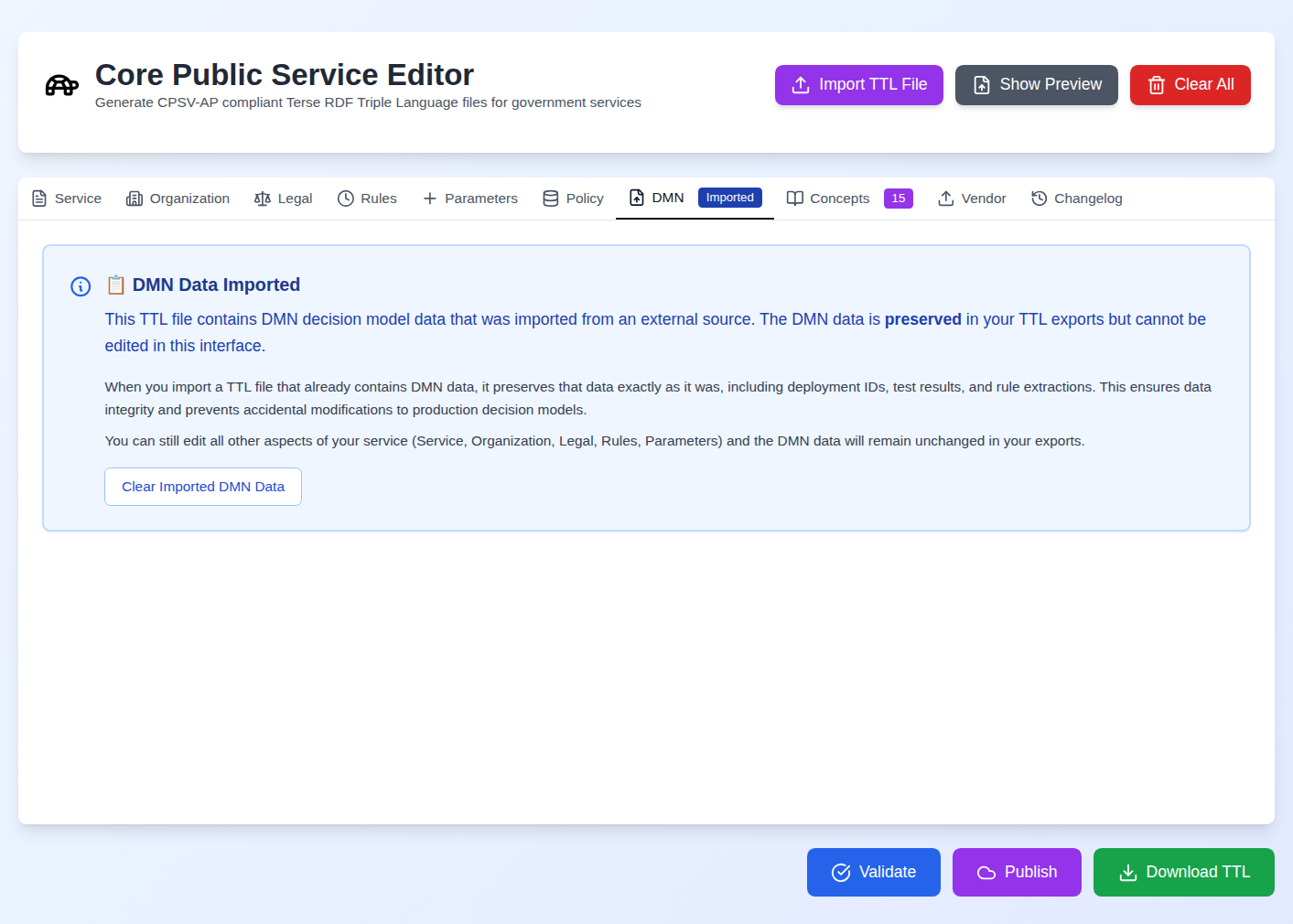
The DMN tab displays a preservation notice showing what was found. The preserved blocks are appended unchanged to every subsequent export — they are not editable through the form interface. This protects deployed decision model metadata from accidental modification during collaborative editing.
To clear the preserved DMN data and start fresh:
- Click Clear Imported DMN Data in the DMN tab.
- Confirm the action in the dialog.
- The tab returns to normal upload mode.
- Upload a new
.dmnfile and proceed with the standard DMN workflow.
Importing files without all sections
A partial Turtle file — one that contains only a service and organisation, for example, with no rules or parameters — imports successfully. Only the sections present in the file are populated; all other tabs remain empty. You can then fill in the missing sections and export the complete file.