Vendor Integration
Overview
The Vendor tab is used when a commercial vendor has built an implementation of your service's reference decision model. It lets you record that vendor's details, link their implementation to your reference service, and track certification status — all as queryable Linked Data.
Selecting a vendor
- Navigate to the Vendor tab.
- Open the vendor dropdown. Vendors are loaded from the RONL vocabulary in TriplyDB — this may take a moment.
- Select the vendor. The form below the dropdown updates to show the fields for that vendor's integration.
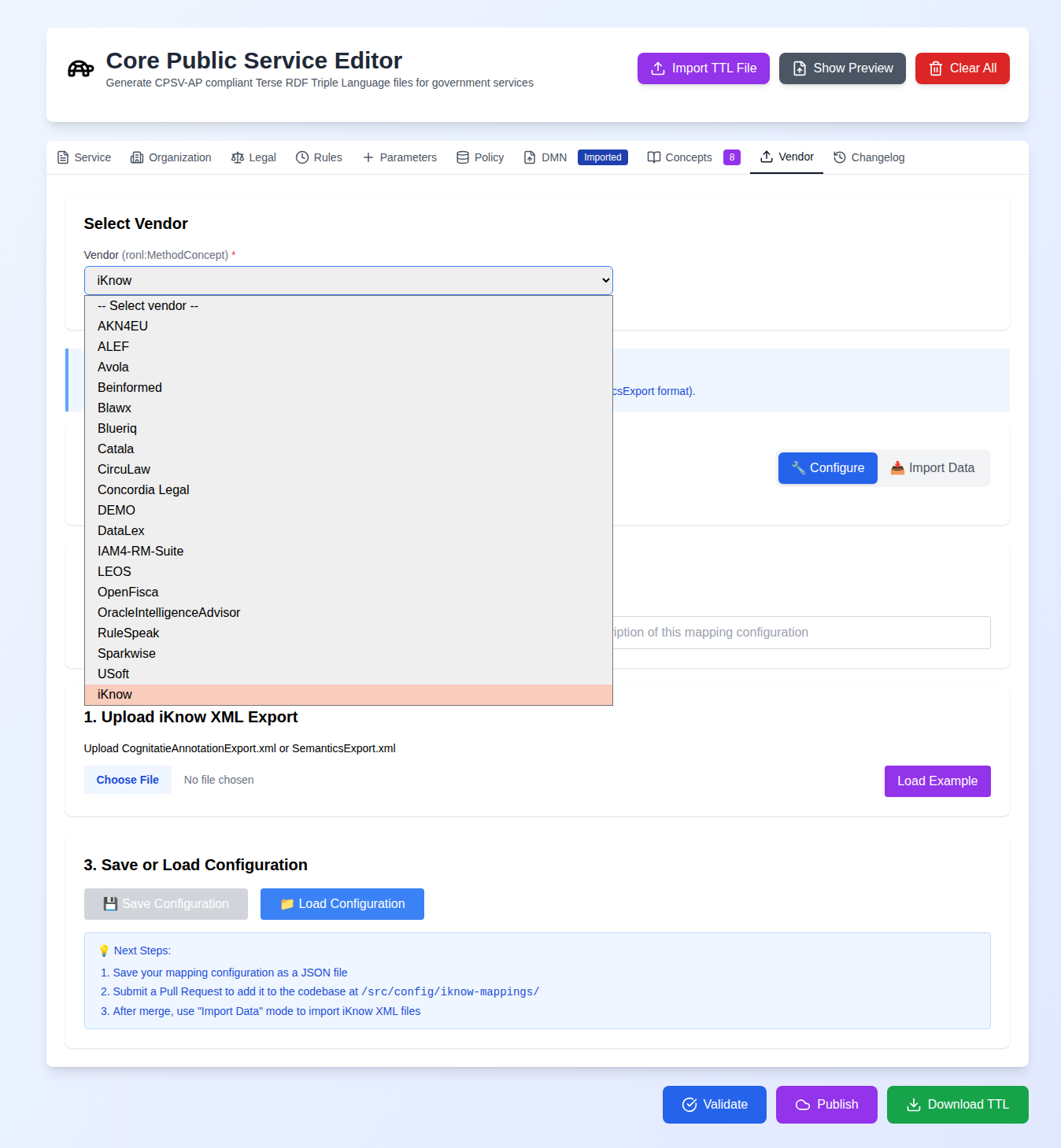
iKnow integration
iKnow is the only vendor with a fully implemented import workflow. It operates in two modes, switched via the Configure / Import toggle.
Configure mode — map iKnow XML fields to CPSV-AP properties:
- Upload an example iKnow XML export (CognitatieAnnotationExport.xml or SemanticsExport.xml), or click Load Example.
- For each section (Service, Legal, Rules, Parameters, CPRMV), map the XML fields you want to import to the corresponding CPSV-AP property.
- Click Save Configuration and give it a name.
Import mode — import actual data:
- Upload your real iKnow XML data file.
- Select a saved mapping configuration.
- Review the preview of the mapped data.
- Click Import to populate the editor tabs.
Vendor metadata form
For other vendors (currently Blueriq as the reference implementation), the form captures:
- Basic information — vendor name and service title
- Contact details — contact person, email, phone, website, logo
- Technical details — service endpoint URL, license, access type
- Service notes — free-text description of the vendor implementation
- Certification — see below
The logo field works the same way as the Organisation tab: upload a JPG or PNG, and an asset path is generated for inclusion in the Turtle output.
Certification workflow
To record that a vendor implementation has been assessed against the reference model:
- In the Certification section, change Certification Status from Not certified.
- Click Start Certification Assessment to open the certification modal.
- Select or enter the certifying organisation URI. This defaults to the competent authority from the Organisation tab.
- Enter the certification date and an optional certification note.
- Confirm to save.
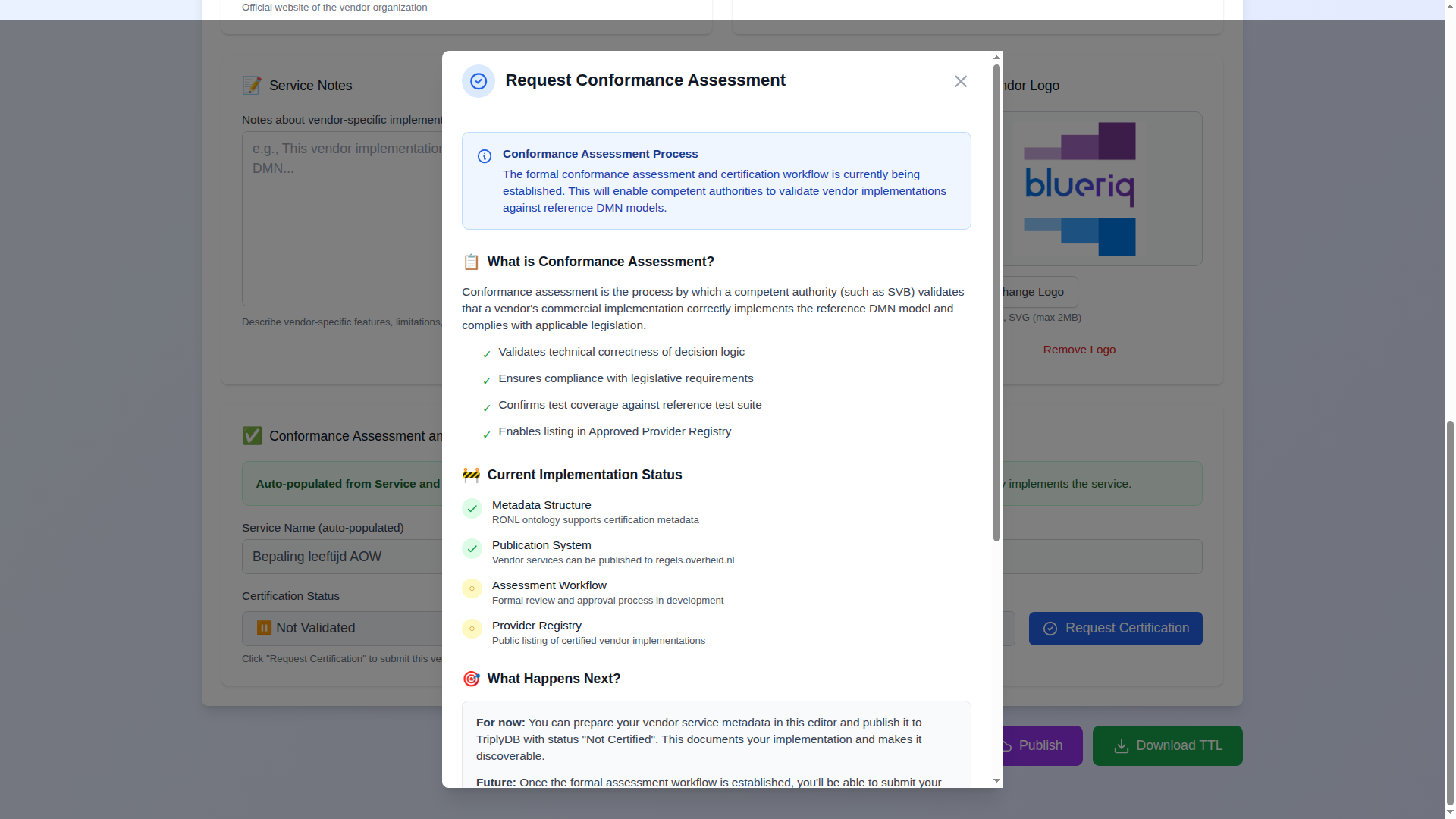
The certification details are stored as ronl:certificationStatus, ronl:certifiedBy, ronl:certifiedAt, and ronl:certificationNote in the exported Turtle.
Adding a new vendor
The architecture is extensible. If your organisation uses a vendor not in the dropdown, it can be added to the RONL vocabulary in TriplyDB (making it appear in the dropdown automatically) and a form component can be created in the codebase. See Vendor Tab Implementation for technical details.