Getting Started
Prerequisites
To use the web application: a modern browser (Chrome, Firefox, Edge, or Safari). No installation required — the editor runs entirely in the browser at cpsv-editor.open-regels.nl.
To run the editor locally:
- Node.js 14 or higher
- npm
Local installation
The application opens at http://localhost:3000.
To build a production bundle:
The build/ directory contains the static files ready for deployment.
Creating your first service definition
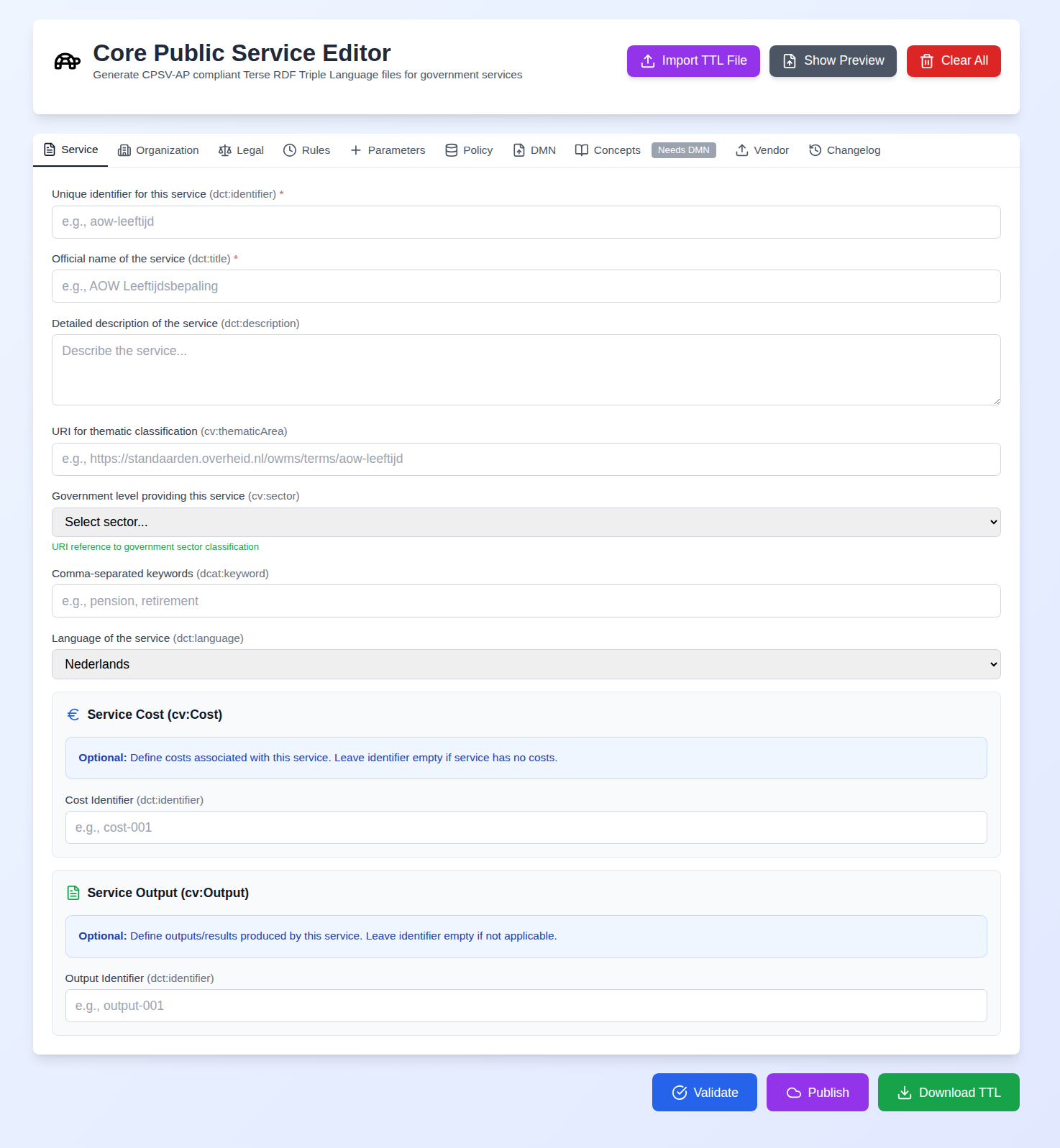
The typical workflow for a new service definition follows these steps:
-
Fill in Service Details — Enter the service identifier, official name, description, and sector. The identifier becomes the base for all RDF URIs in the output, so choose something stable and descriptive (e.g.
aow-leeftijdsbepaling). -
Add Organisation — Enter the competent authority. The geographic jurisdiction (
cv:spatial) is mandatory. -
Link Legal Resource — Enter the BWB ID of the governing legislation (e.g.
BWBR0002221). The editor validates the format and constructs the ELI URI. -
Define Rules (optional) — Add temporal rules that implement the legal resource.
-
Add Parameters (optional) — Add configurable constants used by the rules.
-
Add Policy (CPRMV) (optional) — Import or enter normative rules extracted from the legislation.
-
Validate — Click the Validate button to check for errors. Missing mandatory fields are highlighted.
-
Download TTL — Click Download TTL to export the compliant Turtle file.
Importing an existing file
If you have an existing .ttl file:
- Click Import TTL File in the header.
- Select the file.
- All tabs populate automatically from the imported data.
- Edit the fields as needed.
- Download the updated Turtle.
Clearing the editor
Click Clear in the header to reset all fields. A confirmation dialog prevents accidental data loss.