Form Editor
The Form Editor lets you create and edit Camunda Forms (schemaVersion 16) directly in the Linked Data Explorer. Forms authored here can be linked to BPMN UserTask and StartEvent elements in the BPMN Modeler and deployed to Operaton in a single operation alongside the process definition.
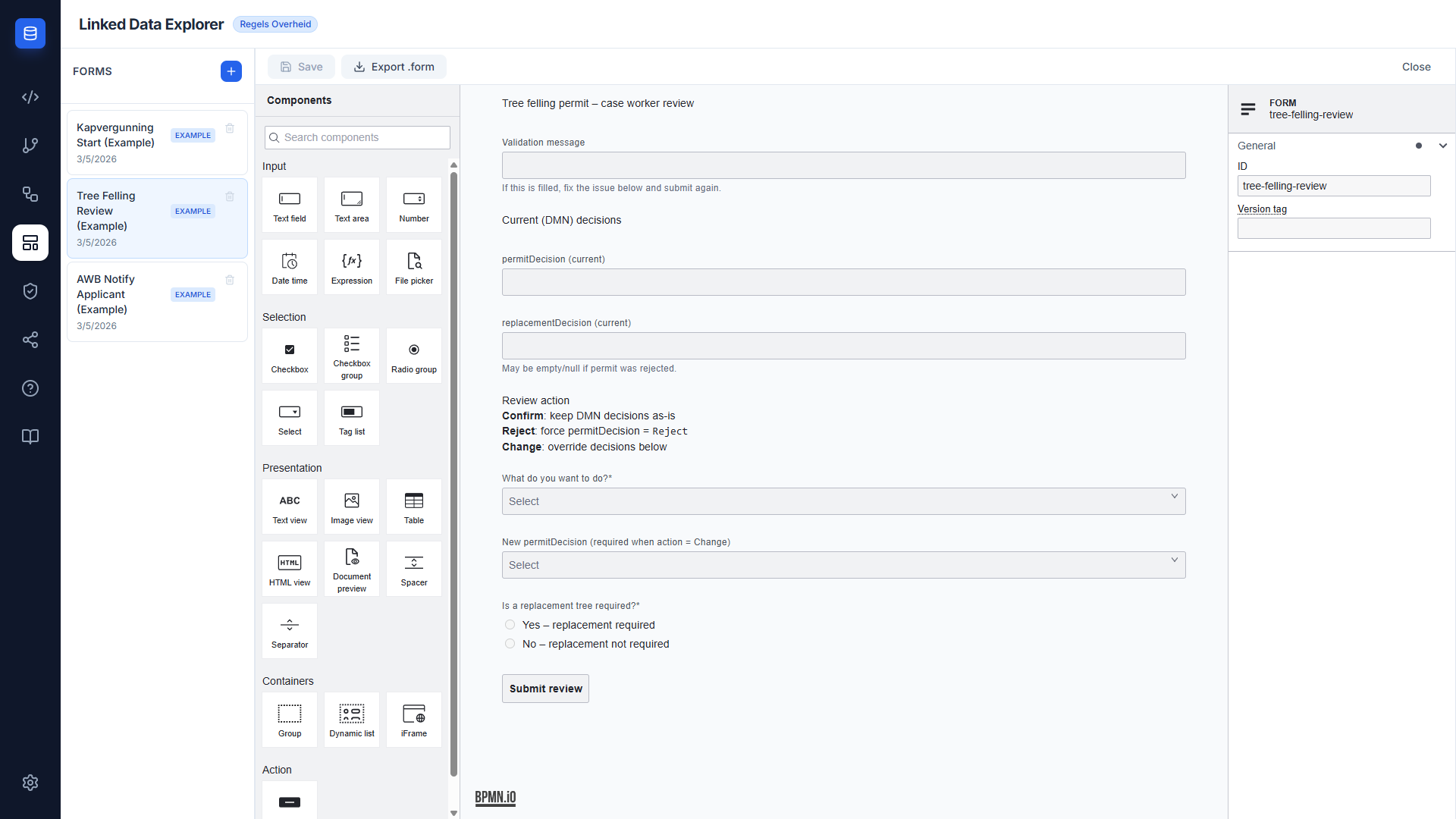
Two-panel layout
The Form Editor uses a two-panel layout:
- Left panel — Form list. Shows all forms stored in
localStoragewith create, rename, and delete actions. An EXAMPLE badge marks the three read-only seed forms; user-created forms carry a WIP badge. - Right panel — Form canvas. Hosts the
@bpmn-io/form-jsgraphical editor for the selected form, with a toolbar for saving and exporting.
Form list panel
The list panel shows every form in storage. Each entry displays the form name, its schema ID, and a status badge.
| Badge | Meaning |
|---|---|
| EXAMPLE | Read-only seed form — cannot be renamed or deleted |
| WIP | User-created form — fully editable |
Actions available on each form:
- Click — opens the form in the canvas editor
- Double-click name — enters inline rename mode (WIP forms only)
- Trash icon — deletes the form after confirmation (WIP forms only)
- + button (header) — creates a new empty form with
schemaVersion 16
Example forms
On first launch the application seeds three read-only example forms if localStorage is empty. They demonstrate complete Camunda Form schemas and serve as a starting point for customisation.
| Form ID | Name | Purpose |
|---|---|---|
kapvergunning-start |
Kapvergunning Start | Citizen-facing start form for the AWB tree felling permit application |
tree-felling-review |
Tree Felling Review | Caseworker review form — confirms or overrides DMN decisions |
awb-notify-applicant |
AWB Notify Applicant | Caseworker notification form — confirms the decision before Phase 6 completes |
Form canvas
The canvas is a full @bpmn-io/form-js visual editor. A component palette on the left of the canvas lets you drag fields, dropdowns, checkboxes, text blocks, and buttons onto the form. The properties panel on the right of the canvas edits the selected component's label, key, validation rules, and FEEL conditions.
The canvas toolbar provides:
- Save — persists the current schema to
localStorage. The button is active only when unsaved changes exist. - Export
.form— downloads the schema as a.formJSON file compatible with Camunda Modeler and Operaton. - Close — returns to the empty-state view.
Storage
Forms are stored in PostgreSQL via the LDE backend under the key linkedDataExplorer_formSchemas, cached locally in localStorage for instant synchronous access. On editor load, the service fetches the authoritative list from GET /v1/assets/forms and replaces the local cache. All schemas use:
{
  "schemaVersion": 16,
  "executionPlatform": "Camunda Platform",
  "executionPlatformVersion": "7.21.0"
}
Example forms (readonly: true) are seeded from public/examples/ and are never written to the database.
See Asset Storage for the full architecture.
Integration with the BPMN Modeler
The Form Editor and BPMN Modeler share the same FormService storage layer. A form saved in the Form Editor appears instantly in the Link to Form dropdown when a UserTask or StartEvent is selected in the BPMN Modeler. No page reload or manual sync step is required.
See BPMN Modeler — Form linking and the Form Editor user guide for step-by-step instructions.
Related documentation
- RONL Business API — Dynamic Forms — how the three AWB Kapvergunning forms are deployed and rendered at runtime in MijnOmgeving
- BPMN Modeler — One-click deploy — deploying BPMN and forms together to Operaton in one step
- RONL API Endpoints — Process definition deployment — the
POST /api/dmns/process/deployendpoint called by the deploy button