RIP Phase 1 Bundle
The RIP Phase 1 Bundle is the first government process bundle shipped with the Linked Data Explorer for the Province of Flevoland. It automates the project definition and preliminary design preparation phases of the Regular Infrastructure Projects (RIP) workflow, from intake through to approved preliminary design principles.
The bundle lives at examples/organizations/flevoland/rip-phase1/ alongside the existing HR onboarding bundle, and is deployed to Operaton in a single multipart request via the BPMN Modeler's Deploy modal.
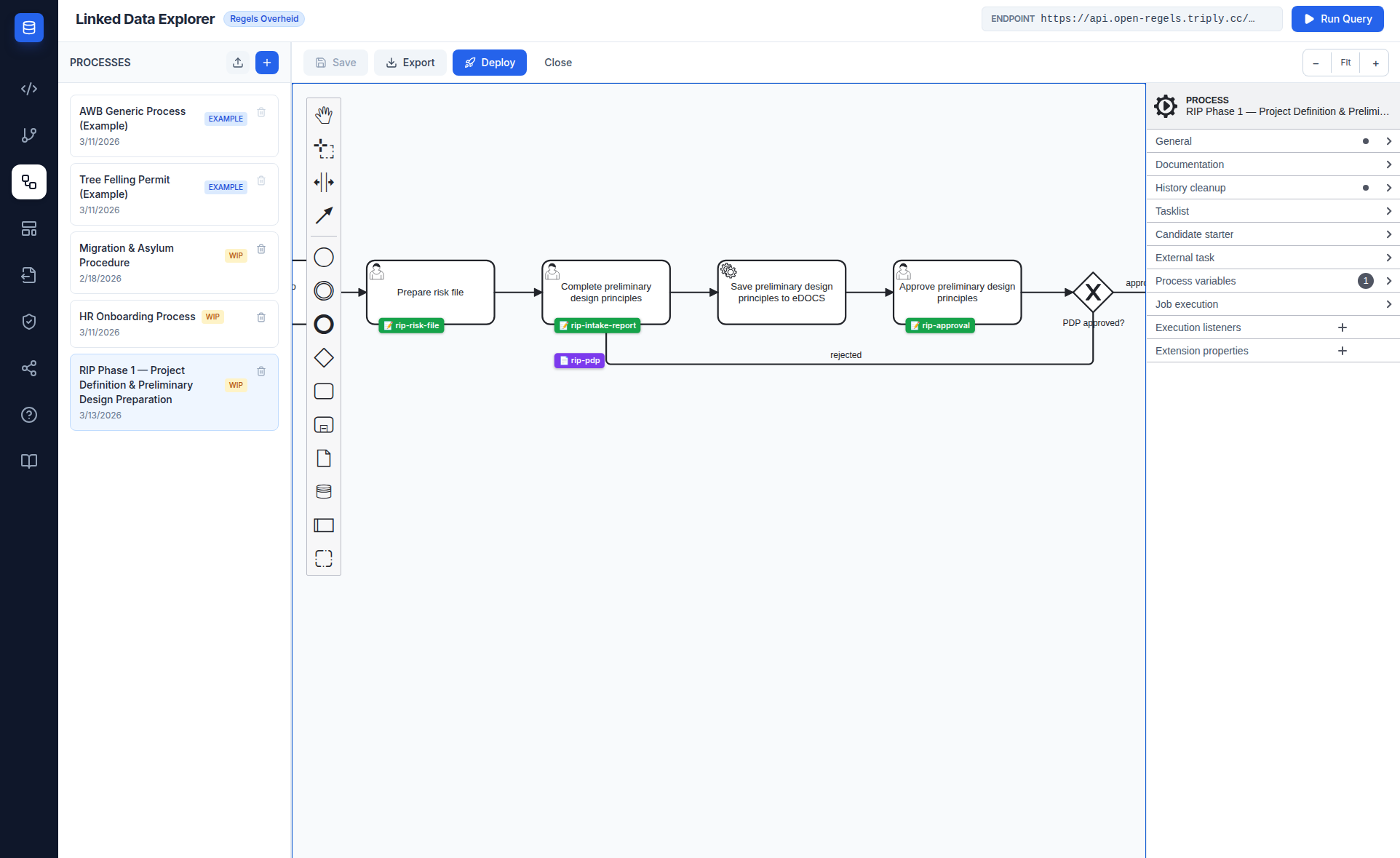
Process flow
The process has seventeen steps across two phases and two approval gateways.
Phase 1 — Project definition
The process starts with an intake form where the project contributor registers the project. A BusinessRuleTask evaluates the RipProjectTypeAssignment DMN to assign candidateGroups and assignedRoles based on projectType and department. A ServiceTask then creates the project workspace in eDOCS via the external task worker. After the intake meeting is organised and held, the contributor completes the intake report. A second ServiceTask uploads the report to eDOCS. A designated reviewer then approves or rejects the report — rejection loops back to the intake report step.
Phase 2 — Preliminary design preparation
Once the intake report is approved, the PSU (project start-up meeting) is organised and executed. Outcomes are recorded in the PSU execution form and turned into a PSU report document, which is saved to eDOCS. The contributor then prepares the risk file in Relatics and records the reference number. Finally, the preliminary design principles document is authored, saved to eDOCS, and submitted for approval. Rejection loops back to the preliminary design principles step.
| Step | Type | Description |
|---|---|---|
| 1 | StartEvent | Start RIP Phase 1 |
| 2 | UserTask | Complete intake form (rip-intake) |
| 3 | BusinessRuleTask | Determine project roles (RipProjectTypeAssignment) |
| 4 | ScriptTask | Map role outputs to process variables |
| 5 | ServiceTask | Create eDOCS project workspace |
| 6 | UserTask | Organise intake meeting (rip-intake-meeting) |
| 7 | UserTask | Complete intake report (rip-intake-report) |
| 8 | ServiceTask | Save intake report to eDOCS |
| 9 | UserTask | Approve intake report (rip-approval) |
| 10 | ExclusiveGateway | Intake report approved? ↺ rejected → step 7 |
| 11 | UserTask | Organise PSU (rip-psu-organize) |
| 12 | UserTask | PSU execution (rip-psu-execution) |
| 13 | UserTask | Complete PSU report (linked doc: rip-psu-report) |
| 14 | ServiceTask | Save PSU report to eDOCS |
| 15 | UserTask | Prepare risk file (rip-risk-file) |
| 16 | UserTask | Complete preliminary design principles (linked doc: rip-pdp) |
| 17 | ServiceTask | Save preliminary design principles to eDOCS |
| 18 | UserTask | Approve preliminary design principles (rip-approval) |
| 19 | ExclusiveGateway | PDP approved? ↺ rejected → step 16 |
| 20 | EndEvent | Phase 1 complete |
Bundle contents
The bundle contains twelve files deployed together.
BPMN
RipPhase1Process.bpmn — the executable process. ServiceTasks use camunda:type="external" with topics rip-edocs-workspace and rip-edocs-document, polled by the LDE backend external task worker.
DMN
RipProjectTypeAssignment.dmn — determines candidateGroups and assignedRoles from projectType and department. All rules currently resolve to infra-projectteam / infra-medewerker. The table structure supports adding granular RBAC rules later without touching the BPMN — add rows and redeploy the DMN only.
The DMN includes <inputData> declarations with <variable> children for both inputs, required for the CPSV Editor to generate a valid request body on publish.
Forms
| File | Purpose |
|---|---|
rip-intake.form |
Project number, name, type, department, contributor, official client, scope, budget, timeline |
rip-intake-meeting.form |
Meeting date/time, location, participants confirmed, invitation sent |
rip-intake-report.form |
Intake decisions, agreements, confirmed scope, budget and timeline (column 2) |
rip-psu-organize.form |
PSU participants, location, date, presentation prepared |
rip-psu-execution.form |
PSU outcomes, action points, risks, project team roles |
rip-risk-file.form |
Relatics risk dossier reference, date, preparer |
rip-approval.form |
Reusable approval form — approvalStatus (approved / rejected) + remarks; used at both gateways |
Document templates
| File | Column | Key bindings |
|---|---|---|
rip-intake-report.document |
Column 2 | projectNumber, projectName, confirmedScope, confirmedBudget, confirmedTimeline, intakeDecisions, intakeAgreements |
rip-psu-report.document |
Column 3 | psDate, psLocation, psOutcomes, psActionPoints, projectManager, projectSupporter |
rip-pdp.document |
Column 4 | confirmedScope, confirmedBudget, confirmedTimeline, riskFileReference, pdpNotes |
Deploying the bundle
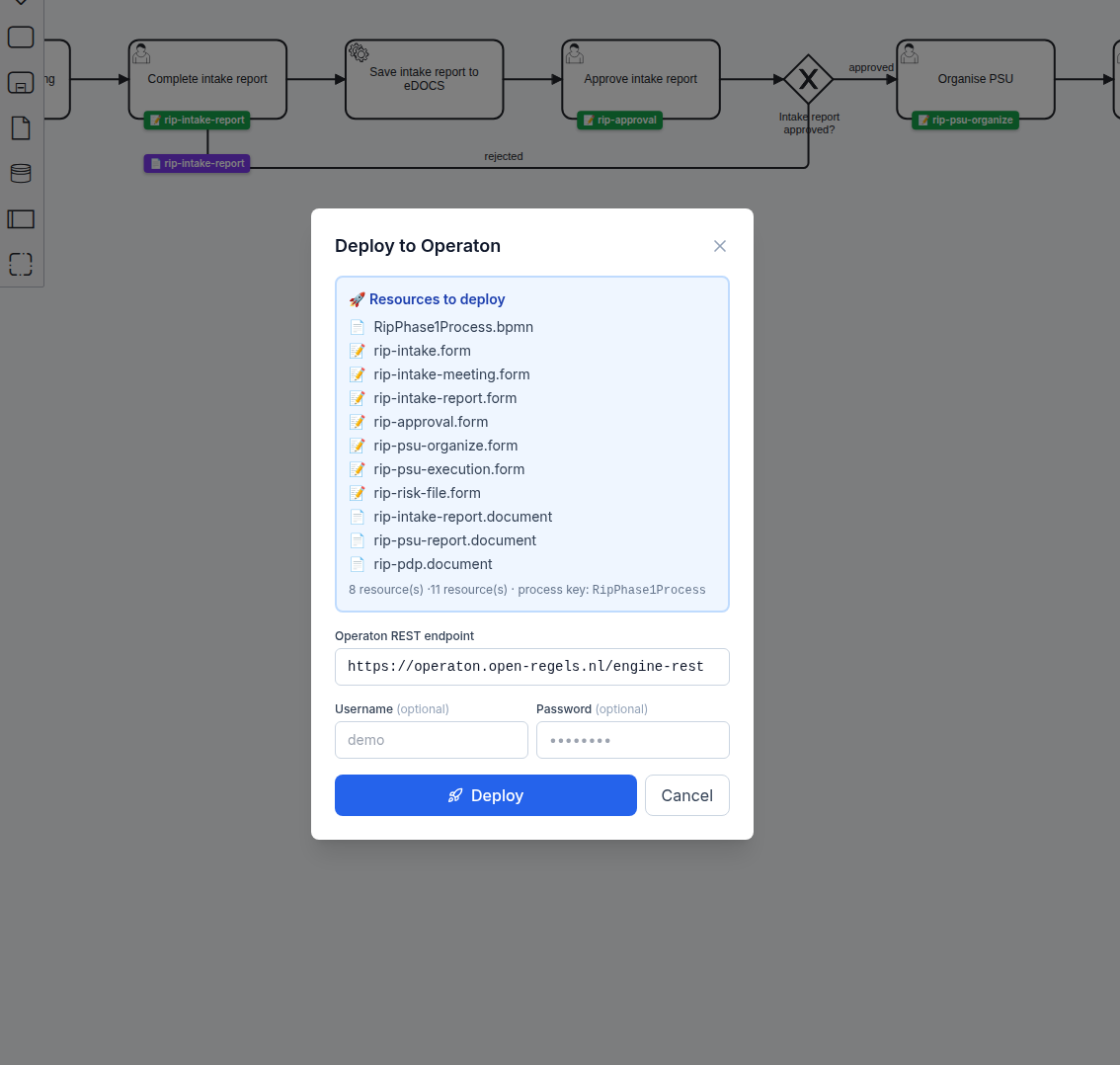
Open RipPhase1Process.bpmn in the BPMN Modeler and click Deploy. The modal resolves all camunda:formRef and ronl:documentRef attributes automatically and lists all 12 resources. Click Deploy to Operaton to deploy.
Tip
Set a Business Key equal to the project number when starting the process from the Operaton Cockpit. This makes process instances easy to find by project number.
Starting the process
The process is designed to be started from the Human Tasks interface in MijnOmgeving (or the Operaton Tasklist), not directly from the Cockpit. Starting from the Cockpit's generic start dialog is possible for testing — click Start and the first user task (Complete intake form) will appear in the task list immediately.
Note
candidateGroups is set to infra-projectteam for all tasks by the DMN. Any user with this group membership can claim tasks.
eDOCS integration
The three ServiceTasks in the process write documents to the project workspace in eDOCS. In stub mode (EDOCS_STUB_MODE=true), the external task worker returns realistic fake responses and logs all calls. No code changes are needed when switching to a live eDOCS server — set EDOCS_STUB_MODE=false and provide the real credentials.
See eDOCS Integration for setup and configuration.
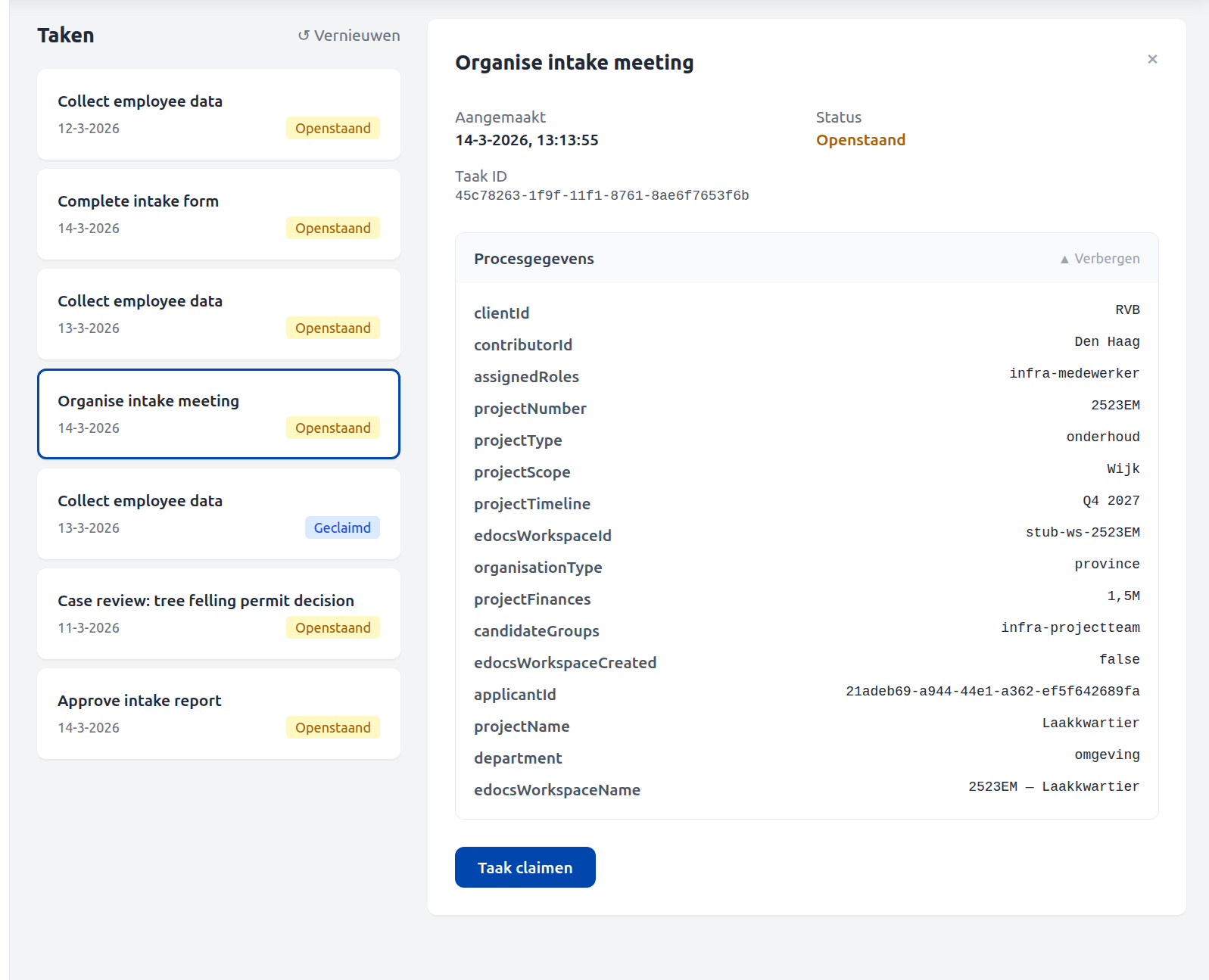
stub-ws-2523EM) and all intake variables are visible in the process data panel.