BPMN Modeler
The BPMN Modeler lets you design government service workflows and link decision model references directly to DMNs and DRDs you have discovered or saved in the Chain Builder.
Opening the Modeler
Click the Workflow icon in the left sidebar. The Modeler opens with the process list on the left, the canvas in the centre, and the properties panel on the right.
On your first visit, the Tree Felling Permit example process loads automatically. It demonstrates a complete municipal workflow and serves as a reference — examine it before creating your own processes.
Creating a process
- Click the blue + button at the top of the process list.
- A new process named "New Process" appears in the list and the canvas shows an empty diagram with a start event.
- Double-click the process name in the list to rename it.
Building a diagram
Drag elements from the palette on the left edge of the canvas onto the diagram area. Connect elements by clicking the source element and dragging the blue arrow handle that appears on hover to the target element.
Available element types: start events, intermediate events, end events, tasks (user, service, business rule), gateways (exclusive, parallel, inclusive, event-based), sub-processes, data objects, pools, and text annotations.
Linking a BusinessRuleTask to a decision
Select a BusinessRuleTask on the canvas. The properties panel on the right shows the element details, including a DMN/DRD Decision Reference section.
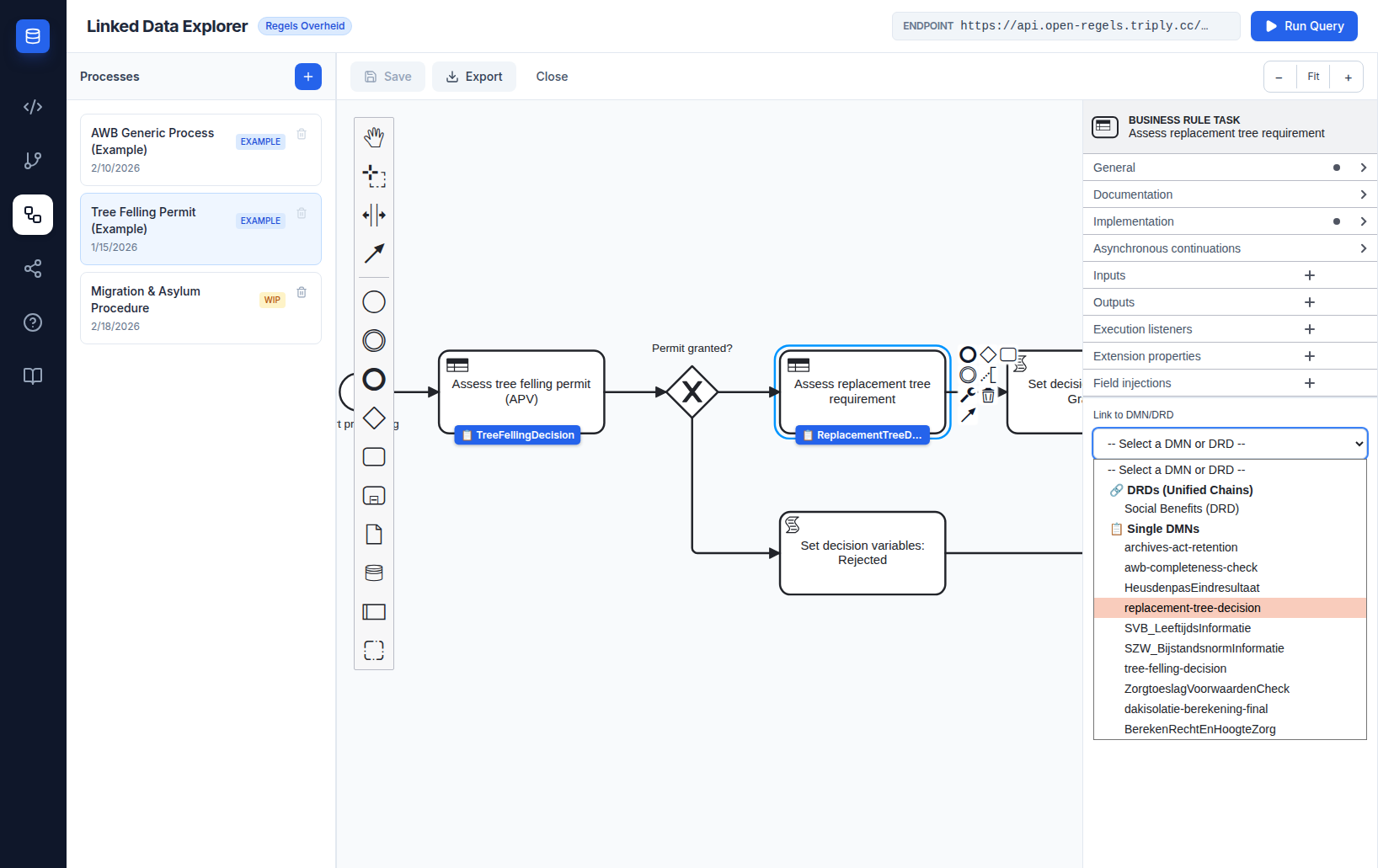
- Click Link to DMN/DRD to open the dropdown.
- The dropdown shows two groups:
- 🔗 DRDs (Unified Chains) — DRD templates saved from the Chain Builder
- 📋 Single DMNs — individual decision models from the active TriplyDB endpoint
- Select an option. The
camunda:decisionReffield auto-populates with the correct identifier and a suggestedcamunda:resultVariablevalue appears. - An info card confirms your selection. DRD cards show the constituent DMNs the DRD combines; single DMN cards show the decision identifier.
Linking a UserTask or StartEvent to a form
UserTask and StartEvent elements can be linked to Camunda Forms authored in the Form Editor. Once linked, Operaton renders the form at runtime for the citizen or caseworker assigned to that task.
Select a UserTask or StartEvent on the canvas. The properties panel shows a Link to Form section beneath the standard element fields.
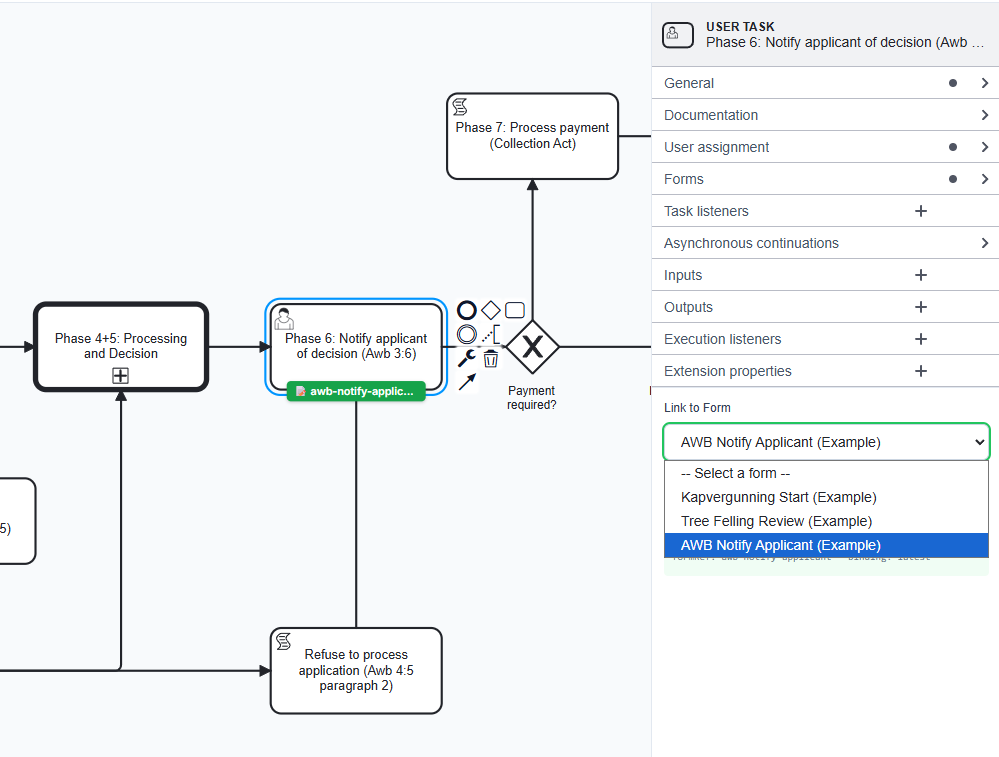
- Click the Link to Form dropdown. It lists all forms currently saved in the Form Editor.
- Select the form you want to link.
- A confirmation card appears below the dropdown showing the form name and the resulting
camunda:formRefvalue. - A green badge appears below the element on the canvas, confirming the link.
The dropdown writes camunda:formRef and camunda:formRefBinding="latest" into the BPMN XML. binding: latest means Operaton always uses the most recently deployed version of that form — you do not need to pin a specific version.
To unlink a form, open the dropdown and select the blank option at the top.
Form not in the list?
Open the Form Editor view and create or save the form first. Forms appear in the dropdown immediately after saving — no page reload required.
Deploying to Operaton
The Modeler can deploy your process — including subprocess BPMNs and linked forms — to Operaton in a single step.
Click the Deploy button in the canvas toolbar. The deploy modal opens and lists:
- The current BPMN file
- Any subprocess BPMNs it calls via
calledElement(resolved from your saved processes) - All
.formfiles whose IDs matchcamunda:formRefreferences in the bundle - All
.documentfiles whose IDs matchronl:documentRefreferences in the bundle
DMNs are not part of the deploy bundle
Decision models referenced via camunda:decisionRef on BusinessRuleTask elements are not included in this deployment. DMNs reach Operaton through a separate path: they are published to TriplyDB by the CPSV Editor and deployed to Operaton from there. The BPMN process resolves camunda:decisionRef at runtime against whatever is already deployed — as long as the DMN key matches, no additional action is needed here.
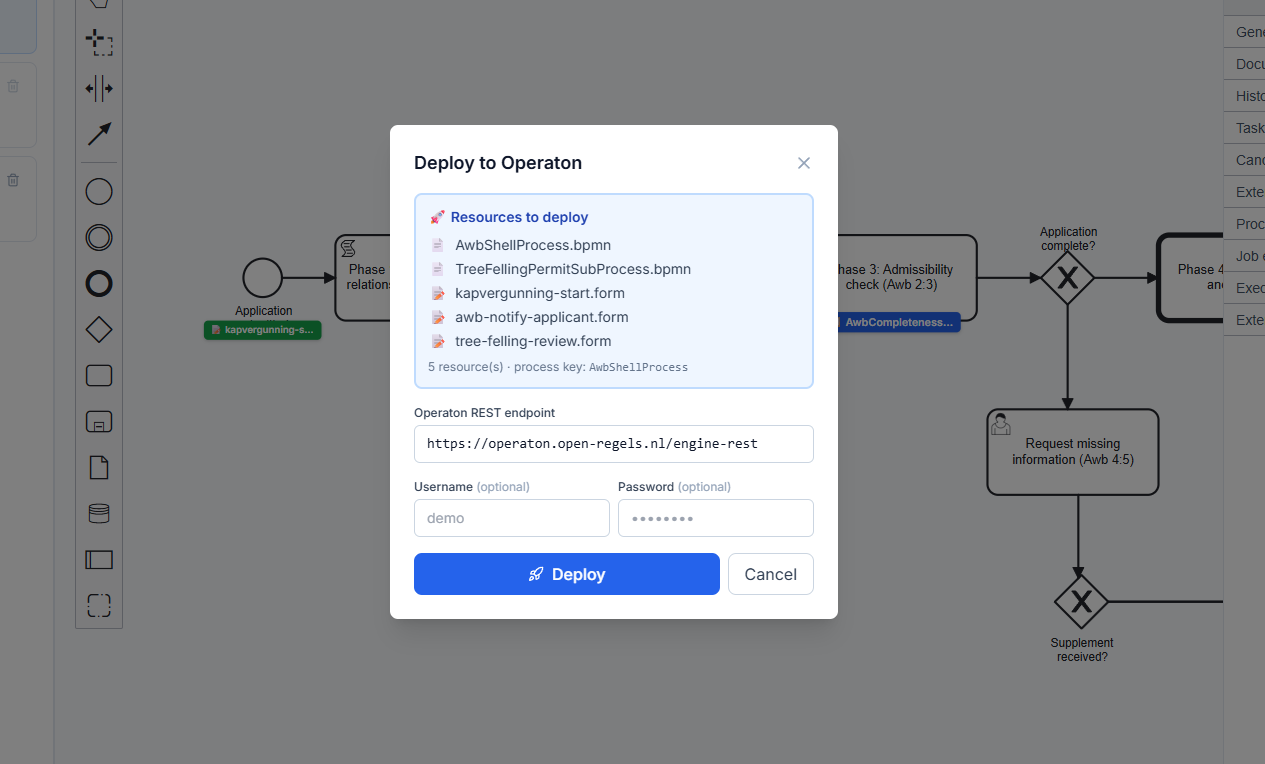
- Review the resource list. If a referenced form ID is shown as unmatched, open the Form Editor and save a form with that ID before deploying.
- Confirm or edit the Operaton endpoint URL. It is pre-filled from the environment configuration.
- If your Operaton instance requires authentication, enter the Username and Password.
- Click Deploy. All resources are sent in one multipart request.
- On success, a deployment ID is shown and the Deploy button is disabled to prevent accidental re-deploy.
Because the BPMN and all its forms land in the same Operaton deployment, camunda:formRef resolves correctly at runtime with no additional steps.
Editing element properties
- Name: editable in the right properties panel for any selected element
- Element ID: shown read-only (managed by bpmn-js)
- BusinessRuleTask specific:
camunda:decisionRef,camunda:resultVariable,camunda:mapDecisionResult
Zoom and navigation
- Scroll wheel — zoom in and out
- + / − buttons in the toolbar — zoom in/out in steps
- Fit to viewport button — centres and scales the diagram to fill the canvas
- Click and drag on empty canvas — pan
Storage
Processes are stored in PostgreSQL via the LDE backend and cached in browser localStorage for instant access. On editor load, the service fetches the authoritative list from the server and replaces the local cache. If the backend is unreachable, the local cache is used as a fallback without any error surfaced to the user.
Example processes (readonly: true) are seeded from public/examples/ on the frontend and are never written to the database.
See Asset Storage for the full architecture.
Click Export to download a .bpmn file for deployment to Operaton. You can also deploy directly from the Modeler using the Deploy button. See Deploying to Operaton above.
The Tree Felling Permit example
The example process cannot be deleted. It demonstrates:
UserTaskfor application submissionBusinessRuleTask(Assess Felling Permit) linked toTreeFellingDecisionExclusiveGatewayrouting on the decision outcomeBusinessRuleTask(Assess Replacement Requirement) linked toReplacementTreeDecision- Two end events: Permit Granted and Permit Rejected
To use it as a starting point, export it, create a new process, and paste the exported XML.
AWB shell and subprocess examples
The process library ships with two AWB shell processes and their subprocesses:
AWB Generic Process (SHELL) — the universal eight-phase AWB procedural shell for the Kapvergunning (tree felling permit). Calls TreeFellingPermitSubProcess via a Call Activity at Phase 4+5.
└── Tree Felling Permit (SUB) — evaluates the substantive tree felling decision and routes to caseworker review.
AWB Zorgtoeslag — Provisional Entitlement (SHELL) — AWB shell wired for the Zorgtoeslag provisional entitlement subprocess.
└── Zorgtoeslag — Provisional Entitlement (SUB) — validates application, retrieves income data, evaluates the resultaat_zorgtoeslag DMN, and routes to caseworker review.
└── Zorgtoeslag — Final Settlement (SUB) — started via the FinalIncomeReceived message event once final annual income data arrives from Belastingdienst. Evaluates confirmed income and sets the settlement outcome.
All example processes are protected (EXAMPLE badge, delete disabled). To use one as a starting point, export it and import the copy as a new process.