Submitting an Application
This guide covers the Kapvergunning (tree felling permit) application — the AWB process currently available in the RONL Business API citizen portal. For the zorgtoeslag calculator and application, see Applying for Zorgtoeslag via Unive.
Kapvergunning (tree felling permit application)
The tree felling permit is an asynchronous, multi-actor process implementing the Dutch Administrative Law Act (Awb). Unlike a simple calculation, the citizen submits an application and receives a dossier reference — the actual decision is made later by a caseworker and communicated separately.
Prerequisites
You must be logged in with DigiD assurance level midden or higher. See Logging In — Citizen & Caseworker.
Submitting the application
Step 1 — Open the service
After login, select Vergunningen from the services catalogue, then choose Kapvergunning aanvragen.
Step 2 — Fill in the form
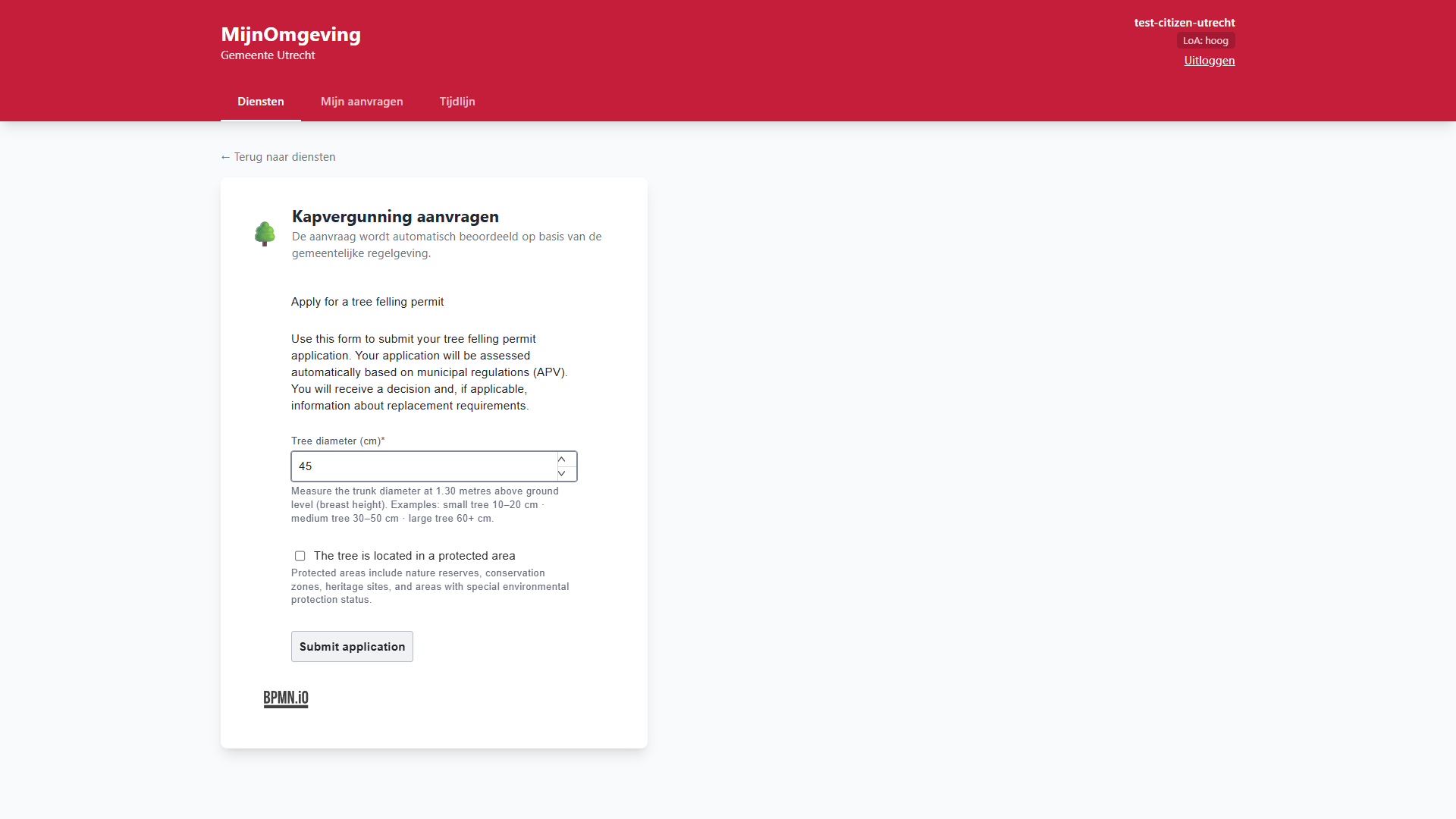
The form is a live-fetched Camunda Form (kapvergunning-start) rendered by @bpmn-io/form-js. Your applicantId and productType are injected automatically as hidden initial data — you do not need to enter them.
| Field | Label | Input type |
|---|---|---|
treeDiameter |
Stamdiameter (cm) | Number, 1–500 |
protectedArea |
Beschermd gebied | Checkbox |
If no form schema is deployed for the process, the portal falls back to a static form and shows a brief notice.
Step 3 — Submit
Click Aanvraag indienen. The portal sends:
POST /v1/process/AwbShellProcess/start
Authorization: Bearer <JWT>
Content-Type: application/json

{
  "treeDiameter": 45,
  "protectedArea": false,
  "productType": "TreeFellingPermit"
}
Step 4 — Confirmation
The portal immediately shows your dossier reference:
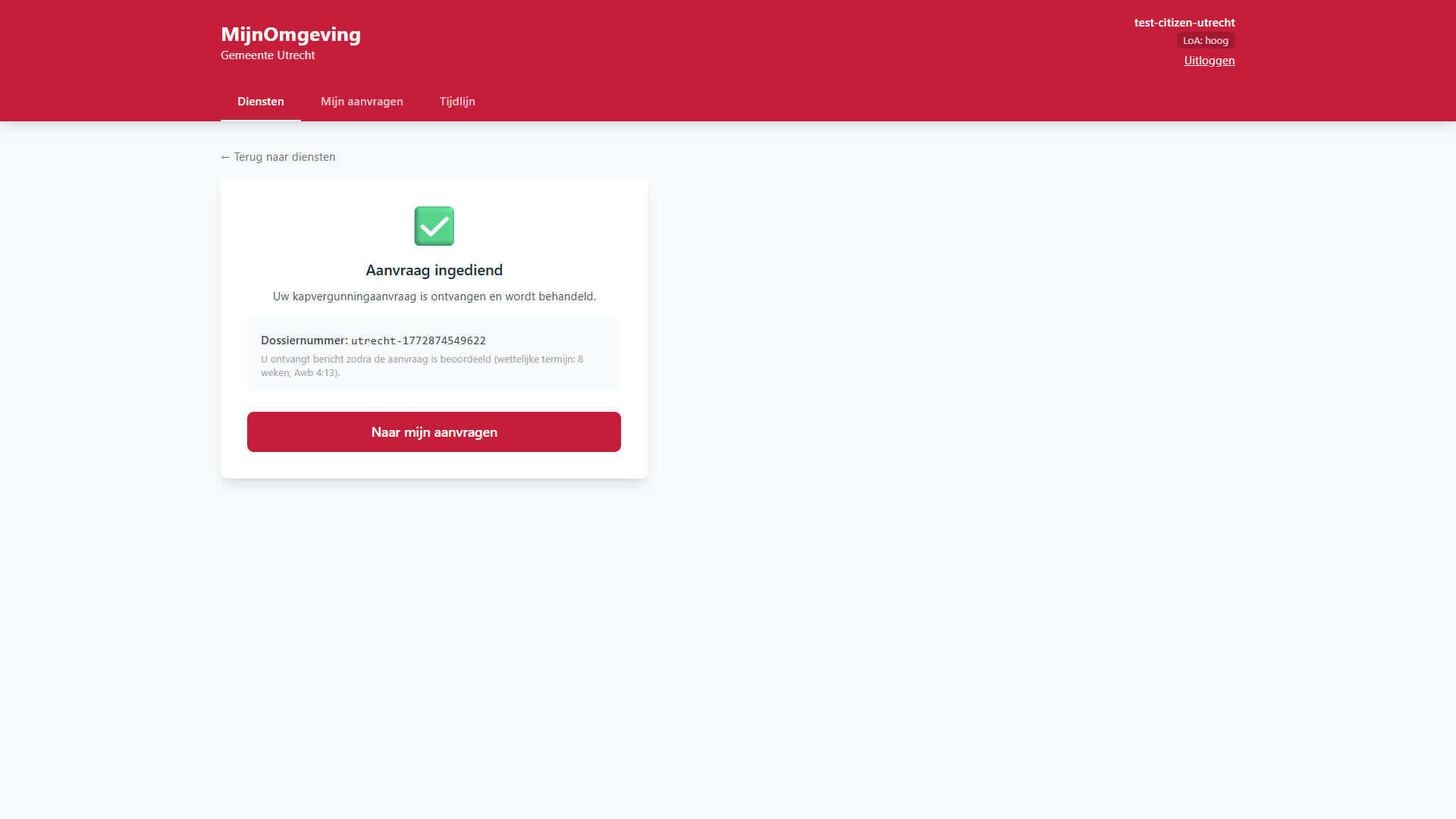
Uw aanvraag is ingediend.
Dossiernummer: AWB-2026-524494
Uiterste beslistermijn: 28 april 2026 (Awb 4:13, 8 weken)
No decision is returned at this point. The process is now waiting for caseworker review. You can track the status under Mijn aanvragen.
Application list status
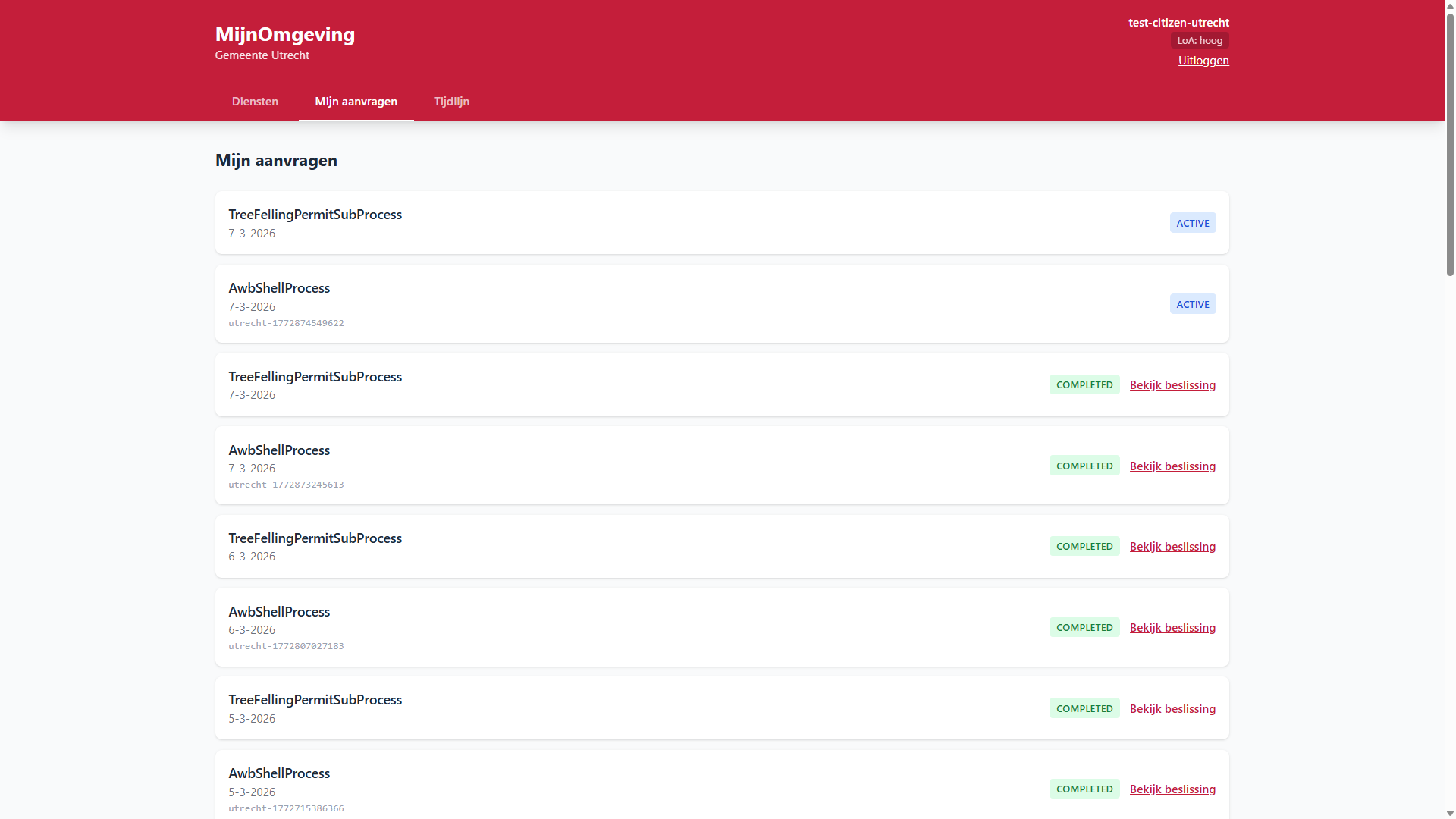
The list currently shows both completed and open applications. No distinction has yet been made between the shell process and its subprocess (AwbShellProcess and TreeFellingPermitSubProcess).
What happens in the background
The AWB shell process runs automatically through phases 1–3 before pausing at the first user task:
- Phase 1 — Identity script sets
applicantId,productType,applicationDate - Phase 2 — Receipt script sets
receiptDate,awbDeadlineDate(8 weeks, Awb 4:13),dossierReference - Phase 3 —
AwbCompletenessCheckDMN evaluates whether the application is complete (Awb 4:5) - Call Activity —
TreeFellingPermitSubProcessstarts: TreeFellingDecisionDMN evaluatestreeDiameterandprotectedArea→permitDecisionReplacementTreeDecisionDMN evaluates whether a replacement tree is required →replacementDecision- A
Sub_CaseReviewuser task is created for caseworker review - Process suspends — awaiting caseworker action
After the caseworker completes the review and confirms citizen notification (Task_Phase6_Notify), the process ends and the final decision variables are stored.
Viewing the decision
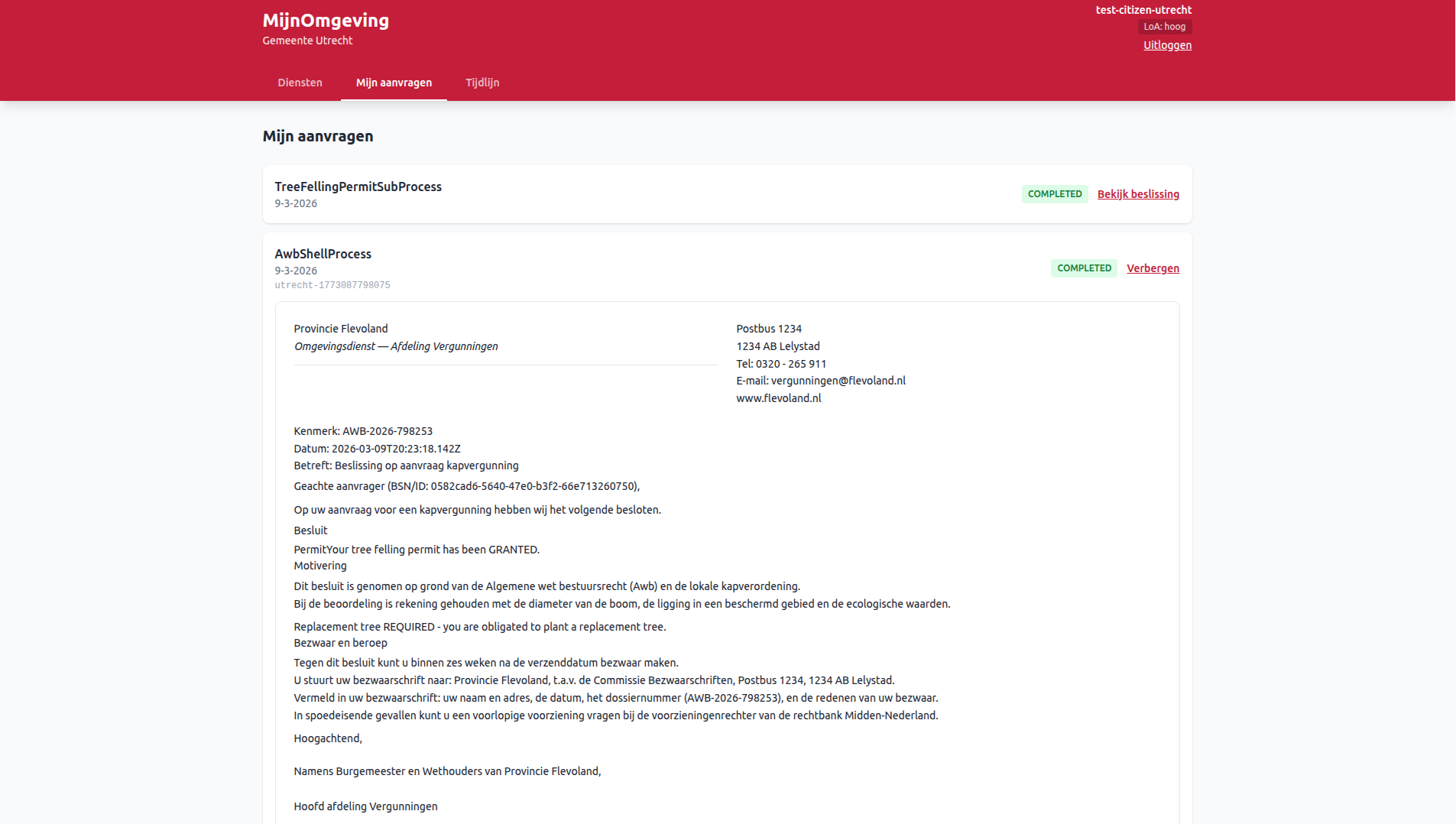
Once the caseworker completes both tasks and the process ends, a Bekijk beslissing toggle appears on the application card in Mijn aanvragen. Clicking the toggle expands the Decision Viewer panel below the card.
From v2.3.0, the Decision Viewer renders the official decision letter authored in the LDE Document Composer and bundled with the deployed process. The letter includes the municipality letterhead, contact information, dossier reference, the substantive decision text, and — if applicable — replacement tree requirements. Variable placeholders in the template are resolved from the final process variables automatically.
For applications submitted before document templates were introduced, the viewer falls back to a compact readonly summary of the key decision fields.
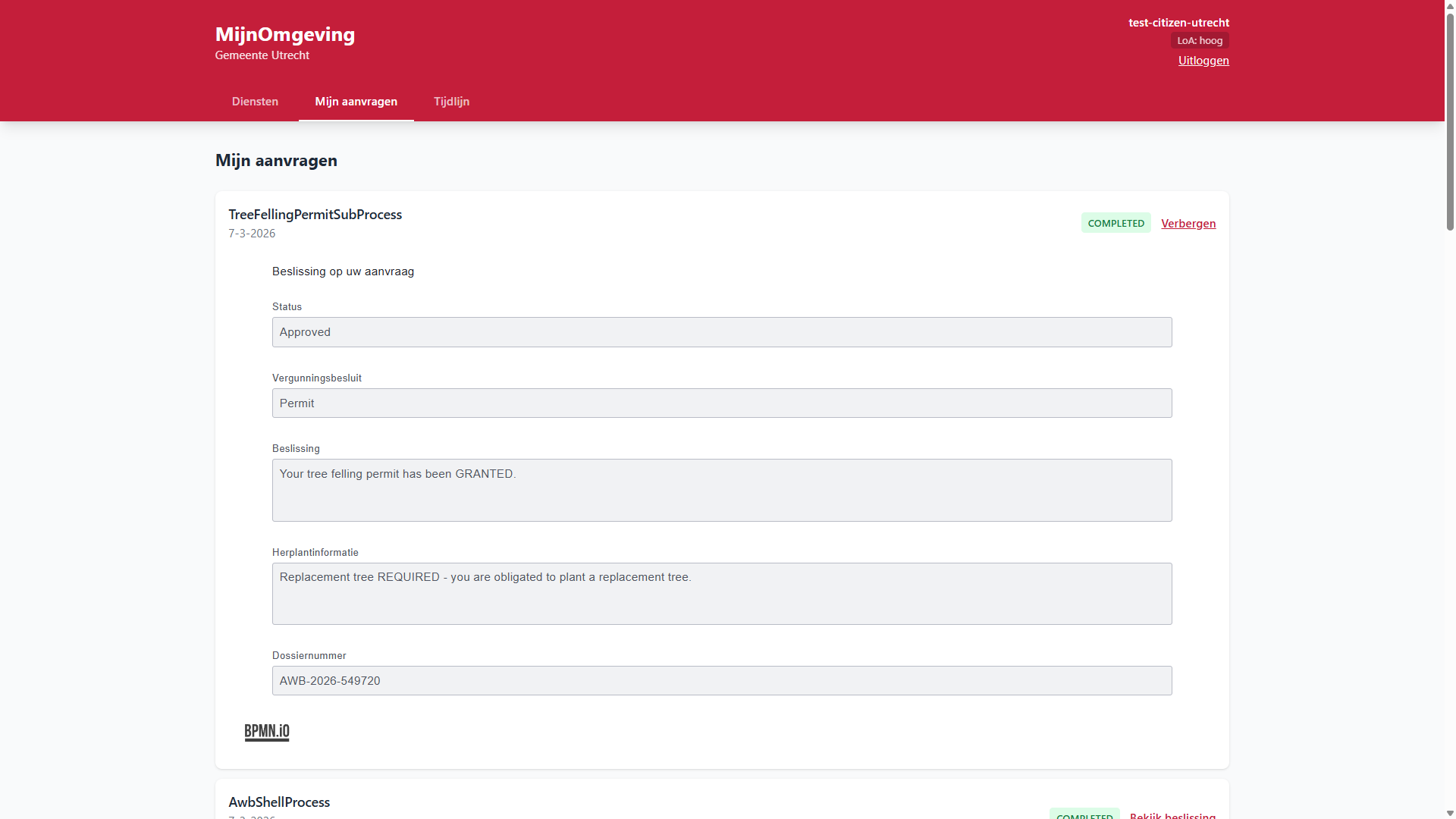
The panel shows five readonly fields drawn from the final process variable state:
| Field | Variable | Description |
|---|---|---|
| Status | status |
Approved or Rejected |
| Beslissing | permitDecision |
Permit or Reject |
| Beslissingstekst | finalMessage |
Plain-text decision including appeal notice if rejected |
| Herplantinformatie | replacementInfo |
Whether a replacement tree is required |
| Dossiernummer | dossierReference |
The AWB dossier reference assigned at submission |
The Decision Viewer calls GET /v1/process/:id/historic-variables — variables are available immediately after process completion with no polling needed.
Test scenarios
Scenario A — Small tree, unprotected area → Permit granted
| Field | Value |
|---|---|
| Stamdiameter | 23 cm |
| Beschermd gebied | ✗ |
Expected outcome (after caseworker review): permitDecision = Permit, replacementDecision = false
Scenario B — Large tree, unprotected area → Permit rejected
| Field | Value |
|---|---|
| Stamdiameter | 78 cm |
| Beschermd gebied | ✗ |
Expected outcome (after caseworker review): permitDecision = Reject, finalMessage contains appeal information (Awb 6:7, 6-week window)
Scenario C — Any tree, protected area → Permit rejected
| Field | Value |
|---|---|
| Stamdiameter | any |
| Beschermd gebied | ✓ |
Expected outcome (after caseworker review): permitDecision = Reject — protected area designation overrides diameter threshold
Caseworker override
The caseworker can override the DMN outcome during Sub_CaseReview by selecting Wijzigen and choosing a different permit decision. The override is stored in reviewAction = change alongside reviewPermitDecision. Both the original DMN result and the caseworker override are preserved in the process variables for audit purposes.
Troubleshooting
Form submits but no result appears Check that the API Health indicator in the portal header shows all services as UP. If Operaton shows "down", the business rules engine is temporarily unavailable.
500 error on submission
The most common cause is a double-wrapped variable format in the tenant middleware. Check the backend log for Must provide 'null' or String value for value of SerializableValue type 'Json'. See Troubleshooting.
Error: FORBIDDEN / LOA_INSUFFICIENT Your DigiD assurance level is too low for this service. Log out and log in again using DigiD with SMS code (midden) or the ID check app (hoog).
Error: RATE_LIMIT_EXCEEDED Too many requests from your session. Wait one minute and try again.
Task not visible in caseworker queue
The task queue filters by municipality process variable. Verify that the citizen and caseworker accounts belong to the same municipality in Keycloak. See Caseworker Workflow.