Using Timeline Navigation
What is Timeline Navigation?
Timeline Navigation lets you view your personal data from the BRP (Basisregistratie Personen) at any point in time - past, present, or future. This helps you:
- Understand your history — See how your household looked at any date
- Plan for changes — Explore how future life events affect your benefits
- Check eligibility — Understand which services you qualified for in the past
- Verify data — Confirm your BRP data is correct
Getting Started
Step 1: Login
- Go to MijnOmgeving for your municipality:
- Utrecht: https://mijn.open-regels.nl (or ACC: https://acc.mijn.open-regels.nl)
- Amsterdam, Rotterdam, Den Haag: Same URL, different theme
- Click "Inloggen met DigiD"
- Login with your DigiD credentials
- You'll see the Dashboard
Step 2: Open Timeline
- On the Dashboard, click the "📅 Toon Tijdlijn" button
- The timeline loads your life events from BRP
- You'll see:
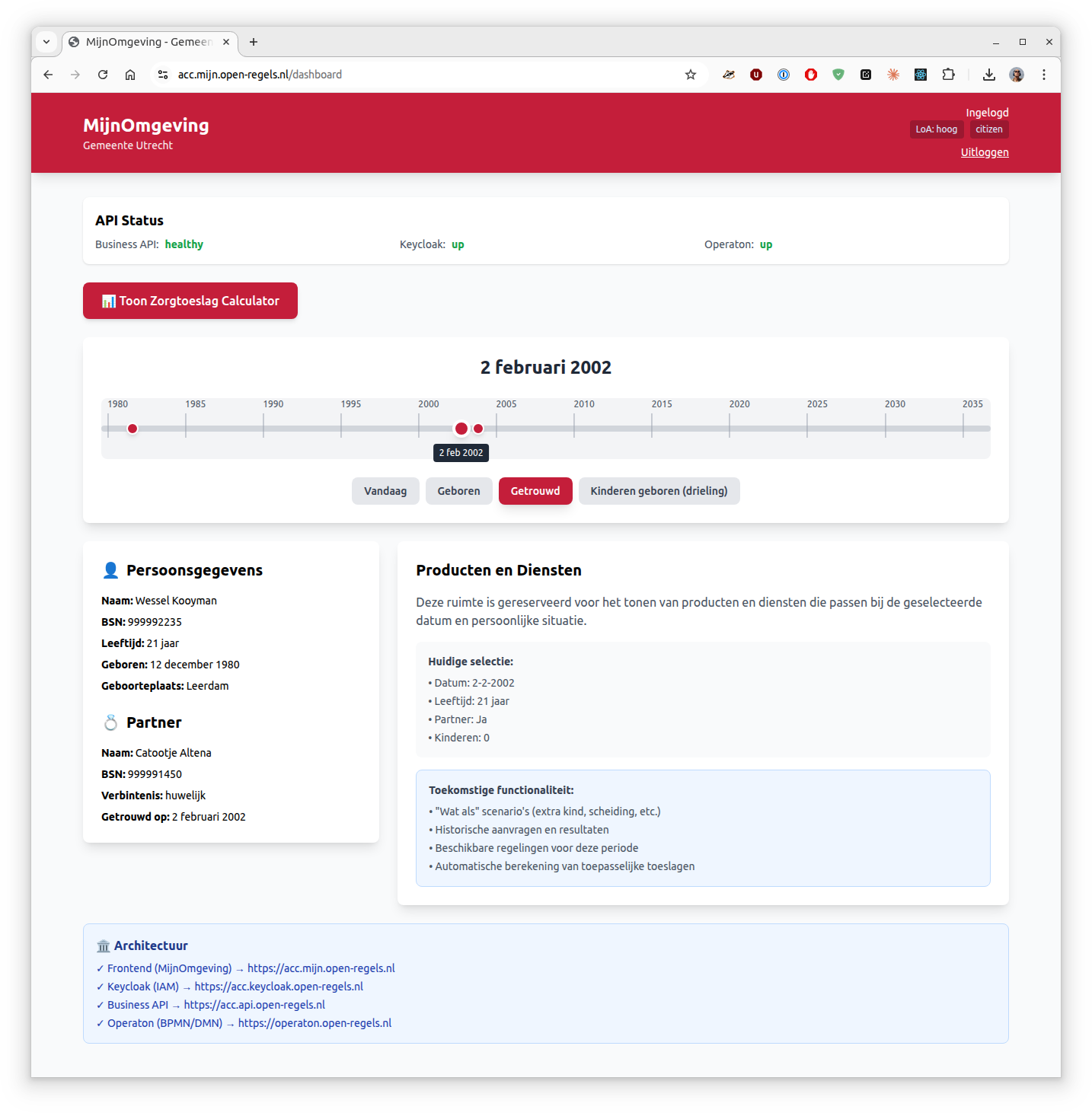
- Timeline bar at the top with your life events
- Your personal data on the left
- Products/services on the right (coming soon)
Using the Timeline
Navigation Methods
You have three ways to move through time:
1. Drag the Slider
- Click and hold the blue circle on the timeline
- Drag left to go back in time
- Drag right to go forward in time
- The date updates as you drag
2. Click Year Markers
- Year markers appear every 5 years (1980, 1985, 1990...)
- Click a year to jump to January 1st of that year
3. Click Event Buttons
Below the timeline, you'll see buttons for major life events:
- Vandaag — Jump to today's date
- Geboren — Jump to your birth date
- Getrouwd — Jump to your marriage date (if married)
- Kinderen geboren — Jump to when your children were born
Tip: The selected button is highlighted in your municipality's color.
Understanding What You See
Personal Data Panel (Left Side)
This panel shows your data at the selected date:
👤 Persoonsgegevens (Your Information)
Always visible, shows:
- Naam — Your full name
- BSN — Your citizen service number
- Leeftijd — Your age at the selected date
- Geboren — Your birth date and place
- Geboorteplaats — Where you were born
💑 Partner (Partner Information)
Only appears after your marriage date, shows:
- Naam — Partner's full name
- BSN — Partner's citizen service number
- Verbintenis — Type of relationship (marriage/partnership)
- Getrouwd op — Marriage date and place
👶 Kinderen (Children Information)
Only appears after children are born, shows for each child:
- Naam — Child's full name
- BSN — Child's citizen service number
- Leeftijd — Child's age at the selected date
- Geboren — Child's birth date
Note: Ages automatically update based on the date you select!
Example Scenarios
Scenario 1: "How old were my children in 2010?"
- Click "Kinderen geboren" button
- Drag slider to 2010
- Look at the Kinderen section
- See each child's age calculated for 2010
Scenario 2: "Was I married in 2000?"
- Drag slider to 2000
- Look for the Partner section
- If it's not there, you weren't married yet
- Click "Getrouwd" to jump to your marriage date
Scenario 3: "What did my household look like when I was 25?"
- Calculate: Birth year + 25 = target year
- Drag slider to that year
- See your complete household at age 25
- Check if you had partner/children at that time
Scenario 4: "Planning for the future"
- Drag slider beyond today
- See how your children's ages will change
- (Future feature) See how benefits eligibility changes
- Plan for when children turn 18, etc.
Tips & Tricks
Quick Date Selection
- Double-click a year marker to jump there instantly
- Use "Vandaag" button to return to present
- Event buttons show tooltips on hover with full descriptions
Understanding the Colors
- Blue circle = Current selected date
- Blue/Red events = Life events on timeline
- Municipality color = Selected buttons and highlights
Reading Dates
All dates are shown in Dutch format:
- Short: 12-12-1980
- Long: 12 december 1980
Ages are always calculated based on the selected date, not today.
What If No Data Appears?
If sections are missing:
- No Partner section = Not married/partnered at that date
- No Children section = No children born yet at that date
- This is normal! Sections only appear when relevant.
Privacy & Your Data
What Data Do We Use?
The timeline uses data from:
- BRP (Basisregistratie Personen) — Your municipal records
- Your DigiD login — To verify your identity
Is My Data Stored?
No. The timeline:
- ✅ Fetches your current BRP data when you open it
- ✅ Calculates historical views in your browser
- ❌ Does NOT store your personal data
- ❌ Does NOT track what dates you view
Who Can See My Timeline?
- Only you — No one else can access your timeline
- Audit logs — System logs that you accessed the timeline (for security)
- No sharing — Your timeline data is never shared with third parties
Your Rights
Under AVG/GDPR, you have the right to:
- Access — Request your audit log data
- Correction — Report incorrect BRP data to your municipality
- Erasure — Request anonymization of audit logs
Common Questions
Q: Why can't I see my address history?
A: Address history (verblijfplaatshistorie) is coming in a future update. Currently, only person/partner/children data is shown.
Q: Can I change my past data?
A: No, the timeline shows BRP data which is the official government record. To correct errors, contact your municipality's BRPloket.
Q: Why does it say I'm 0 years old?
A: You selected your birth date. At birth, age is 0. Move forward in time to see your age increase.
Q: Can I print or export my timeline?
A: Not yet. Export to PDF is planned for a future release.
Q: What are "what if" scenarios?
A: This is a future feature where you can simulate life changes (having a child, getting divorced) to see how they affect your benefits eligibility.
Q: Why do I only see one test person?
A: The test environment currently has one demo persona (Wessel Kooyman). More diverse test data will be added.
Q: How far into the future can I go?
A: You can select dates up to 10 years in the future for planning purposes.
Troubleshooting
Timeline Won't Load
Symptoms: Blank screen, endless loading
Try: 1. Refresh the page (F5) 2. Logout and login again 3. Clear your browser cache 4. Try a different browser
If still not working, contact your municipality's helpdesk.
Events Not Showing
Symptoms: Timeline shows but no event buttons
Possible cause: Your BRP record might not have marriage/children data
Note: If you're single with no children, only "Geboren" and "Vandaag" buttons appear. This is normal.
Wrong Data Displayed
Symptoms: Names, dates, or ages look incorrect
Action:
- Verify the selected date is correct
- Check your BRP data is accurate (contact municipality BRPloket)
- Report the issue to your municipality's helpdesk with:
- Date selected
- What data looks wrong
- Screenshot if possible
Page is Slow
Symptoms: Timeline loads but dragging is laggy
Try:
- Close other browser tabs
- Disable browser extensions
- Use a modern browser (Chrome, Firefox, Edge, Safari)
Keyboard Shortcuts
Coming in future release: - Arrow keys to move timeline - Spacebar to toggle timeline view - Number keys to jump to specific years
Giving Feedback
We'd love to hear your thoughts:
- Like the feature? Let us know what works well
- Found a bug? Report it with as much detail as possible
- Have ideas? Suggest improvements for future releases
Contact: Your municipality's MijnOmgeving helpdesk or support@open-regels.nl
What's Coming Next?
Planned features:
- 📍 Address history — See where you lived at any date
- 🔮 "What if" scenarios — Simulate life changes and see benefit impacts
- 📊 Historical applications — View past zorgtoeslag calculations
- 📄 Export to PDF — Download your timeline
- 🎯 Service matching — See which services you're eligible for at any date
Related Help Articles
Need more help? Contact your municipality's helpdesk or visit your municipality's website.