User guide: applying for zorgtoeslag via Unive
This guide walks through the complete end-to-end journey for the AWB zorgtoeslag cross-organisation scenario. No prior knowledge of the platform is needed — follow the steps in order.
What this demonstrates: A citizen logs into a private insurer's (Unive) portal, calculates their zorgtoeslag entitlement, submits a formal AWB application, and receives a decision — all without leaving the Unive environment. The application is handled by a Dienst Toeslagen caseworker on the government side.
Environment: https://acc.mijn.open-regels.nl
Step 1 — Log in as the Unive citizen
Open https://acc.mijn.open-regels.nl in your browser. You will see the login choice screen. Click Inloggen met DigiD to proceed to the Keycloak login form and enter the following credentials:
| Field | Value |
|---|---|
| Username | test-citizen-unive |
| Password | test123 |
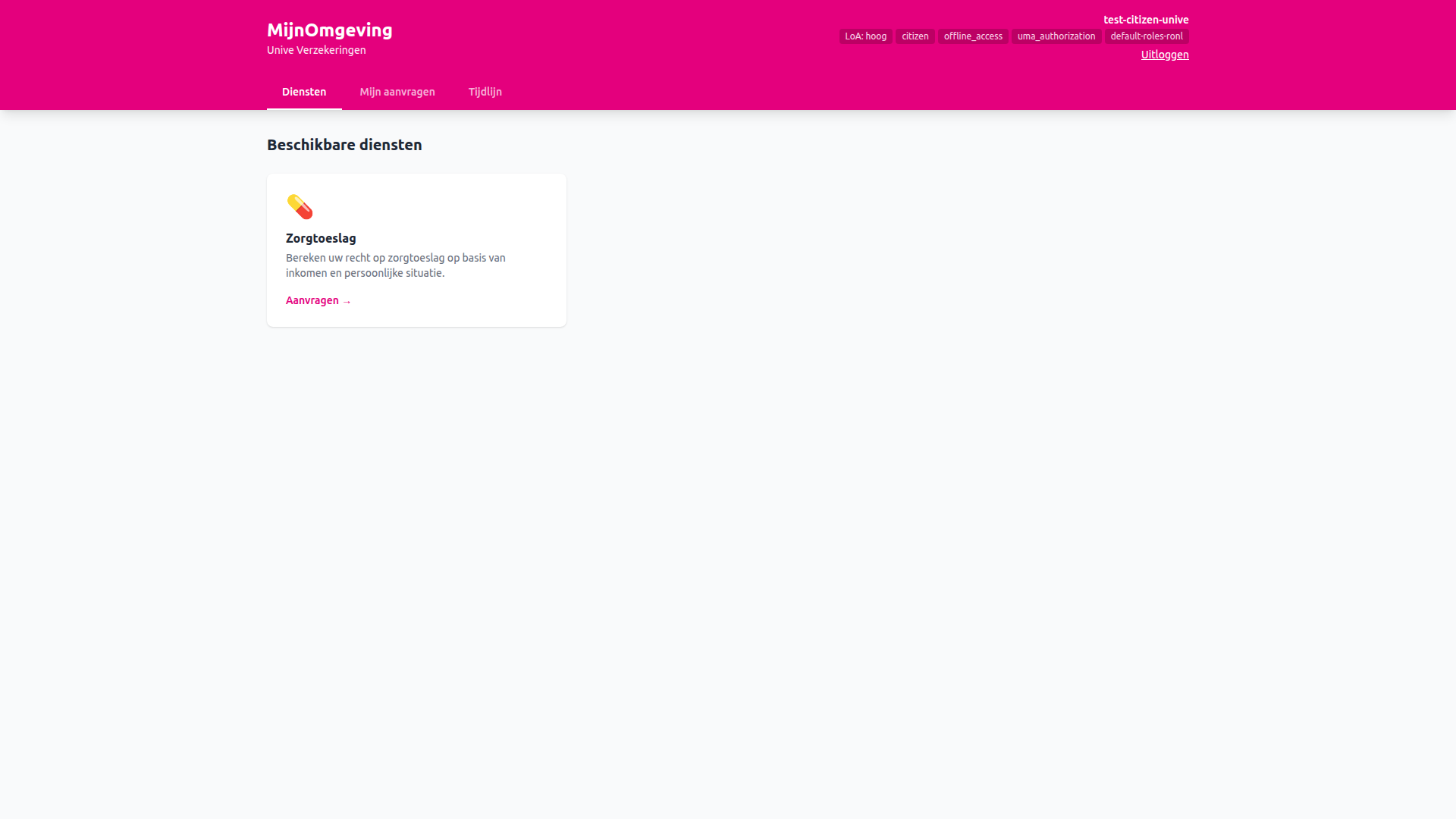
After login you are redirected to MijnOmgeving. The portal renders in the Unive theme — a magenta/pink primary colour. The header reads Unive Verzekeringen.
Step 2 — Calculate and apply for zorgtoeslag
Click the Zorgtoeslag service card. The zorgtoeslag view opens with a calculator card and an Aanvragen button.
2a — Run the calculation (optional but recommended)
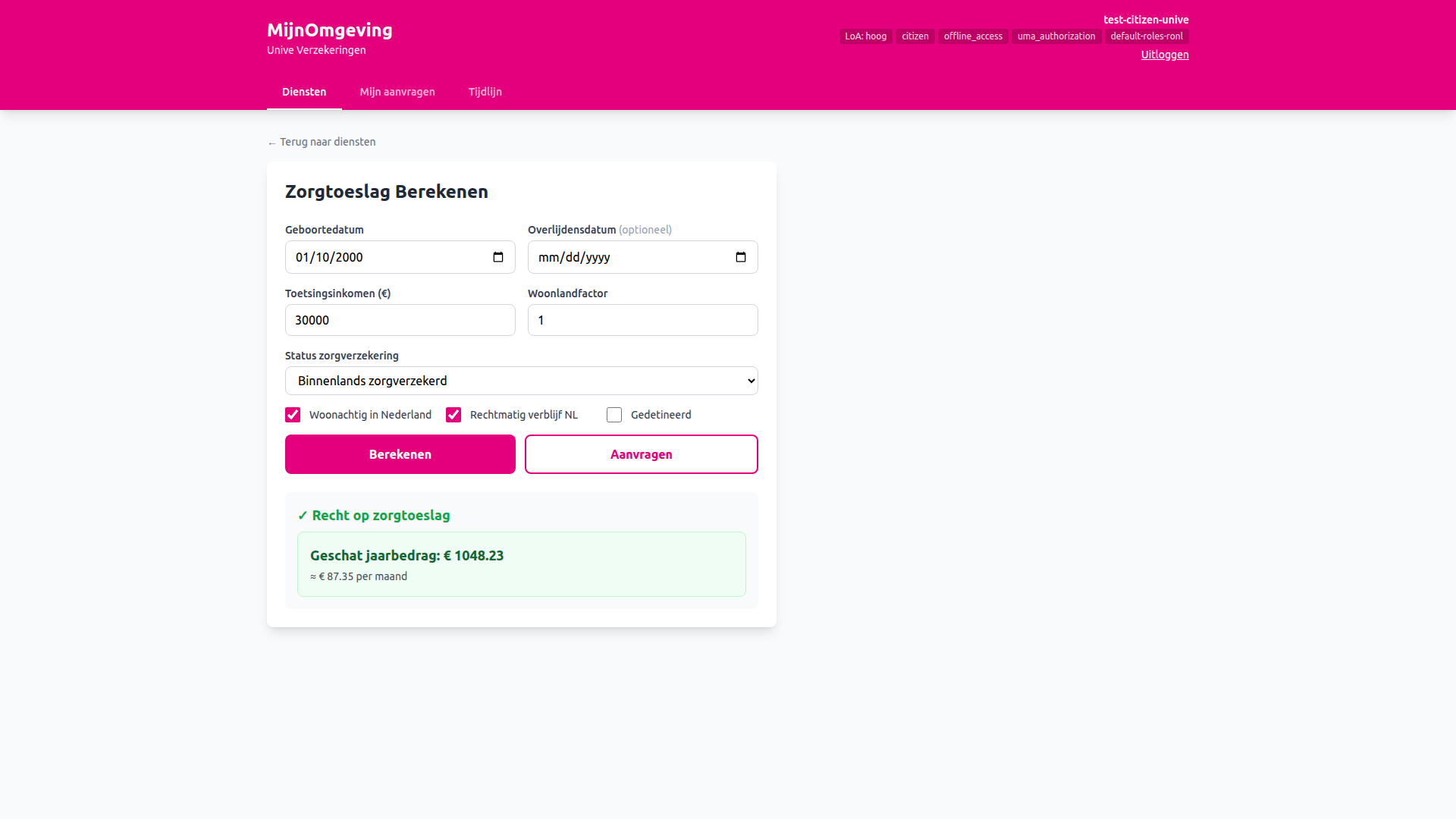
Fill in or adjust the following fields in the Zorgtoeslag Berekenen card:
| Field | Example value |
|---|---|
| Geboortedatum | 2000-01-10 |
| Toetsingsinkomen | 30000 |
| Woonlandfactor | 1.0 |
| Status zorgverzekering | Binnenlands zorgverzekerd |
| Woonachtig in Nederland | ✅ |
| Rechtmatig verblijf NL | ✅ |
| Gedetineerd | ☐ |
Click Berekenen. The result card shows whether there is entitlement and the estimated annual and monthly amounts.
2b — Submit the application
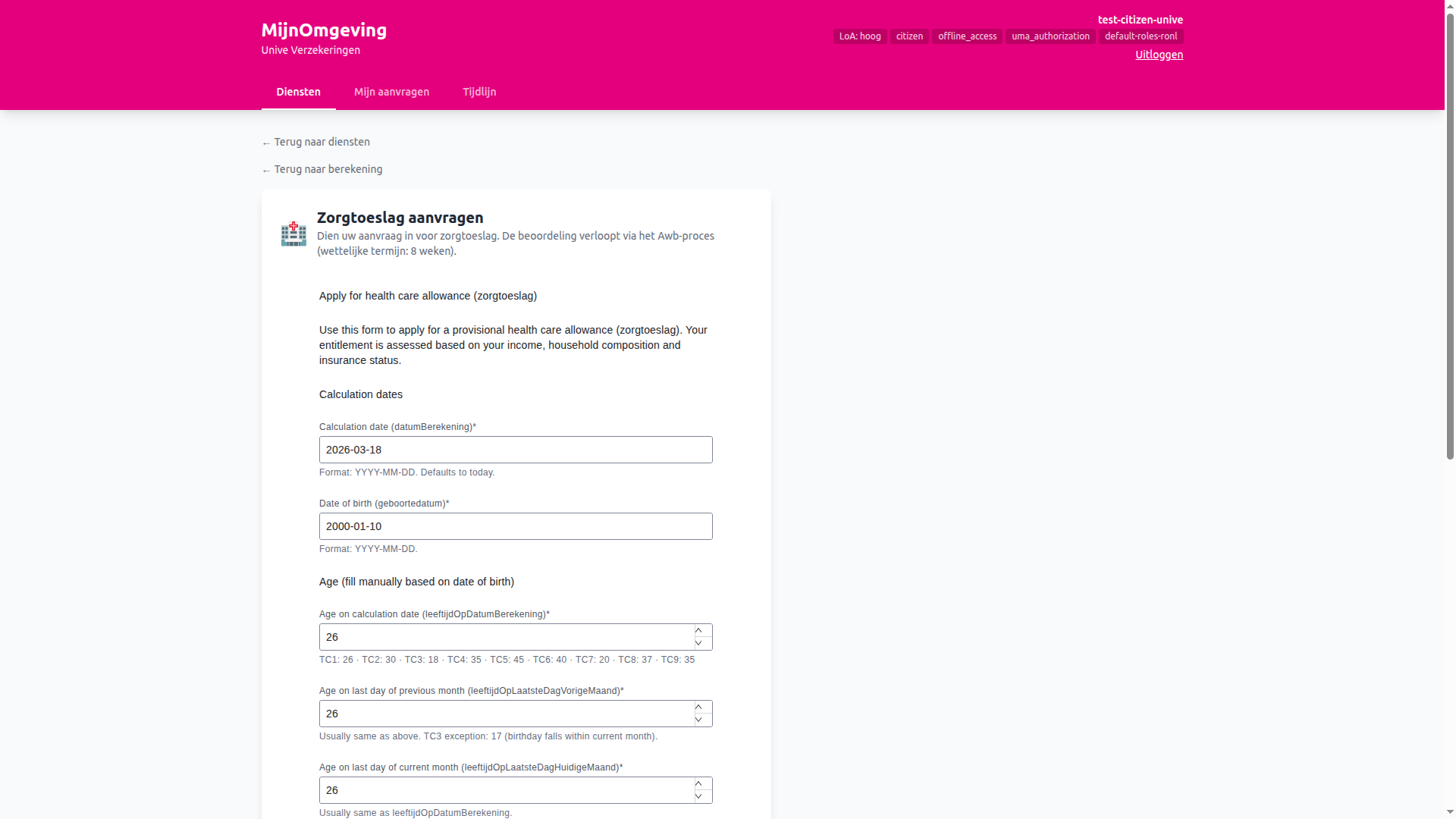
Click Aanvragen. The view switches to the Zorgtoeslag aanvragen card, which renders the deployed zorgtoeslag-provisional-start form via the Operaton process definition. The form fields are pre-filled from the values you entered in the calculator. Review the pre-filled values and submit the form to start the AwbZorgtoeslagProcess.
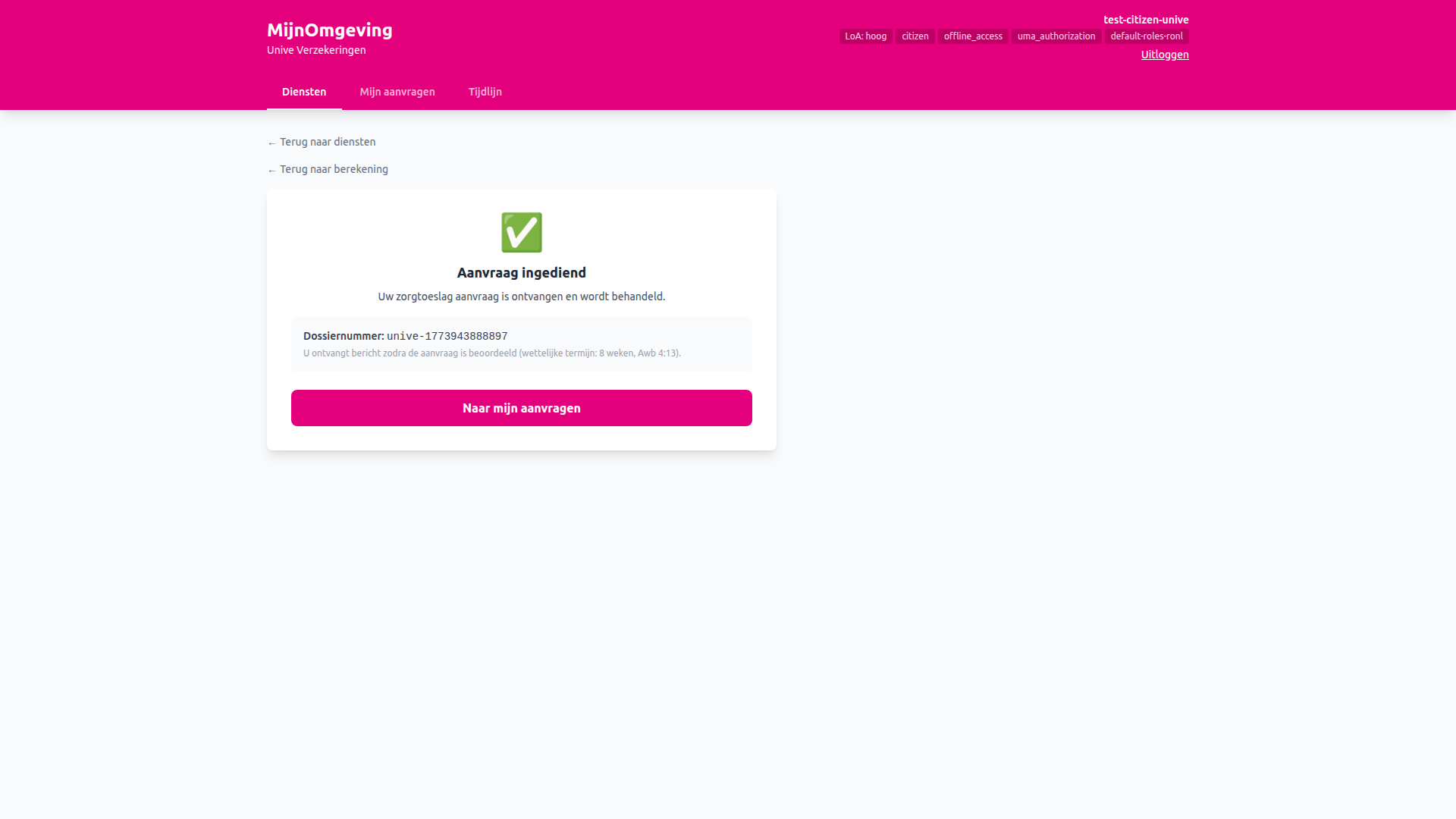
After submission a success card appears showing the dossiernummer. The process is now running under Dienst Toeslagen (municipality = toeslagen).
Step 3 — Process the application as the Toeslagen caseworker
Open a new browser session (incognito or a different browser) and go to https://acc.mijn.open-regels.nl. Click Inloggen als medewerker on the login choice screen and enter the following credentials:
| Field | Value |
|---|---|
| Username | test-caseworker-toeslagen |
| Password | test123 |
Navigate to the Taken section in the left panel. The zorgtoeslag task submitted by the Unive citizen appears in the task queue.
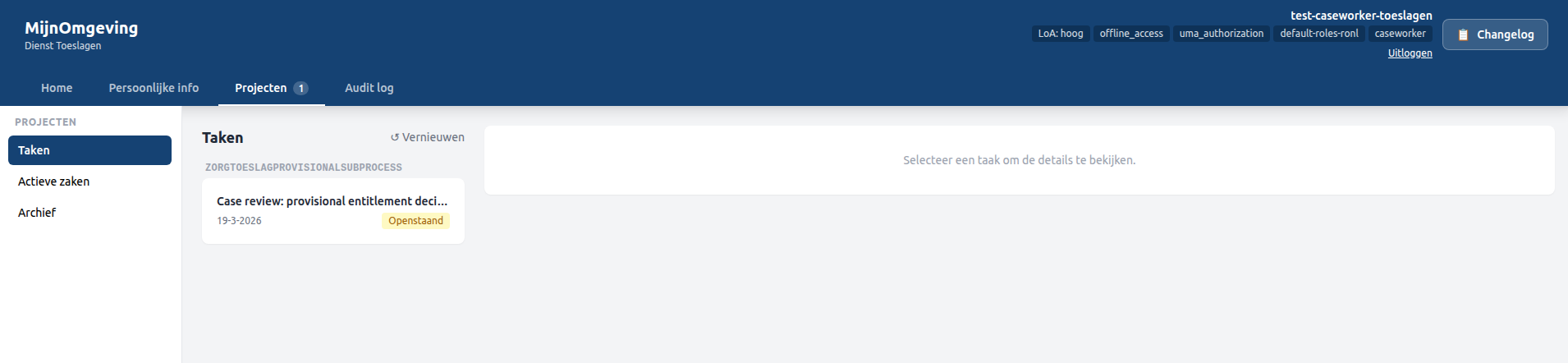
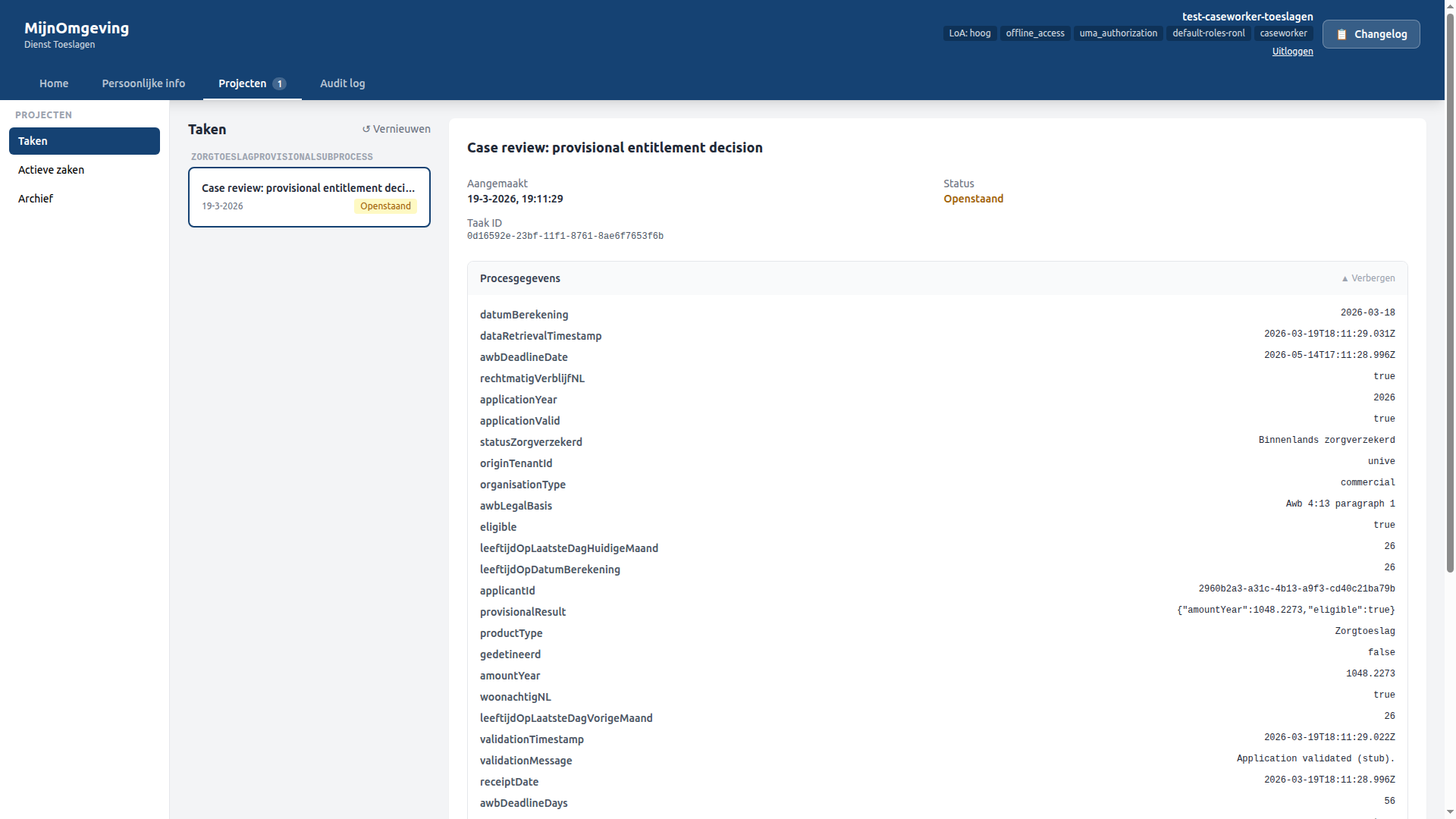
Click the task to open the detail panel. Click Claimen to assign it to yourself. The status changes to Geclaimd.
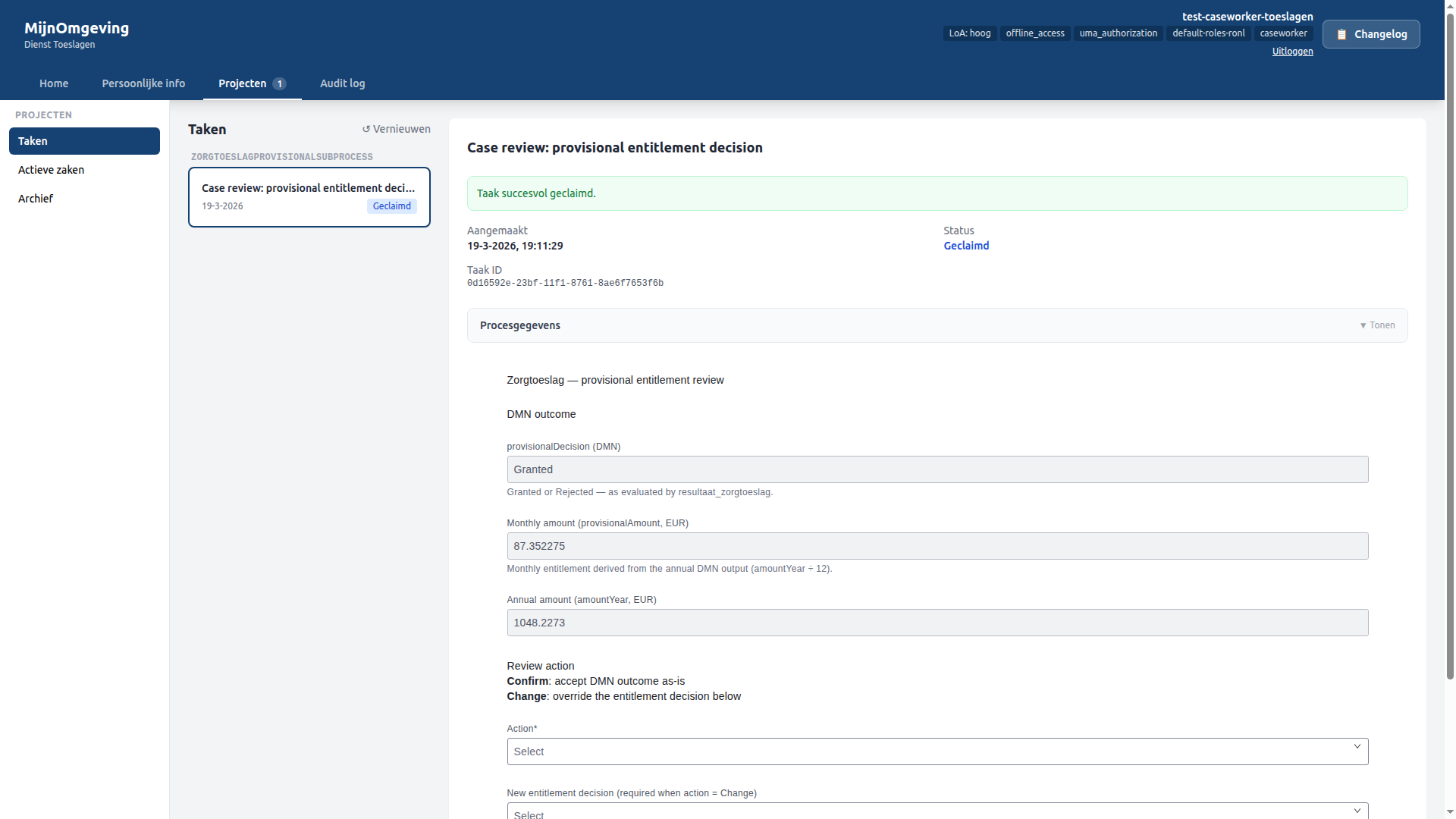
The task form renders via TaskFormViewer. Fill in the review fields and click Submit review to complete the task. Work through any subsequent tasks (Sub_CaseReview, Task_Phase6_Notify) in the same way until the process reaches its end event.
Step 4 — View the decision in the Unive portal
Return to the first browser session (the Unive citizen). Click Mijn aanvragen in the tab bar. The dossier appears in the list with the label Zorgtoeslag aanvragen and the status Afgerond.
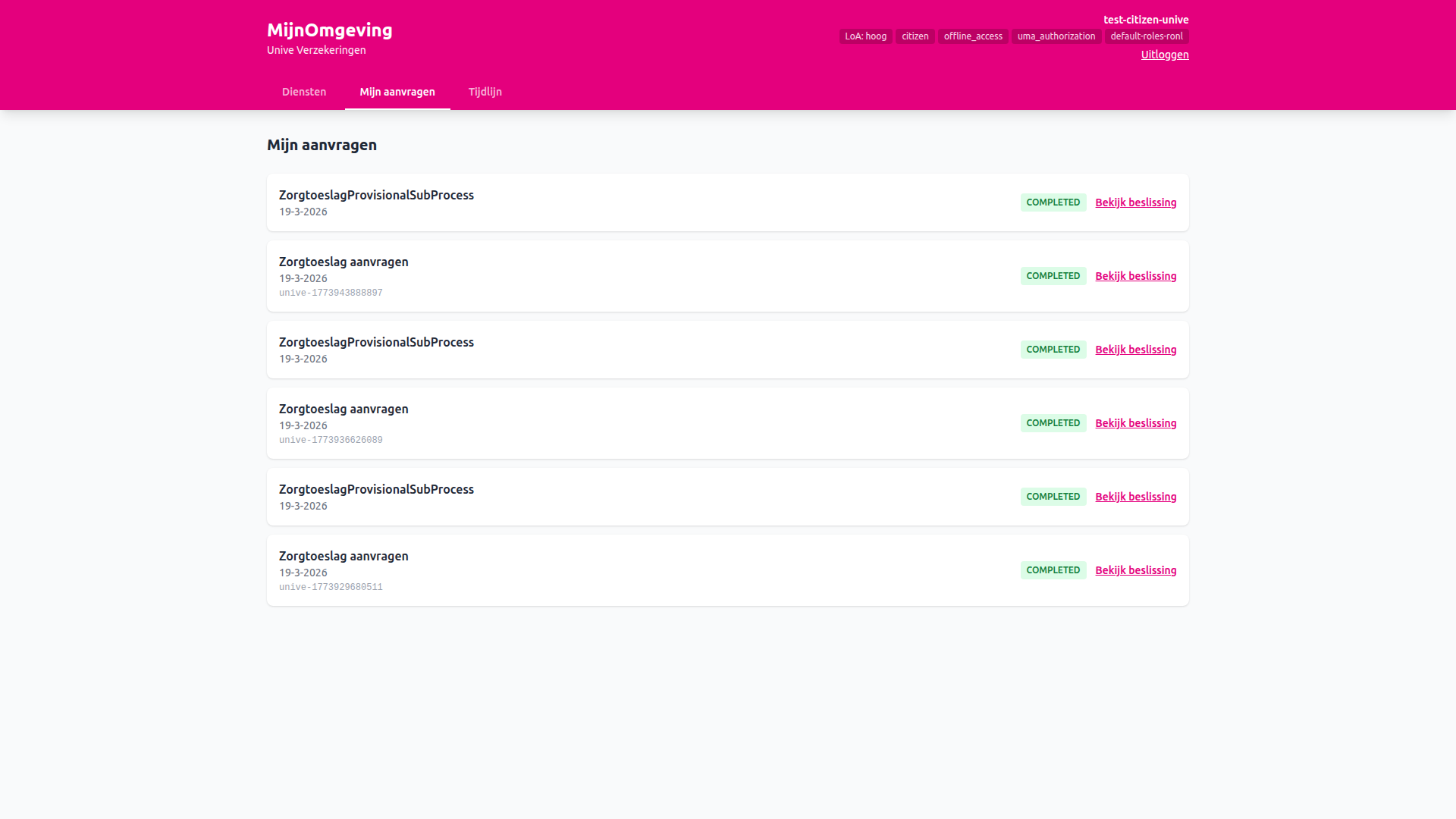
Click Bekijk beslissing on the dossier row. The DecisionViewer component fetches the document template bundled in the process deployment and renders it with the final process variables — including the provisional decision, amounts, and dossier reference.
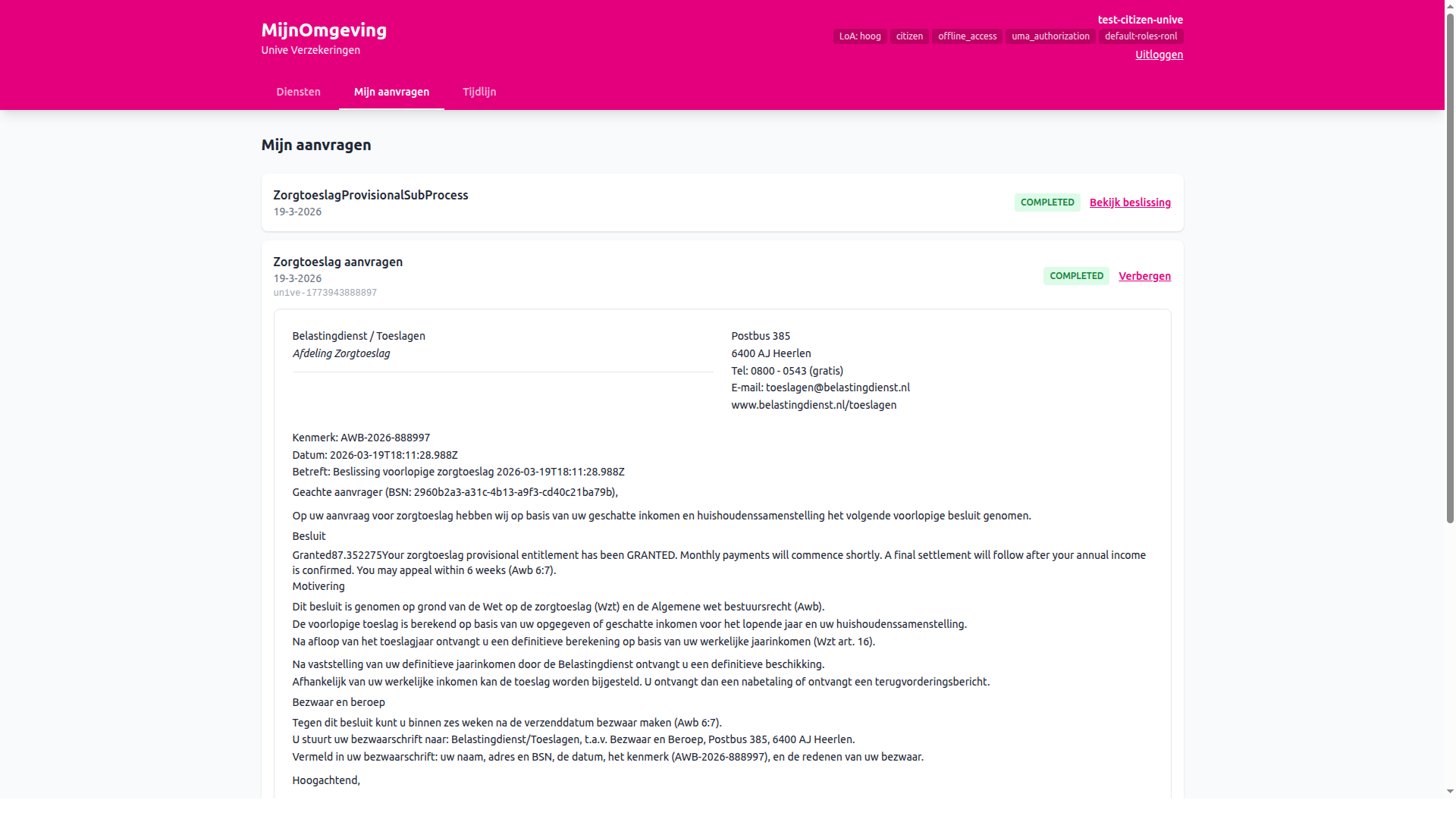
The citizen has now received their zorgtoeslag decision entirely within the Unive MijnOmgeving, while the process was handled by Dienst Toeslagen.